Conversation insights
Support conversations contain useful patterns: recurring topics, unresolved issues, and customers who need a follow-up. Insights turn those conversations into a table you can review, classify, query, and send as a weekly report. Each conversation has one row, plus a summary at the length you choose.
Start with the table
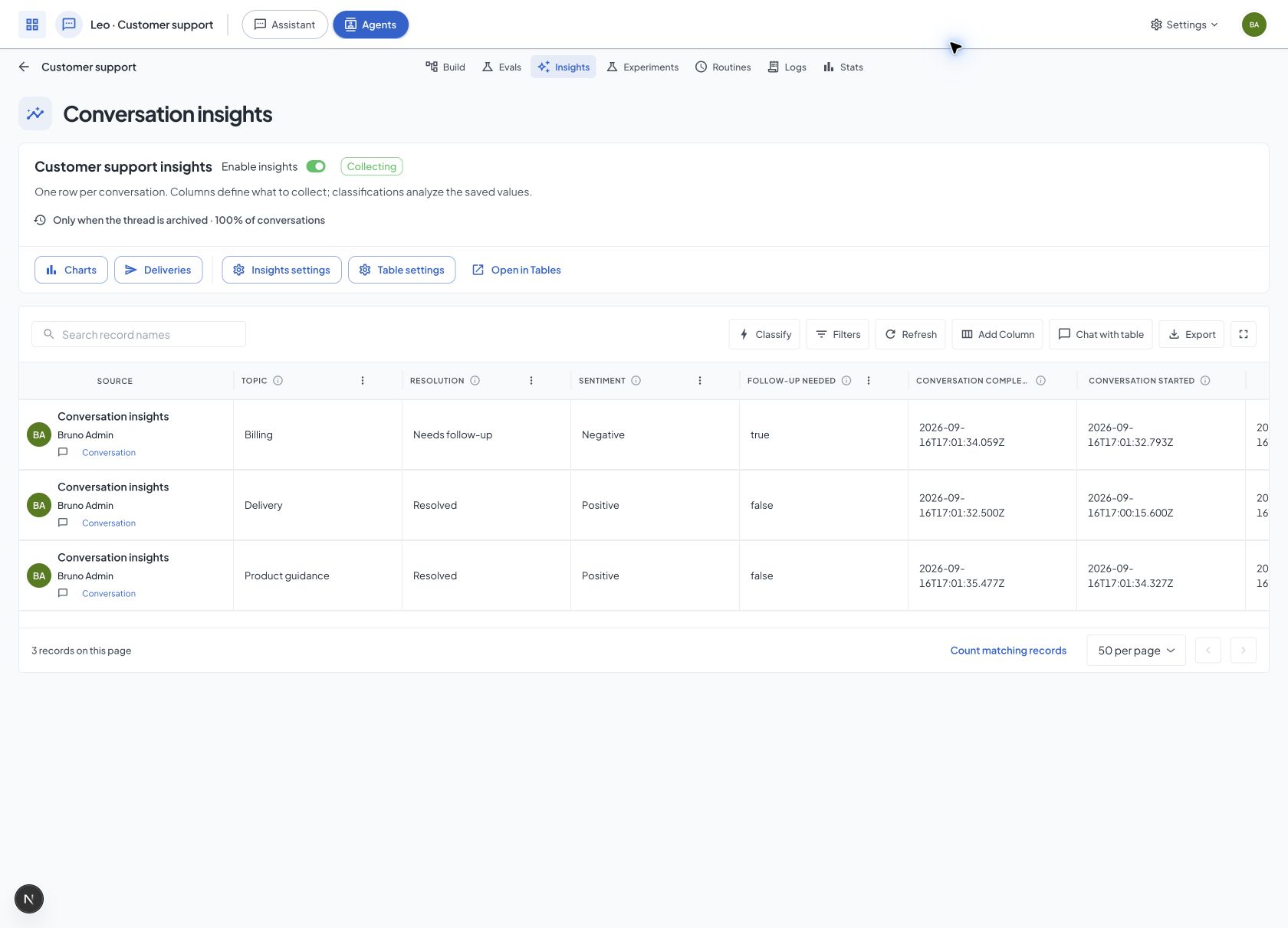
Open your application, choose an agent, and open Insights. You see its table and the current generation timing above it.
- Review the suggested columns, or use Add Column to define your own.
- Open Insights settings to choose when extraction runs, sampling, and summary instructions.
- Turn on Enable insights beside the table name. The switch saves immediately. Enabled Insights always keeps the table updated.
Opening this page does not start extraction or create a table. The Insights switch controls extraction and table updates together. Turning the switch back on reuses the existing table and its saved columns.
Choose when insights are generated
Open Insights settings. Generation starts expanded, with the same timing and summary controls used for conversation insights. Save stays visible while you scroll through the settings.
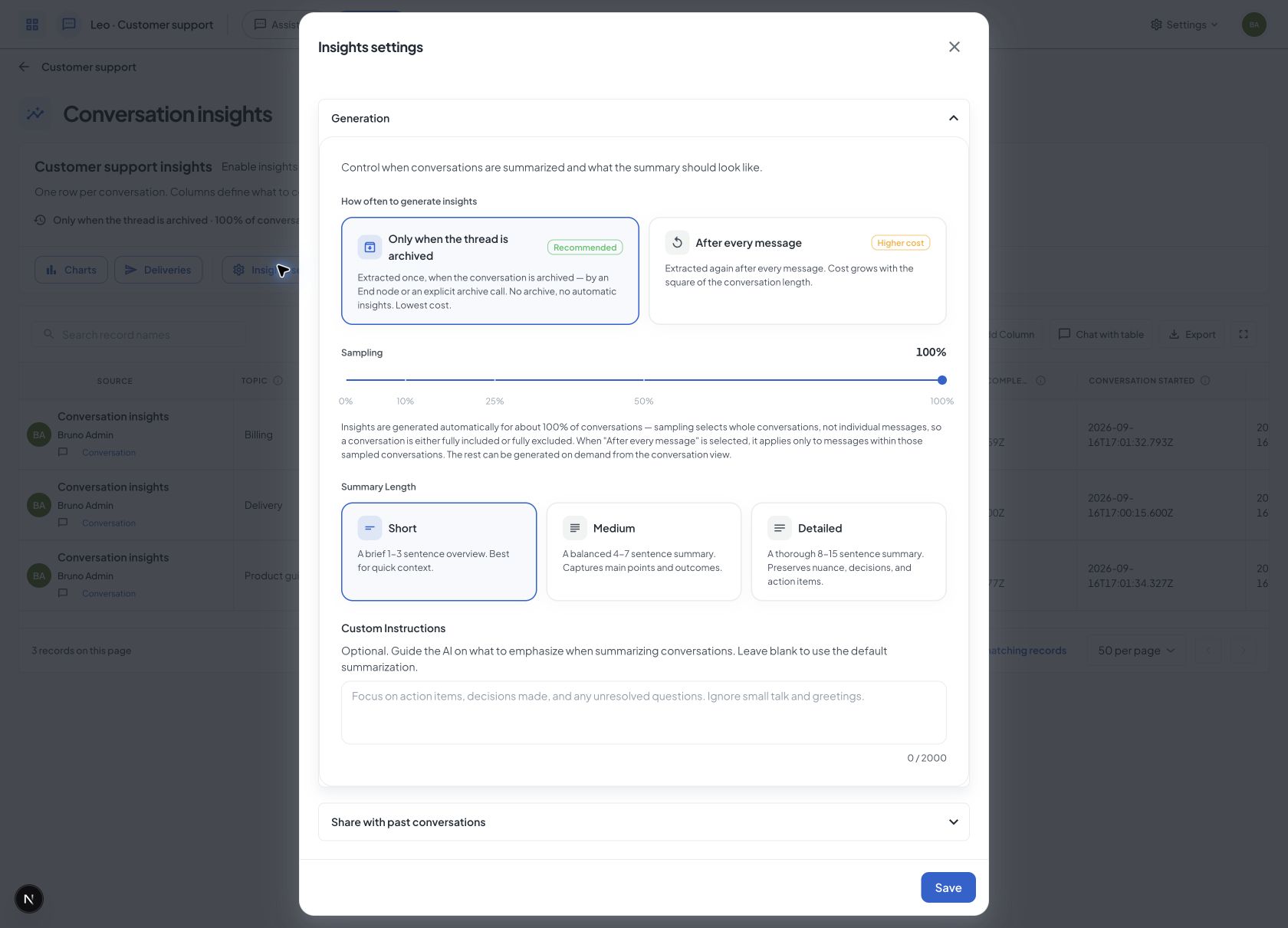
- Only when the thread is archived (default): extraction runs once, when the conversation is archived.
- After every message: extraction refreshes after every agent reply. Good for live dashboards, but know the cost shape before you pick it: each refresh re-summarizes the whole conversation from scratch, not just the new message. That means the work, and the bill, grows with the square of the conversation length, not linearly with it. A conversation twice as long costs roughly four times as much to keep summarized on
everyTurn. This applies only to messages within conversations selected by sampling. The rest of the conversations get no automatic extraction at all, at any frequency.
"Archived" is the real trigger, and it has a precondition. It means one of two concrete events: the agent's workflow runs an End node with "reset conversation history" enabled (which archives the thread), or the thread is archived directly (via the archive API, or the in-app archive button). There is currently no scheduled or inactivity-based archiver. Nothing in Docana closes a thread just because it went quiet. If your agent's workflow has no End node and nothing ever calls the archive API for its threads (a typical always-open, WhatsApp-style agent), onEnd will produce no automatic insights at all, not just delayed or partial ones. If that describes your agent, either add an End node that resets history when the conversation is logically done, archive threads explicitly from your own backend, or switch frequency to everyTurn.
Archiving a thread through the API, and generating insights on demand from the conversation view, always extract, regardless of which frequency you picked above. That's the escape hatch for the sampled-out case below.
To archive a thread from your backend:
curl -X POST "https://platform.docana.com/api/v1/threads/${THREAD_ID}/archive/" \
  -H "Authorization: ApiKey ${DOCANA_API_KEY}"
Control cost with sampling
Frequency decides how often a conversation gets re-extracted; sampling decides which whole conversations get extracted automatically at all. It picks a percentage of conversations, not a percentage of messages. Set it below 100% and the agent skips automatic extraction for the rest of the conversations, at whatever frequency you configured above.
Sampling is decided once per conversation, not once per message: a thread is either in the sampled set for its entire life or out of it for its entire life. That's deliberate. A conversation that flipped in and out between messages would leave you with a partial insight history, and no chart or aggregate built on top of that is trustworthy. Dial sampling to 10% and roughly 1 in 10 conversations gets full insight coverage from start to finish. The other 9 get none automatically. This applies to every automatic extraction: after-every-message and an End node's automatic archival alike. In particular, when frequency is set to After every message, that per-message extraction only ever runs for messages that belong to a sampled conversation. Conversations outside the sample never trigger it, no matter how many messages they get.
Explicitly requested extraction is exempt from sampling. It always runs, no matter the rate. That covers archiving a thread through the API and generating insights on demand from the conversation view: both are a caller (you, a teammate, or your own backend) asking for insights on one specific conversation, and sampling never overrides an explicit ask. If a conversation was sampled out, its insights panel shows a Generate insights button that produces a snapshot on demand. This is the reason sampling is safe to turn down in the first place.
The honest caveat: lowering sampling weakens Share insights across past conversations. That feature injects a past conversation's summary into a new one, and it can only inject a summary that exists. If sampling means most past conversations were never automatically summarized, there's less for it to draw on, and returning customers are more likely to end up repeating themselves. If you rely on that feature, don't lower sampling without weighing the tradeoff.
Shape the summary
Pick a summary length:
- Short: 1 to 3 sentences. Quick context.
- Medium: 4 to 7 sentences. The default for most teams.
- Detailed: 8 to 15 sentences. For compliance or hand-off reviews.
Add custom instructions to steer it, like "Focus on action items, decisions made, and any unresolved questions."
Define columns
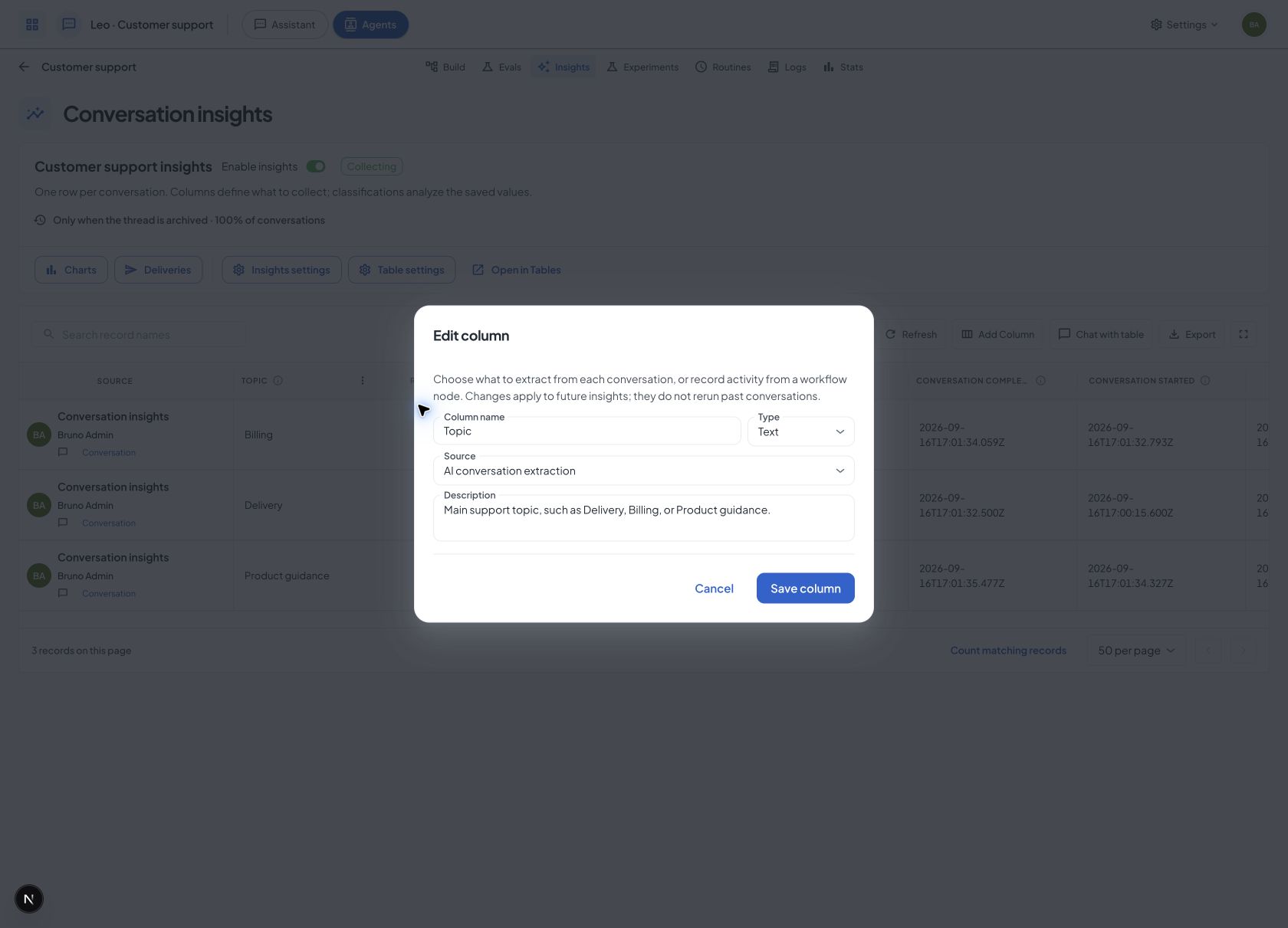
Choose Add Column, or open a column's menu to edit it. Each extracted column is a data point in the conversation's insights:
- Column name: a name such as Customer Sentiment.
- Type: text, number, or boolean (yes/no).
- Source: AI conversation extraction, a workflow node being reached, or its execution count.
- Description: what to extract, such as "The customer's overall mood by the end of the conversation. Use Positive, Neutral, or Negative."
New setups suggest sentiment, topic, and resolution. You can define up to 50 extracted columns. Editing a column keeps its identity and its collected values. New instructions apply to future extractions; they do not clear existing values or re-extract past conversations. A later extraction for the same field updates its value in that conversation's row.
New columns stay empty for older conversations until those fields are extracted. If you want to ask a different question, add a new column rather than reuse an existing column's identity. Removing a column stops collecting it and removes it from the table, while preserving existing conversation insight history.
A yes/no or number column can also decide the winner of an A/B experiment. Text columns describe a conversation, but two versions cannot be ranked by them.
Measure workflow events without AI
Some questions do not need a model to answer them. "Did this conversation reach the handoff step?" is a fact the workflow already knows. A data point's Source decides how its value is produced:
- AI conversation extraction (the default): a model reads the conversation and follows your description.
- Node reached: yes or no, did the workflow visit the node you pick. The type is locked to Boolean.
- Node execution count: how many times the workflow visited that node. The type is locked to Number.
Pick a source, then pick the node from the agent's current draft. Node-sourced points cost nothing to compute, give the same answer every time, and can be measured over past conversations (see backfill). That makes them the best winner metric for an experiment.

Two things to keep straight. A visit means the workflow executed that node, including executions that failed there. It does not mean an external action succeeded or a business outcome happened. And the node belongs to a specific version of the agent: if a later draft removes or replaces it, the point keeps its saved binding until you pick another node.
Backfill node insights over past conversations
AI extraction only covers conversations that were sampled when they happened. Node-sourced points can look backwards, because the execution history is already stored. In Insights settings, Backfill node insights measures saved node points for conversations created inside a date range.

How it counts:
- The range selects conversations by creation date. Each selected conversation is measured through the end of the range, not cut off at its start.
- The range can span at most 366 days and must end in the past.
- Progress reports conversations processed and, separately, point observations that were measured or unavailable. Large ranges run in batches of 100 conversations. Stop after the current batch, retry a failed one, or resume where you left off.
Backfill never invents evidence. A conversation whose history was pruned, whose version is gone, or whose execution records predate history tracking comes back as unavailable, not as zero. It also does not rerun AI extraction, and it leaves existing AI observations untouched.
See the results
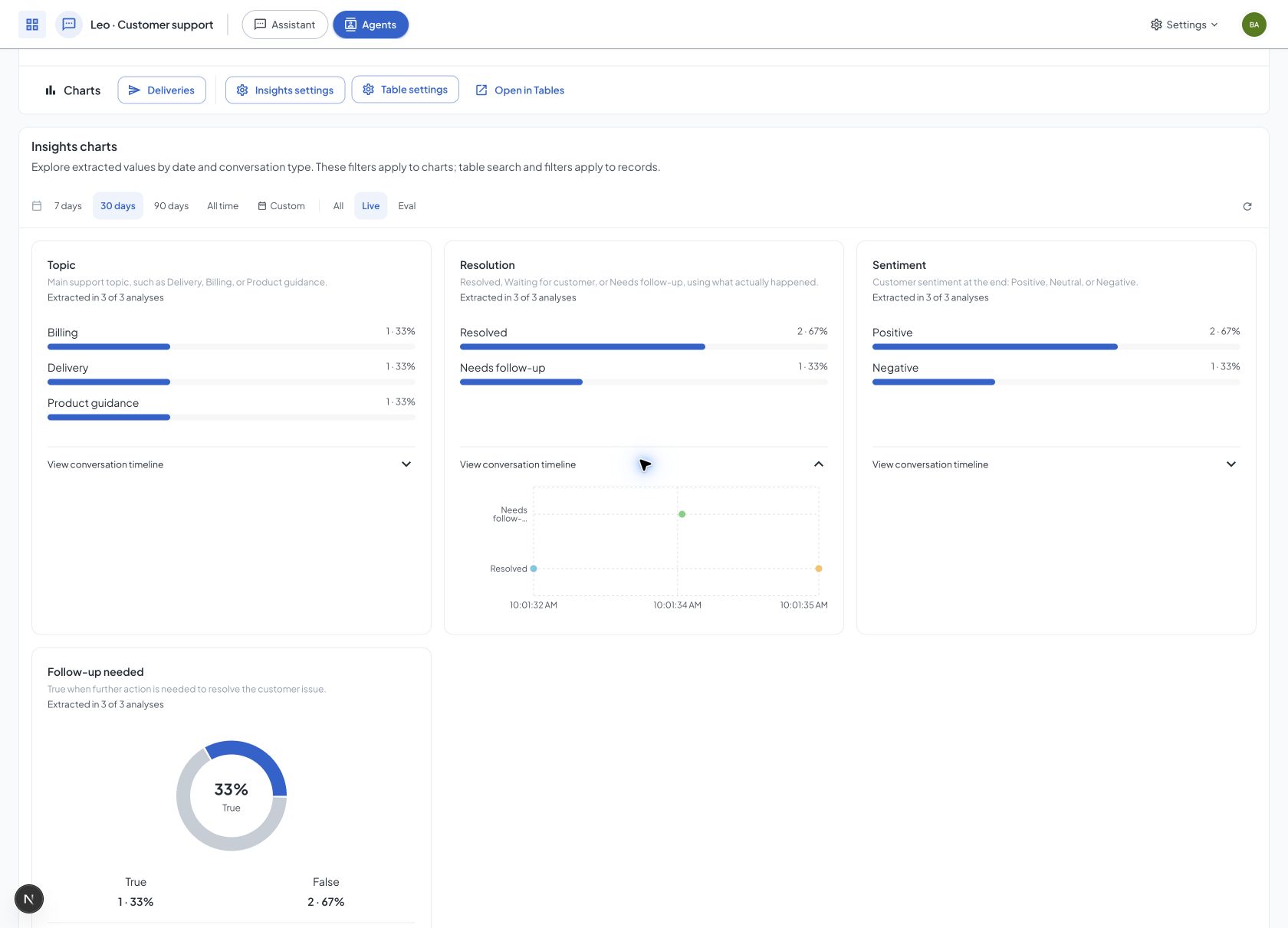
Review rows directly in Insights. Choose Charts to see the patterns above the table:
- Text uses ranked bars with full labels, counts, and percentages.
- Yes/no fields show the split in a donut and a readable legend.
- Numbers show average, median, minimum, maximum, and values over time.
Expand Conversation timeline for individual observations and links to their conversations or executions. Each timeline shows at most the latest 500 observations. Counts, percentages, averages, and other summary statistics still include all matching observations in the selected date range. Conversation details load when a timeline is visible.
Use the date range and Live/Evaluation filters to narrow the charts. These filters are separate from the table filters and pagination.
Charts describe extracted insight observations, including repeated observations when extraction runs after each message. The table keeps one current row per conversation. Classification columns are available in the table, but are not included in these extraction charts.
Stats remains focused on execution performance, duration, errors, and evaluations.
Use the table and send reports
The table in Insights is the same managed Table available under Tables. Open in Tables opens that same resource. Both views share filters, chat on the left, export, fullscreen, classifications, and deliveries. Document upload and document extraction controls stay hidden because conversations supply these rows.
Use Classify to add a classification column, such as Follow-up priority, based on saved resolution and sentiment values. Reclassifying it does not extract the conversations again.
Choose Deliveries to set up a weekly report. Include all matching records, filter Conversation completed to the reporting period, and choose a Friday schedule. Add a PDF or chart to summarize topics and resolution rates. Starting Insights does not schedule or send anything.
Compatible saved insights are included automatically, without another AI extraction. There is no history checkbox or separate synchronization switch: enabled Insights updates its table automatically. Turn off Enable insights beside the table name to pause extraction, sharing, and table updates together. Existing rows remain available, and you can still edit their column definitions.
Each conversation keeps one row, updated when compatible insights change. Its original insight history remains available. Conversation started, Conversation completed, and Insights updated record the relevant dates. Sampling and frequency still determine which conversations produce results. Missing or incompatible observations appear as empty cells.
Creating a table follows your plan's table pricing and budget. Resuming updates reuses the existing table. Imported agents with enabled Insights and configured fields also create their table. A failed conversation sync retries independently while other conversations continue.
Source conversation permissions and table row policies still apply. Sharing a table does not grant access to private conversations.
Use the same configuration through the API, CLI, or MCP.
Remember users across conversations
In Insights settings, expand Share with past conversations and turn on Share insights across past conversations and the agent receives summaries of a user's previous conversations when a new one starts. Customers stop repeating themselves, and the agent picks up where things left off.
This depends on past conversations actually having summaries. If you've turned sampling down (see Control cost with sampling), fewer of them will. Weigh that before lowering the rate on an agent that leans on this feature.
Best practices
- Start with the suggested data points: they cover what most teams ask first. Add custom ones when real questions come up.
- Write descriptions like instructions: the description is a prompt. "Whether the user asked about pricing" extracts better than "pricing".
- Prefer yes/no or fixed labels for categories: use a boolean column or a classification with named choices.
- Use archive mode for outcome reporting: if you only read insights weekly, don't extract them on every message.
Next steps
- A/B Testing: Use a data point to decide whether a new version of the agent is better
- Testing Agents: Catch problems before they show up in your insights
- Routines: Run an agent on a schedule, like a weekly insights report