Automate tables
Use the same table from Docana, your application, or an assistant. For example, an employee can collect expenses, a classification can flag records for review, and a delivery can email a weekly report. Each step works with the saved data in that table.
Start with Tables for the interface, use cases for examples, or the API reference for request fields and responses.
Choose your interface
The API, CLI, and MCP use the same operations and permissions. Set up API authentication, the CLI, or an MCP client. API keys need Full access and remain limited by their owner's access.
The examples below use the CLI. Each linked API operation also has its request schema and an MCP example. Use docana tables --help for command options, or the OpenAPI document to generate a client.
Create a table and its columns
Create a table, then add its columns. Supply JSON files matching the linked request schemas:
docana tables create table.json
docana tables columns add table_id columns.json
docana tables columns list table_id
Use the returned table and column IDs in later requests. Keep these IDs when display names change. Before retrying a timed-out creation, list the tables or columns to see whether it succeeded.
Choose columns for the facts you need: vendor, amount, currency, and approval status, for example. Extract facts that need the source document or conversation. Save known values directly. Add classification columns for decisions made from those saved facts.
Keep a table updated from a collection
Connect a collection to process its new or changed documents automatically:
docana tables watches connect table_id collection_id
docana tables watches list table_id
A new connection includes existing ready documents. Use --new-only to start with future arrivals, or --pause to review pending work before processing. Discovery and extraction run in the background. Check connection errors and row processing states before consuming results.
Employee preparation creates paused connections so you can review them first. Direct CLI connections start processing unless you pass --pause. See connected collections for the workflow and the connection reference for pause, resume, and discovery-preview behavior.
Save records from an agent or integration
Use Save record to table in an employee workflow, or save a record from another system:
docana tables add-row table_id record.json
Use the table's column IDs as the keys in values. Include a stable idempotencyKey, such as expense:EXP-123, and reuse it with the same payload after a timeout. A different key creates another record. Supplied values keep their JSON types and do not incur another extraction call. Omit classification columns, which compute their own values.
Docana records native conversation and execution details for employee saves. External callers receive API provenance and can supply their own reference. Sharing a table does not grant access to its source conversations. See the record reference for evidence documents, retry conflicts, and limits.
Collect conversation insights
Conversation insights keeps one table row per conversation and updates it as new insights arrive. Configure extraction fields, timing, sampling, and sharing through agent insights settings. Enabled Insights with configured fields keeps its table synchronized. There is no separate synchronization switch.
docana agents insights table get --agent-id agent_id
The connection status returns the table ID and links. Use that table with the same row, classification, and delivery operations as any other table. Prepare or reconcile the connection when you need to copy compatible existing observations without another extraction call.
For a weekly support report, select all matching records and filter the Conversation completed date column. New-record deliveries send each newly ready conversation once. Later insights update that conversation's existing row. The chart aggregate reference covers distributions and timelines. Counts and statistics include all matching observations, while each timeline returns at most 500 points. To enrich those points, request their execution IDs in tooltip batches of up to 50. Without IDs, that endpoint returns up to 500 recent executions.
Classify saved records
A classification makes a decision from selected saved columns. It can combine resolution and customer impact into follow-up priority without rereading the source conversation or extracting the table again.
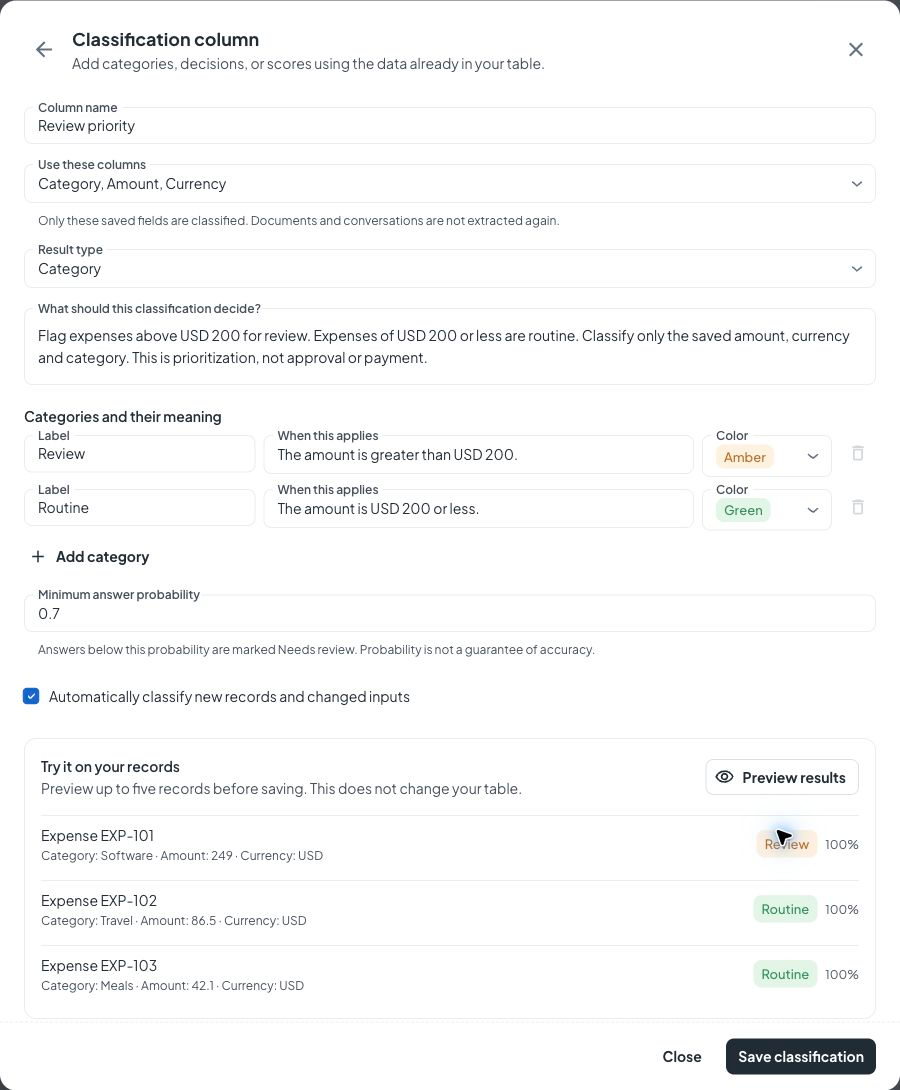
Preview a rule, create it, and check progress:
docana tables classifications preview table_id classification.json
docana tables classifications create table_id classification.json
docana tables classifications get table_id column_id
Preview consumes AI usage without saving results. Creating a rule queues its first run, even if automatic updates are off. Read saved values through the standard rows operation. To reclassify, choose changed inputs, missing results, or all records. A queued response means processing has started, not that results are ready.
Inspect one saved decision with the optional row ID:
docana tables classifications get table_id column_id --row-id row_id
The same get operation accepts rowId through the API and MCP. It returns the latest authorized row result, including status, probability, duration, saved time, and whether its inputs or rule have changed. A null result means no classification result has been saved for that row. Reading it does not start a run. For boolean results, the API probability is the probability of true; use 1 - probability for a displayed false answer.
The classification guide explains input columns, categories, probability, colors, and limits. The reference documents the complete configuration and rerun options.
Read table data as JSON
Read live rows to use the saved values in another system:
docana tables rows table_id --limit 100 --sort source > rows.json
Read row.values[column.id] for each value and row.cellStatus[column.id] for its state. Only COMPLETED values are ready to consume. Read requests apply the caller's current table and source permissions.
Follow the returned pagination mode and continuation until there are no more pages. Keep the same filters and sort order. The rows reference documents cursor and page modes, search, typed filters, counts, and how to restart an invalidated cursor. Use Export when you need a CSV instead of JSON.
Saved deliveries
Deliveries combine selected records, a trigger, and a destination. Start with a paused rule, check its records, then review the report before enabling external sends:
docana tables deliveries preview table_id selection.json
docana tables deliveries create table_id delivery.json
docana tables deliveries history table_id delivery_id
Record preview needs only the selection. It does not send anything or generate assets. Create a delivery to choose email or webhook, recipients, schedule, filters, and report format. Employee preparation keeps deliveries paused for review.
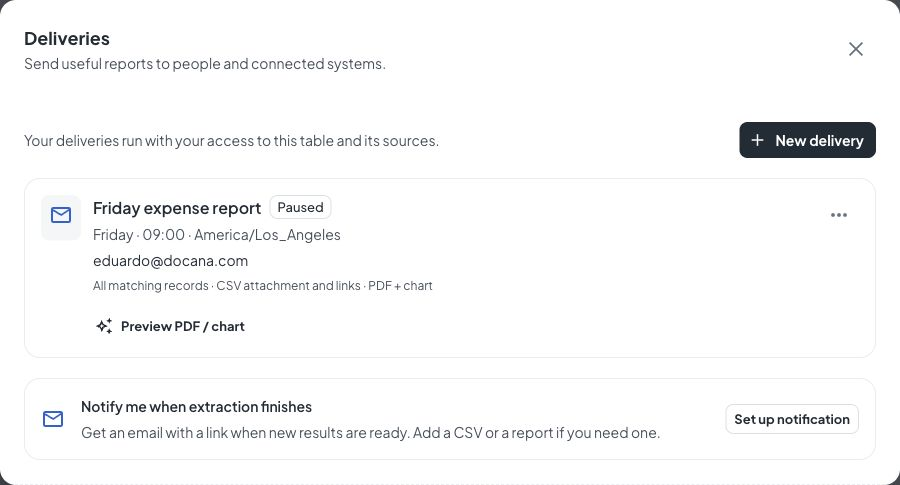
Configure completion email
Use a delivery with the BATCH_READY trigger for extraction-completion emails. Choose a table link, CSV, or generated report in the same configuration. The delivery guide explains completion and new-record triggers alongside schedules.
Generate a PDF or chart preview
Enable a report in the saved delivery, then generate a preview:
docana tables deliveries generate table_id delivery_id --key report_preview_1
docana tables deliveries history table_id delivery_id
Wait for the run to become PREPARED. Generation uses AI and sandbox execution, sends nothing, and does not consume new-record receipts. A normal send prepares the same configured assets. See PDF and chart reports for examples.
Read or download a report
Use the report data reference for paginated JSON or CSV, and the artifact reference for generated PDFs and charts. Downloads require current access to the table and its sources. Reports expire after 7 days.
Receive signed webhook events
A webhook includes a small record preview and an authenticated link to the complete report. Store the signing secret returned when you create the delivery. Verify X-Docana-Signature against the raw request bytes using HMAC-SHA256 over X-Docana-Timestamp + "." + rawBody. The signature is hex with a v1= prefix. Compare in constant time and reject stale timestamps.
Deduplicate with X-Docana-Event-Id before applying business effects. Return a 2xx response promptly. Failed requests or a 15-second timeout retry up to 5 attempts with the same event ID and a fresh timestamp and signature. Delivery is at least once, so a lost acknowledgement can produce a repeat request. See delivery behavior for retry and access rules.