Human handoff
An employee can hand a customer conversation to a person and stay quiet until that person hands it back. Use it for requests the employee must not decide alone, and for customers who ask for a human.
Human handoff is off by default. It covers conversations on WhatsApp, WhatsApp Business, and SMS.
Turn it on
Open the employee, then Manage (the three dots), then Details, and find Human handoff.
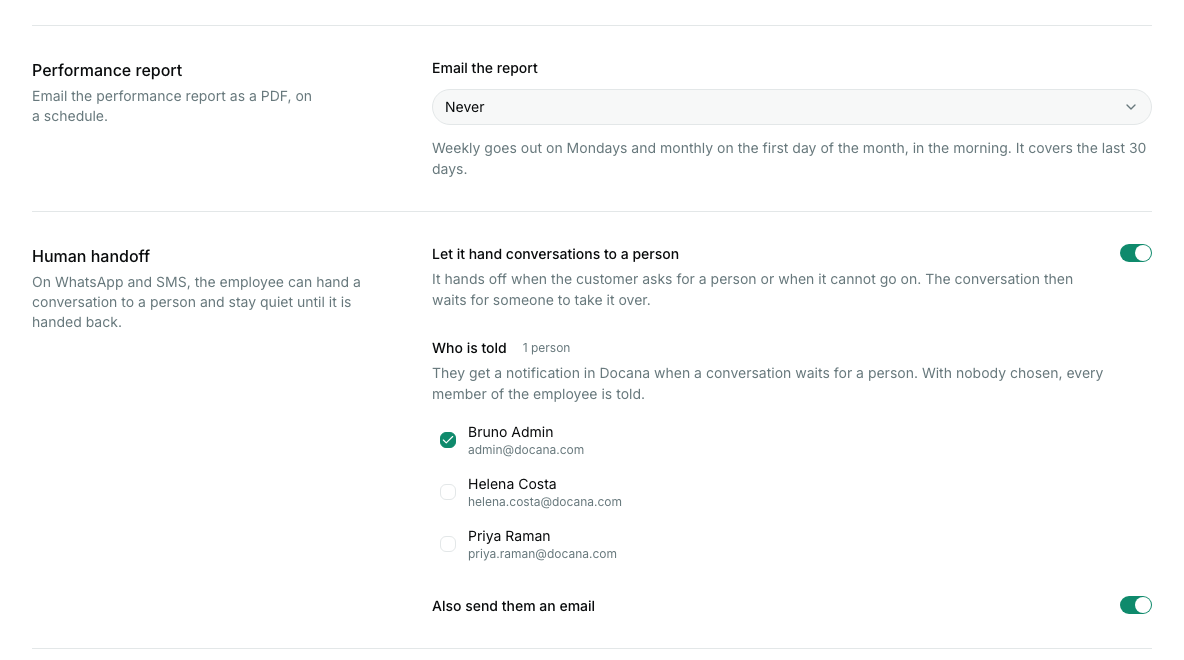
- Turn on Let it hand conversations to a person.
- Under Who is told, tick the members who should be notified. With nobody chosen, every member of the employee is told.
- Turn on Also send them an email if they should get an email as well as the notification in Docana.
Only people who are members of the employee can be chosen. A team that is a member is not expanded into its people for this list.
When the employee hands off
With the setting on, the employee has a tool named handOffToPerson on those channels. It uses it when the customer asks for a person or when it cannot go on. It records why and a short summary of the conversation so far, tells the customer a person will continue, and stops answering.
You can shape when it hands off in the employee's instructions and in preparation. For example: "Hand off any refund request outside the 30 day policy."
Test runs never hand off.
The three states
| State | What it means | Who answers |
|---|---|---|
| Waiting for a person | The employee handed the conversation off. Nobody took it yet. | Nobody. The employee stays quiet. |
| A person is answering | Someone selected Take over. | That person. |
| Returned | The person handed it back. | The employee again. |
While a conversation is waiting or with a person, the customer's messages are saved and shown, and the employee does not reply to them.
How people find out
When a conversation starts waiting:
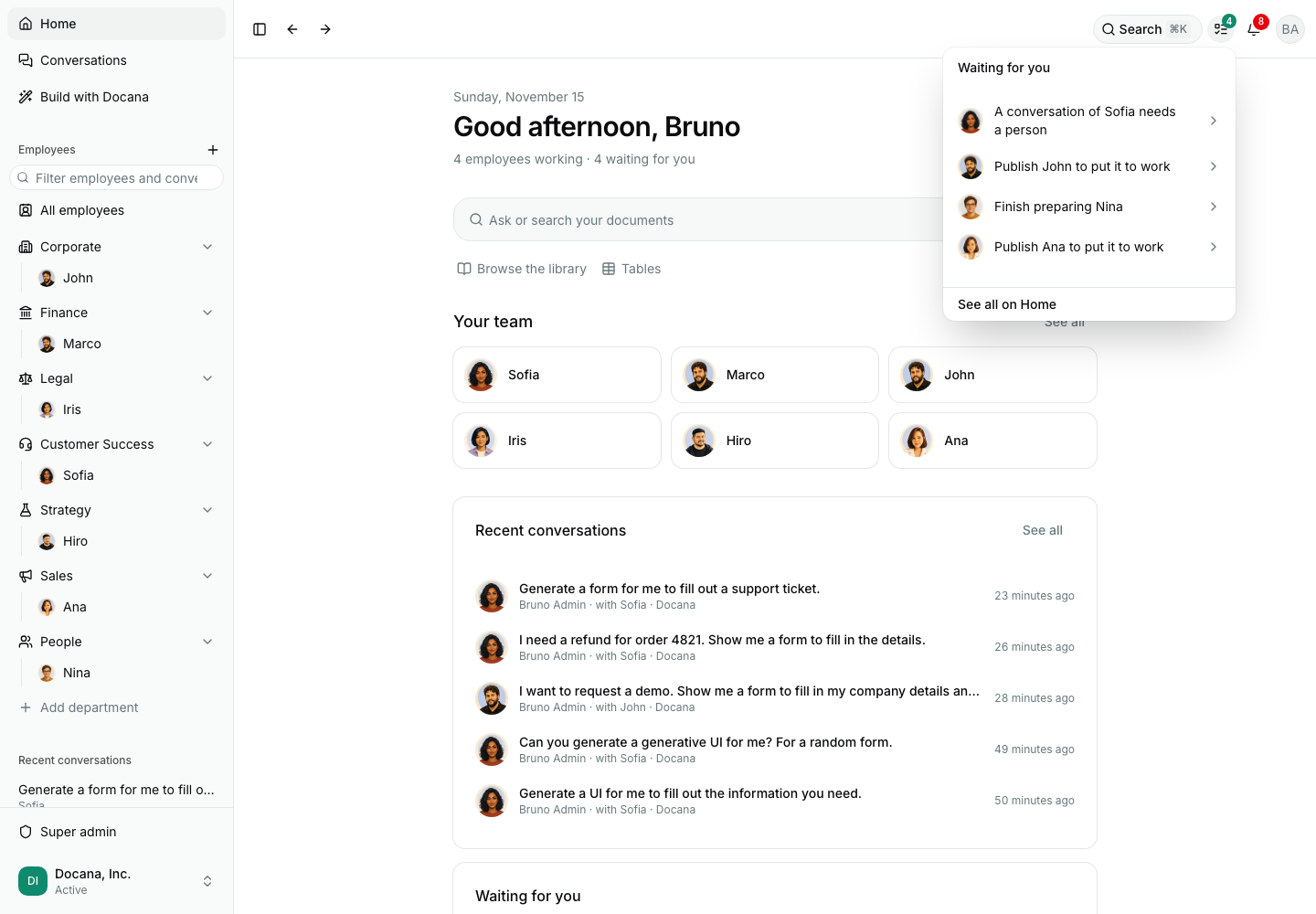
- It appears under Waiting for you on Home and in the checklist icon at the top of every page, as "A conversation of (name) needs a person". Selecting it opens the conversation.
- The people chosen in Who is told get a notification in the bell. Selecting it opens the conversation.
- With Also send them an email on, they get an email with a link to the conversation.
Take over, reply, and hand back
Open the conversation. It is on the employee's Working tab with its other conversations.
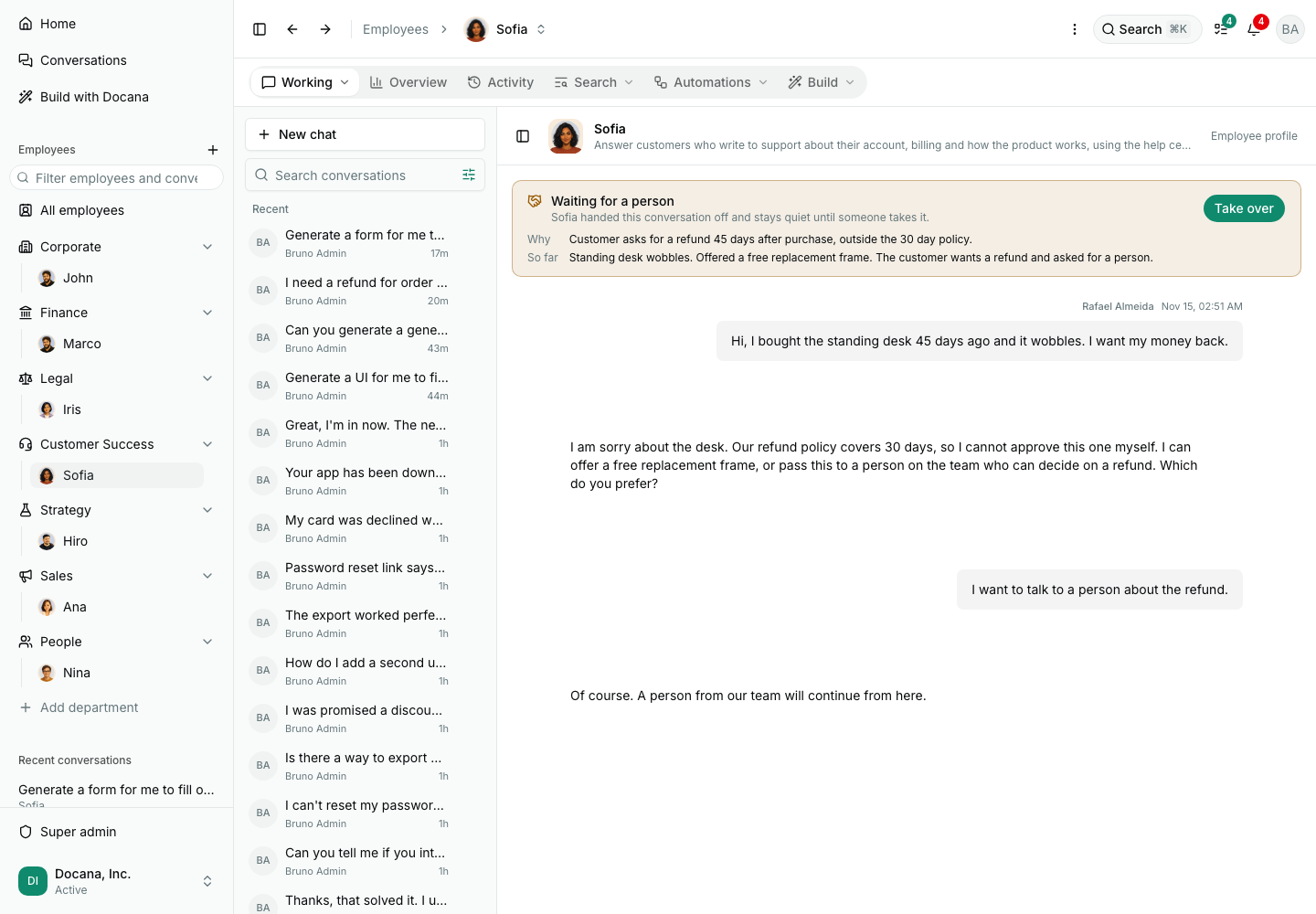
- Read the banner. Why is the employee's reason. So far is its summary.
- Select Take over. The banner changes to "You are answering this conversation". Other people see who is answering.
- Write in the box labeled Your reply to the customer and select Send. Your message goes out on the channel of the conversation. In the conversation it is marked as written by a person.
- When you are done, select Hand back to (name). The employee answers again from the customer's next message.
You need to be able to answer for the employee. Otherwise the page says "You cannot answer for this employee."
Limits
Know these before you rely on it:
- Channels. WhatsApp, WhatsApp Business, and SMS only. The web widget, Slack, and Teams are not covered.
- Text only. A person's reply cannot carry files.
- The 24 hour window on WhatsApp. WhatsApp refuses a message when the customer has not written for more than a day. The page says the channel did not take the message. There is no template fallback.
- No reminder. If nobody takes a waiting conversation, nothing reminds the team again.
- Replies already on their way. A reply the employee was writing when you took over may still be sent.
- Routines and follow-ups. Scheduled follow-ups and routines of a held conversation are not paused by the handoff.
- Analytics. A person's replies are not the employee's answers, so a handed-off conversation can count as unanswered in agent analytics.
WhatsApp and SMS conversations that were not handed off can be read on the Working tab but not answered there. The page says: "WhatsApp conversations can be read here, not answered."
From code
Reading a handoff, taking a conversation over, replying as a person, handing it back, and changing the setting are all available through REST, MCP, and the CLI. See the Threads and Employees API reference, and Employees from Code.