Interfaces and artifacts
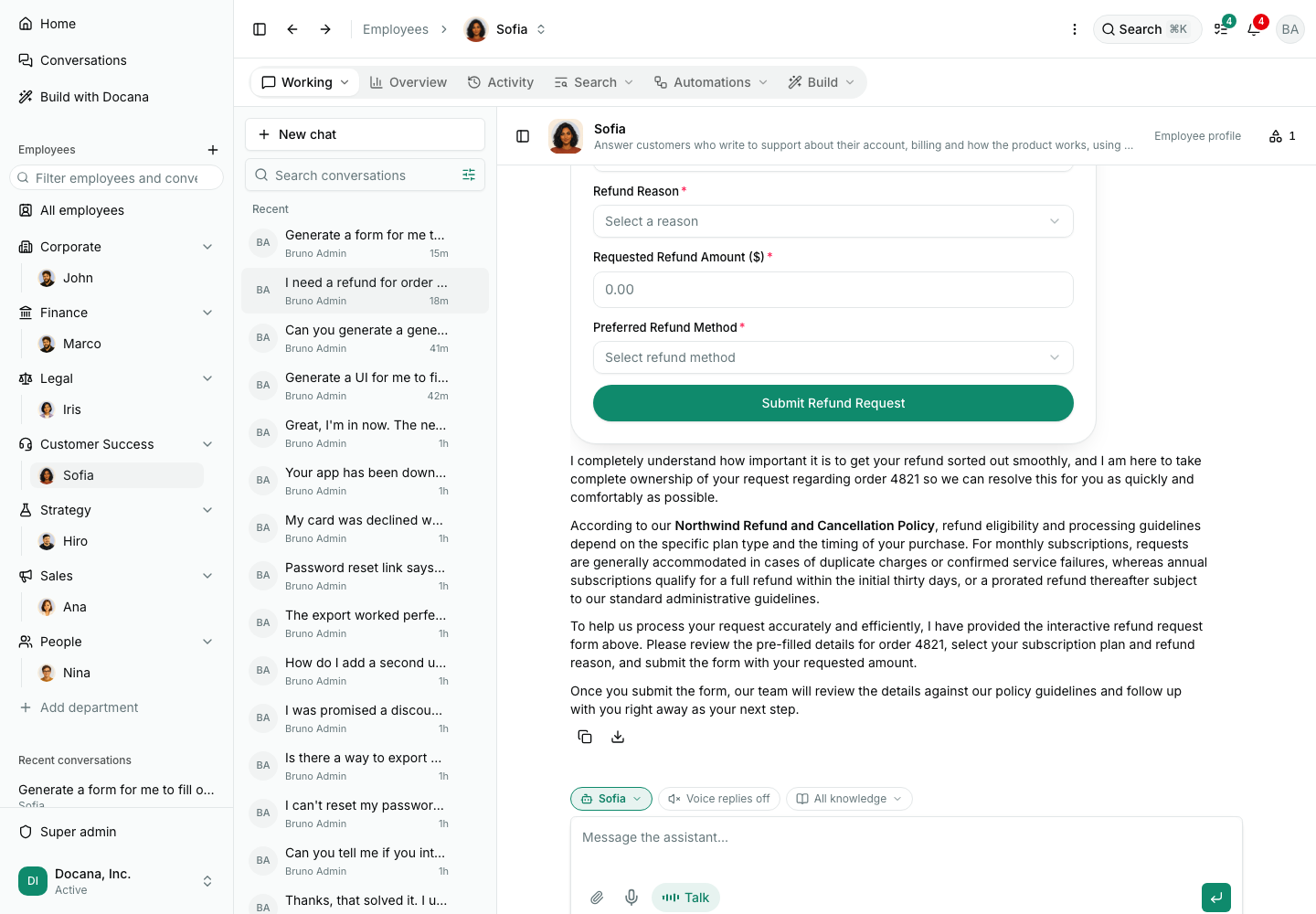
An employee does not have to answer in paragraphs. In the web chat it can draw a form to fill in, a dashboard, a set of cards to choose from, or a designed page. It can also write documents. Everything it makes for you is kept as an artifact you can find, open, and change later.
This page covers what employees do. Intelligent UI explains interfaces in depth: what they can contain, how buttons send messages, and how to design them in a workflow.
Ask for one
Ask in plain words: "Show me a form to request a refund", "Put last month's tickets on a dashboard", "Write this up as a page". The employee decides when an interface helps and draws it. To change it, say what to change: "Add a field for the invoice number".
Three kinds of artifact come out of a conversation:
| Kind | What it is |
|---|---|
| Interface | Something to use: a form, a calculator, a dashboard, cards with buttons. |
| Page | A designed HTML page, such as a report or a one-pager. |
| Document | Written text, such as a policy summary or saved replies. |
Where interfaces work
- Web chat only. On WhatsApp, the widget, and other channels the employee answers in text.
- Intelligent UI must be on for the employee. New employees start with it on. An older employee or application gets it when a super admin turns it on in its feature flags. An employee's administrators can switch it off under Manage, then Details, in the section In the conversation.
- During a voice call the employee can draw too. When it finishes the turn, the form, page, document, or approval card appears in the conversation, and the voice tells you it is there.
When an employee answers in text only
An employee's chat is answered by its agent. In the web chat, a workflow step has both interface tools without its author naming them, as the assistant of an open chat does.
A step keeps only the tools it lists, and a step set to use no tools can only write text. If an employee answers a request for a form with a paragraph of questions, the step that talks to the person was built without tools. Open Build and ask the preparation assistant to let that step draw interfaces. Preparation does this for steps that ask for several details or offer choices.
Find what was made
In the conversation
When something was made in a conversation, its header shows an icon with a count. Select it to see Made in this conversation. Select an item to open it beside the conversation. All artifacts at the bottom opens the employee's Artifacts page.
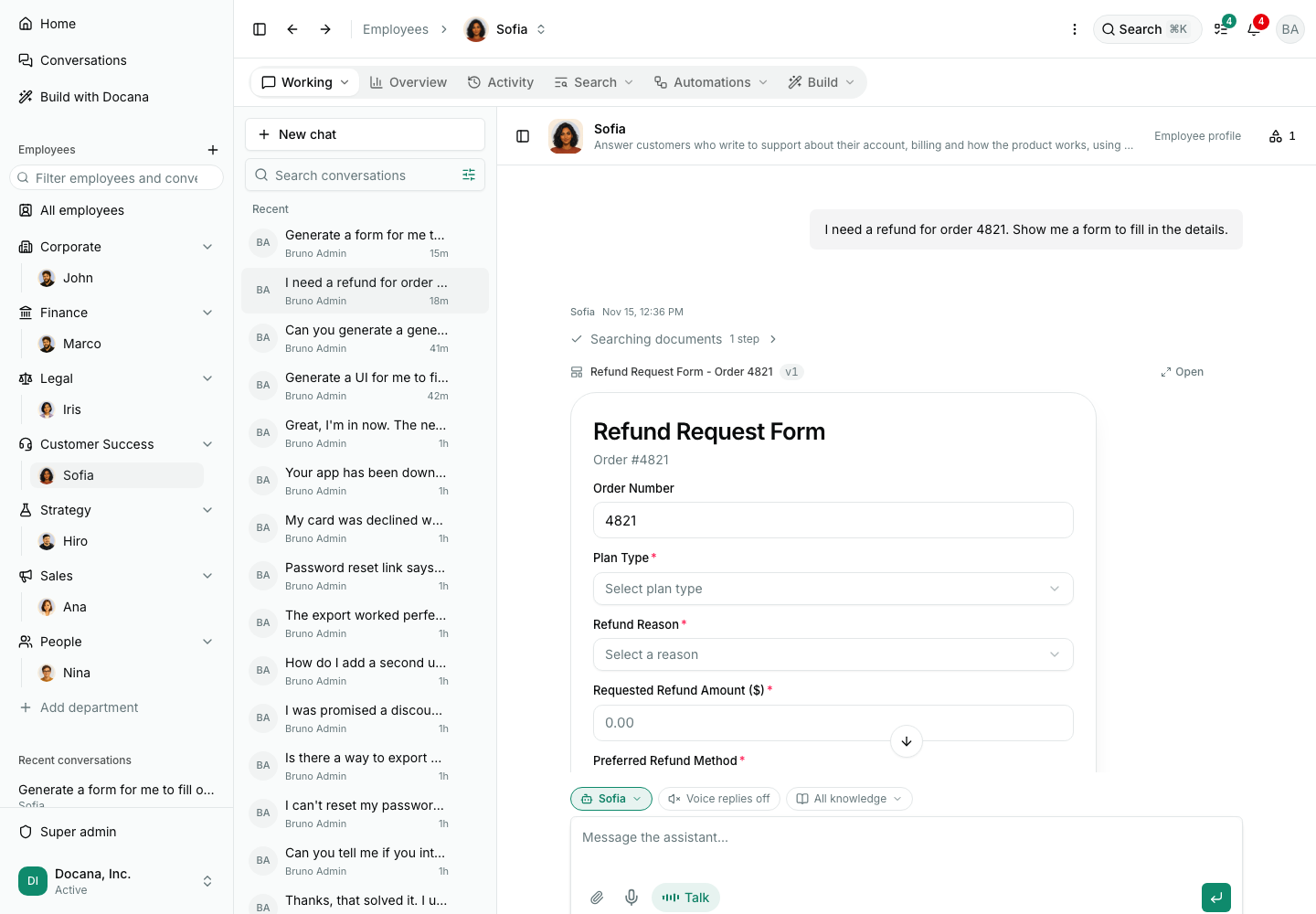
The count covers the messages loaded on screen. In a long conversation, load older messages or use the Artifacts page.
For one employee
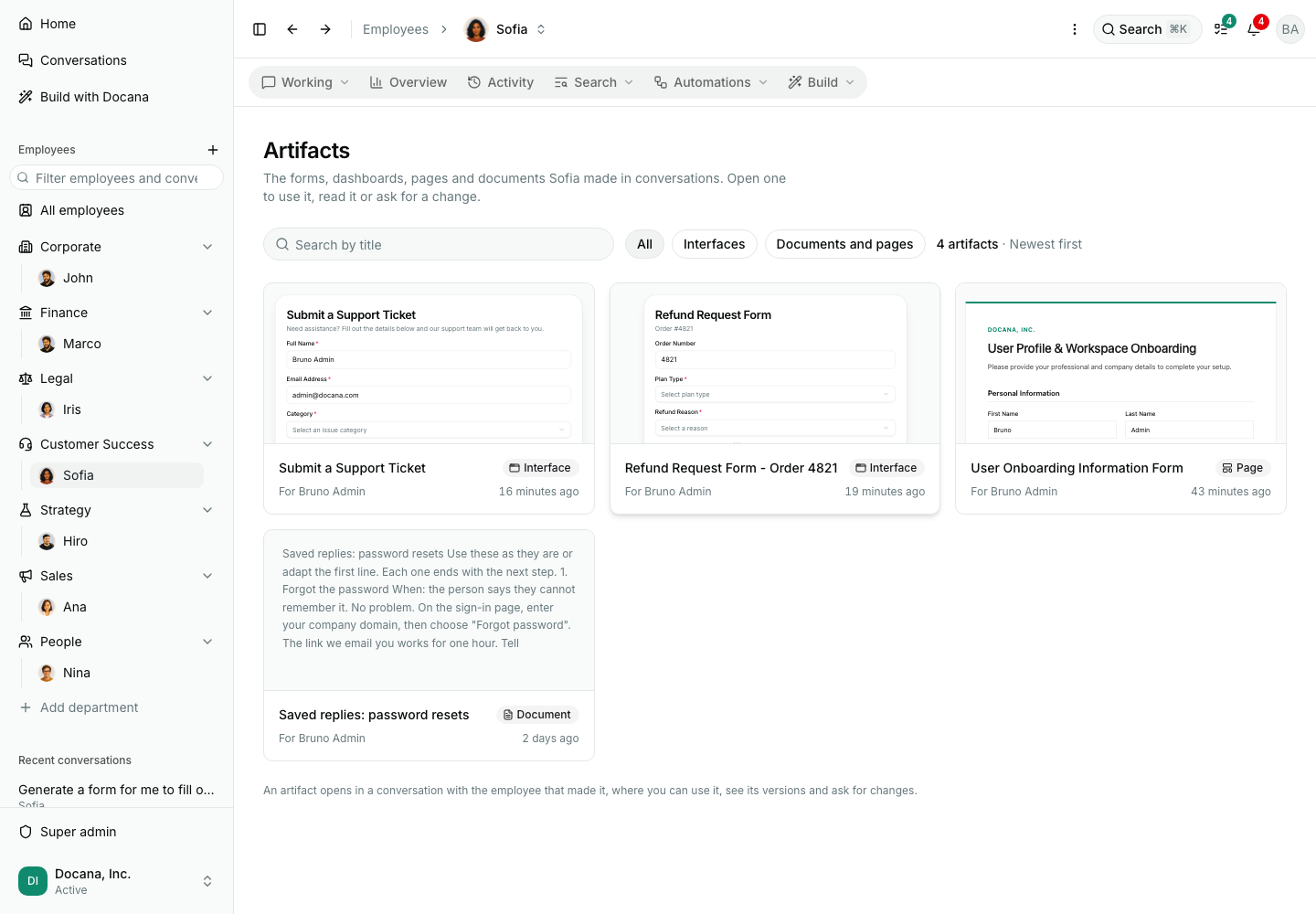
Open the employee, then Manage (the three dots), then Artifacts, under Data & Knowledge.
For the whole company
Open the workspace menu (your company name at the bottom of the sidebar), then Artifacts. Each card names the employee that made it.
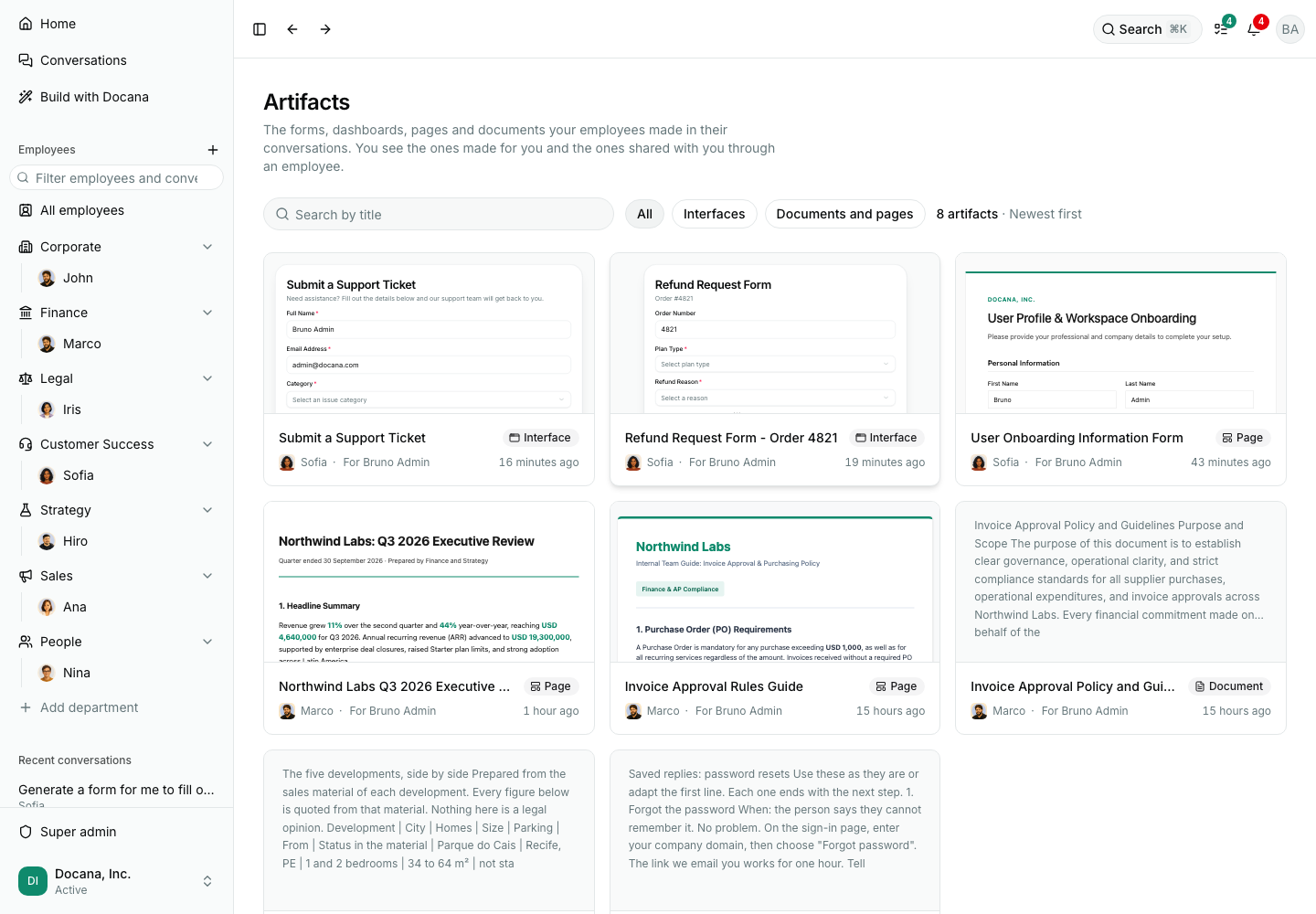
Both pages work the same way:
- Newest first, 24 to a page.
- Search by title.
- Filter with All, Interfaces, or Documents and pages.
- A card shows the kind, who it was made for, and when it last changed.
Who sees an artifact
An artifact is a private document in its employee's collection. You see the ones made for you and the ones made in the collection of an employee you are a member of. Nothing on these pages widens that. Agent specifications are stored the same way and are not listed.
Open, use, and change an artifact
Selecting a card opens the artifact in a conversation with the employee that made it. From there you can:
- Use it. A button on an interface sends a message as you, which starts a new turn.
- See its versions. Every change is saved as a new version and older ones stay.
- Ask for a change in plain words.
- Download a page, copy a document, or save it to a collection so it becomes knowledge.
From code
The same list of artifacts, with search and the filter by kind, is available through REST and MCP. See the Artifacts API reference.