Manage an employee
Everything about an employee that is not one of its tabs is behind Manage, the three dots at the top right of the employee's page.
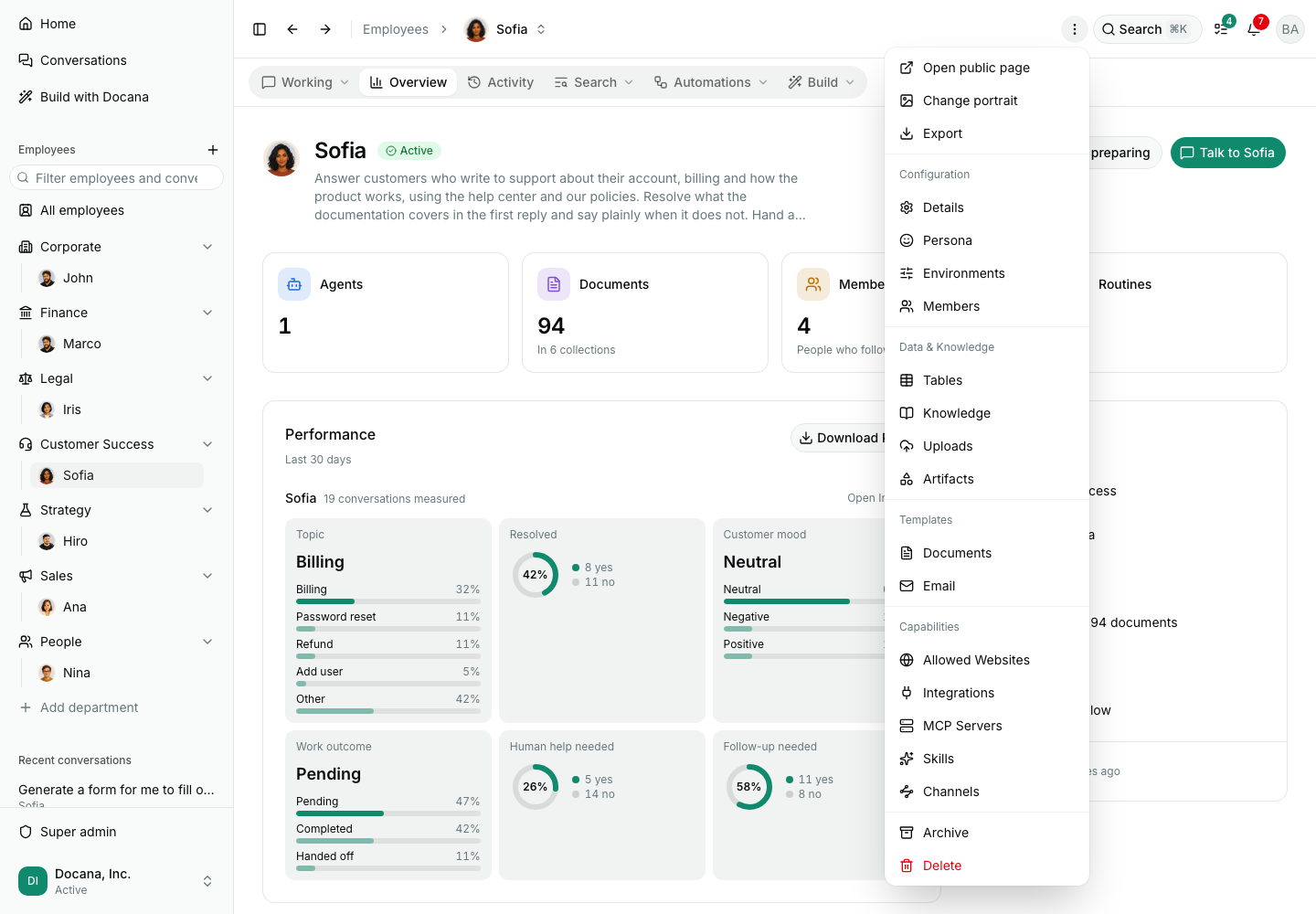
What you see depends on your access. People who cannot change the employee do not see Details, Persona, Change portrait, or Export. Uploads is for the employee's administrators.
The Manage menu
At the top
| Item | What it does |
|---|---|
| Open public page | Opens the page people use the employee on, in a new tab. |
| Add to employees | Only on an older Assistant application. Gives it an employee profile. See Employees. |
| Change portrait | Picks a new portrait. It shows wherever the employee appears, including its WhatsApp profile when it has one. |
| Export | Saves the setup as a package. See Export and import. |
Configuration
| Page | What is there |
|---|---|
| Details | Name and department. Kind: Assistant or Documents Insights. Instructions, with Answer only from what the employee knows. In the conversation: tool activity and the Intelligent UI switch. Performance report: the emailed report. Human handoff. Under development: a label for your team that does not change who can use the employee. |
| Persona | The tone and style of its answers. |
| Environments | Named sets of variables, so one employee can run with different configuration values. |
| Members | Who can use and change the employee. See Members. |
Data & Knowledge
| Page | What is there |
|---|---|
| Tables | The tables this employee fills or reads. See Document Insights and Tables. |
| Knowledge | The collections the employee answers from, each with a switch, and whether it also searches the files it generates. |
| Uploads | Files uploaded in conversations and files in the employee's own collection. Administrators only. |
| Artifacts | The forms, dashboards, pages, and documents the employee made. See Interfaces and artifacts. |
Templates
| Page | What is there |
|---|---|
| Documents | Document templates the employee fills. See Creating a template. |
| Email templates. |
Capabilities
| Page | What is there |
|---|---|
| Allowed Websites | The websites the employee may open, with their logins. See Website access. |
| Integrations | Outside systems the employee can read from and write to. See Integrations. |
| MCP Servers | Tool servers enabled for this employee. See MCP servers. |
| Skills | Instructions the employee learns once and reuses. |
| Channels | WhatsApp, WhatsApp Business, Slack, Teams, SMS, and the widget. See Work with an employee. |
Templates, Integrations, and Channels appear for Assistant and Documents Insights applications.
At the bottom: Archive and Delete.
The log of what people changed is the Activity tab of the employee, not a menu item.
Members
Open Manage, then Members.
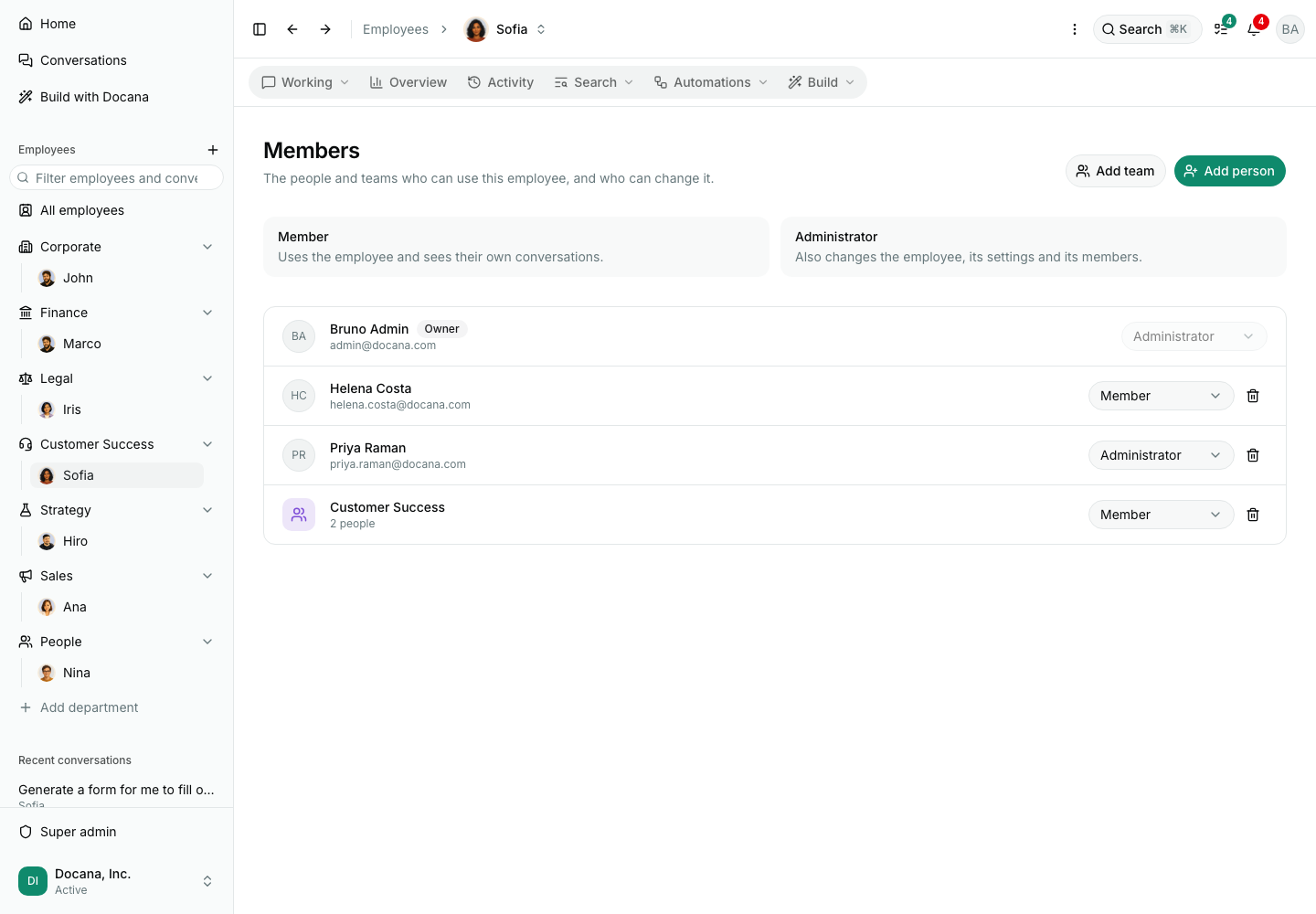
| Role | What it allows |
|---|---|
| Member | Uses the employee and sees their own conversations. |
| Administrator | Also changes the employee, its settings, and its members. |
- Add person adds someone from your company. Add team adds everyone in a team. People outside the company must be invited to it first. See Users and teams.
- You can also ask the preparation assistant, for example "add Adam from our team as a member". It finds the person by name or email and asks which one when several match. The person gets an email saying they were added.
- A private WhatsApp or SMS number answers only members, so add the people who should reach it.
- Members are also who you can choose for the emailed report and for handoff notifications.
Departments
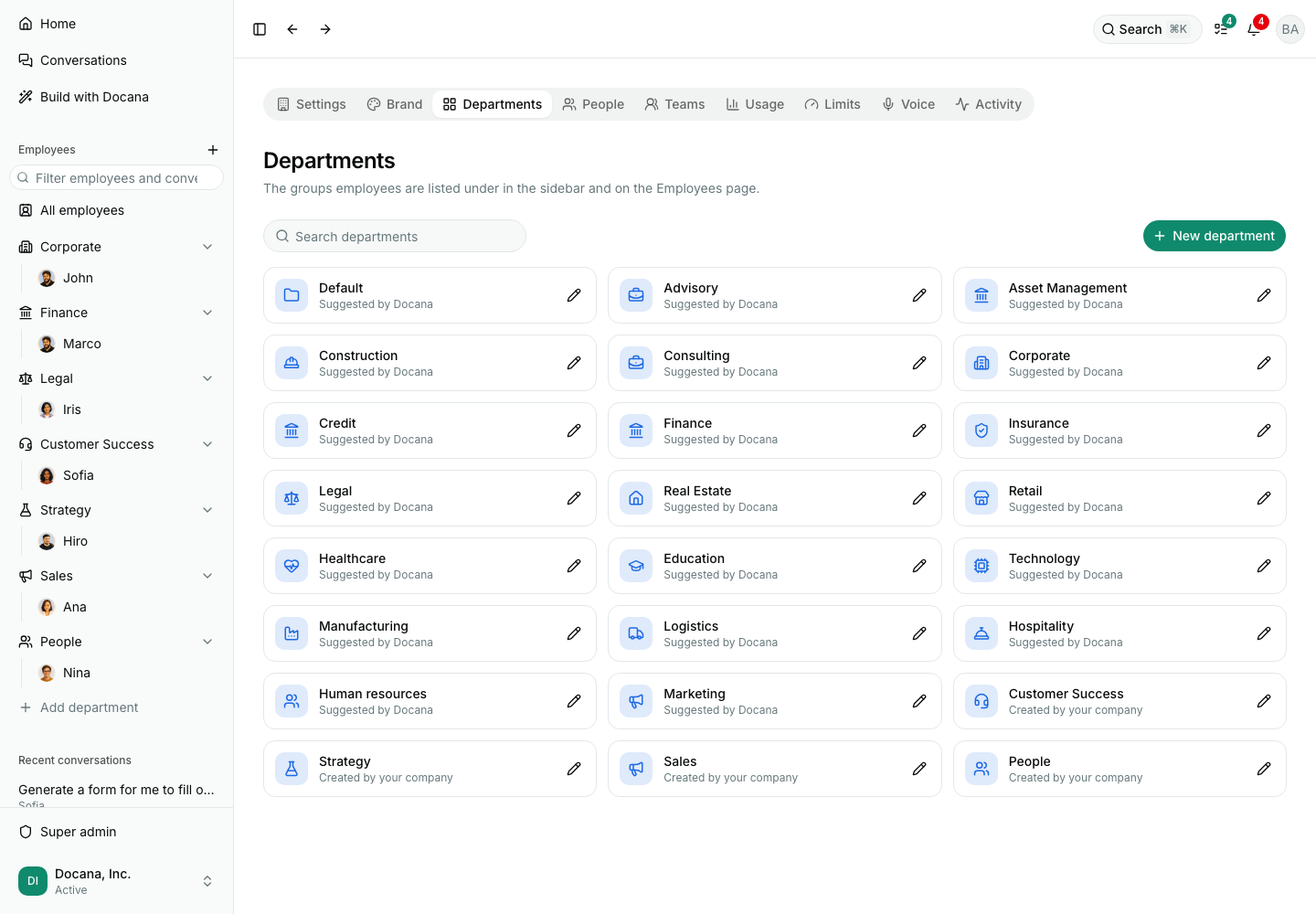
A department groups employees in the sidebar and on the Employees page. The company shares one list.
- Change an employee's department in Manage, then Details, or on the Employees page with Move to… in the row's menu. Its conversations, agents, and knowledge go with it.
- Add department at the bottom of the sidebar's list creates one.
- Company administrators manage the list in the workspace menu (your company name at the bottom of the sidebar), under Departments: create, rename, and change icons. Docana suggests industry departments such as Finance, Construction, Legal, Healthcare, and Education. Existing assignments stay together when you rename one.
Find and favorite employees
On the Employees page:
- Search by name, role, or department. Filter by department with the chips, or by Favorites.
- Switch between Grid and List.
- The star adds an employee to your favorites.
- The row's menu has Add to favorites, Move to…, and, for people who may, Delete.
Export and import
Export. Open Manage, then Export. The dialog previews the portrait, department, agents, expectations, and source references. Expand the source references to see the original knowledge and connections, then select Download package.
The JSON package includes the employee profile, the application's instructions and persona settings, draft agent workflows, evaluation definitions, routines, the insights configuration, mock baselines, and document templates.
It does not include file contents, provider credentials, memberships, conversations, execution history, or published revisions. Authored instructions, test examples, and template content do travel with it, so review them before sharing. A connection's name in the package is a reference, not permission to use it.
Import. On the Employees page, select Import employee, choose the package (JSON, up to 20 MB), review it, and choose a name and a department. Import as a draft creates a new employee. It never overwrites the original. Agents arrive unpublished. Routines and evaluation schedules stay paused.
After importing, open Import checklist in the new employee. Reconnect collections, files, providers, and channels through their own setup pages, then update the workflow's references. Source IDs from the original workspace are not resolved for you. Run the tests before publishing. The checklist keeps the source references. It does not certify that each one was restored.
Employees and applications share this package format. See Applications for what the package records and how permissions limit it.
Archive, restore, and delete
- Archive takes the employee out of use. Nobody can use an archived employee, and it keeps appearing in usage and billing reports. Only company administrators can archive.
- Restore. On the Employees page, select Archived at the top right, then Unarchive. The employee returns as it was, with its agents, knowledge, and conversations.
- Delete removes the employee with its agents, conversations, and settings for everyone. This cannot be undone.
From code
Identity, knowledge files, members, channels, handoff, and the report schedule all have operations in REST, MCP, and the CLI. See Employees from Code.