Voice calls
You can talk to an employee out loud and it answers in real time. The voice is not a separate bot with its own script: every request you speak runs the employee's own workflow, with its knowledge, its tools, its routing, and its rules.
That is the point. The logic you build once, such as how refunds are decided, when a person takes over, or what gets saved to a table, works the same whether someone types or talks.
Start a call
Open the employee's Working tab and select Talk in the message box. Your browser asks for the microphone the first time.
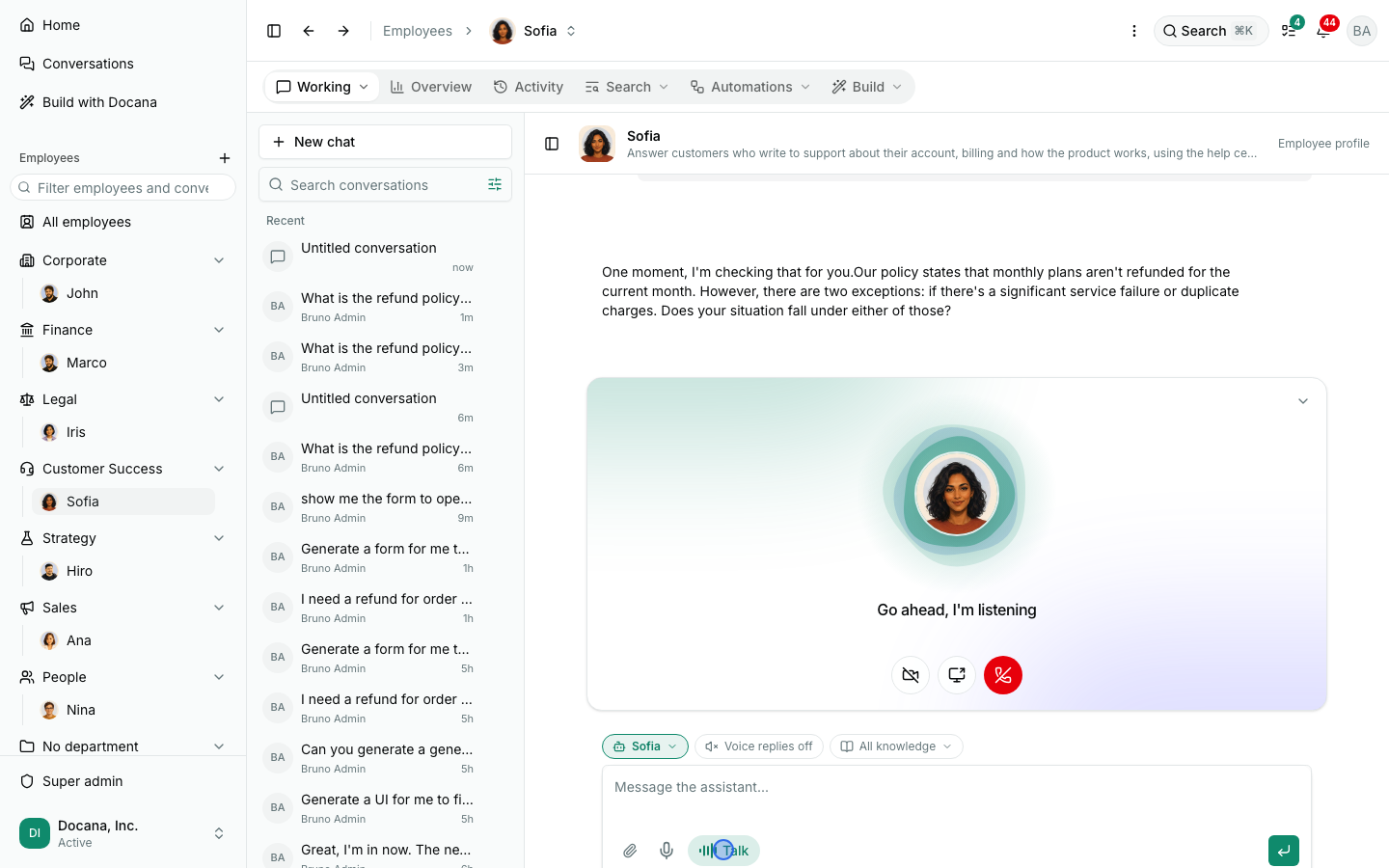
The call takes its place above the message box: an orb around the employee's portrait that moves with the two voices, a line that says what is happening, and the call's controls. Speak when it says Go ahead, I'm listening.
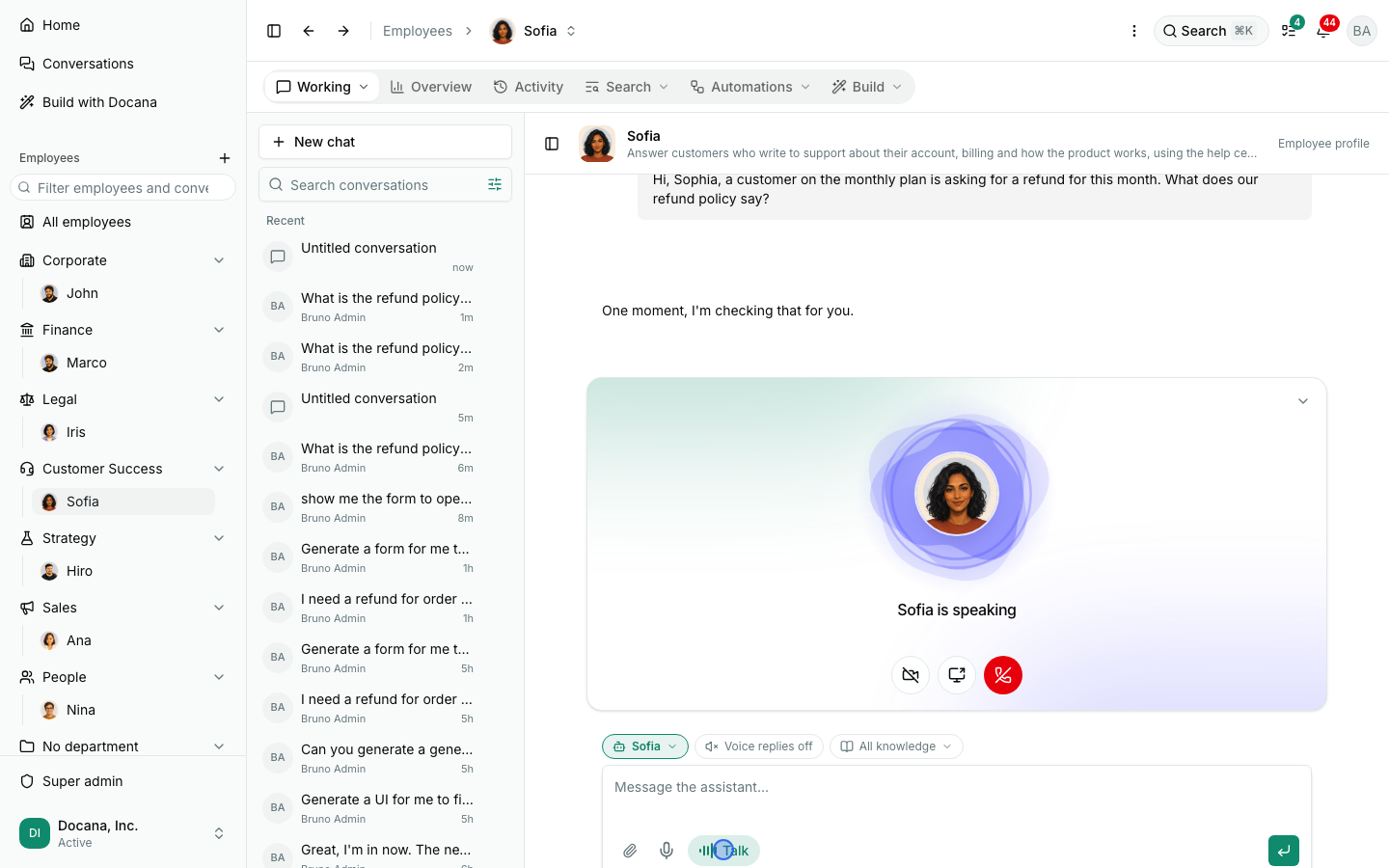
What the line under the portrait tells you:
| It says | What is happening |
|---|---|
| Connecting… | The call is being set up |
| Go ahead, I'm listening | Ready for you to speak |
| Listening | It hears you talking |
| Sofia is working on it | The employee is running its workflow |
| Sofia is speaking | The answer is being spoken |
Use the arrow in the corner to make the call smaller and keep reading the conversation while you talk. Select the red button to hang up.
What happens when you speak
- The voice hears your request and hands it to the employee.
- The employee runs a normal turn, the same one a typed message runs: the Reasoning nodes route it, the steps search knowledge and call tools, and the result is saved.
- While that runs, the voice tells you what it is doing in a short sentence, such as "One moment, I'm checking that for you", and stays quiet otherwise.
- The answer is spoken, and it is also written in the conversation.
Because it is a normal turn:
- The same workflow decides. There is no second script to keep in step with the first.
- The same knowledge answers. The reply above came from the company's refund policy, not from the voice model's memory.
- Everything is on the record. A call's turns appear in the conversation, in the agent's execution logs, and in usage, like any other turn.
- Your tests cover it. Evals check the workflow, and the voice runs that workflow.
The employee's voice
Each employee can have its own voice. Open the employee, select Manage, then Details, and choose one under Voice on calls. A new employee whose portrait is a face starts with a voice that goes with it, a different one for each portrait. An employee whose portrait is a drawing, or whose voice you set to the company's, speaks with the company's voice, set under Voice in the company settings.
What a call can do
- Show things. When the employee draws a form, a page, or a document, the voice says it is on the screen and it appears in the conversation. It does not read the fields aloud. See Interfaces and artifacts.
- Ask for approval. When the employee needs your approval or has a question with choices, the voice tells you to look at the conversation. It never says an action was done before it was.
- Finish what it started. Talking over the voice or hanging up does not cut the work in half. The turn finishes and its answer is in the conversation.
- Take one thing at a time. Requests run in the order you asked them. A second request spoken while the first runs waits its turn.
Where it fits
Voice suits work where a person's hands or eyes are busy, or where talking is faster than typing:
- A support or back-office desk. An attendant asks the employee about a policy, an order, or a customer while on the phone with them.
- Field and floor work. A technician asks for a procedure or reports what they found, and the employee saves it.
- Review out loud. A manager asks for the week's numbers and gets a dashboard on the screen while the voice gives the headline.
A phone number people can call
An employee can also have its own phone number. Someone dials it from any phone and talks to the employee, and each request runs the workflow as it does here. A restaurant's employee can take an order on the phone, save it to a table, and hand the call's conversation to a person when something is off.
Getting a number takes one click. See Phone and SMS.
Phone line examples shows two of them and what each is made of: a sushi restaurant that takes orders and greets returning callers with their last one, and a support line that routes refunds, outages, and sign-in problems.
Limits to know
- Voice calling must be set up for the company. Without it the call does not start and the app says an administrator must enable it.
- WhatsApp calls do not run the workflow yet. Calls in the Docana chat and calls to the employee's phone number do. A call to a WhatsApp number uses the earlier voice mode, which answers from knowledge without the workflow.
- A deployment can turn it off. Running the employee during a call is on by default and can be disabled with
VOICE_EMPLOYEE_TURNS_ENABLED=false.
Next steps
- Phone line examples: a restaurant and a support line, built from the same parts
- Work with an employee: the rest of the Working tab
- Build an employee: the workflow a call runs
- Human handoff: passing a conversation to a person