Microsoft Excel
Lots of teams track their work in spreadsheets: orders, tickets, inventory, a list of clients. The Microsoft Excel integration lets your assistant work with them directly. People can ask it things like:
- "What's the status of order A-1042?"
- "Mark order A-1042 as delivered."
- "Rename the Satus column to Status and sort the table by total."
- "Create a budget workbook for 2027 with a table for each quarter, and add a chart."
The assistant reads and writes the workbooks themselves, so they stay the source of truth. Nothing is copied into Docana, and every change shows up in Excel straight away.
- A Microsoft 365 work or school account. Personal Microsoft accounts can only use workbooks and folders in their own OneDrive.
- An Excel workbook (
.xlsx), or a folder in OneDrive or SharePoint, that this account can edit - Access to Developer → Integrations in Docana
Step 1: Connect a workbook or a folder
- Go to Developer → Integrations and click Microsoft Excel.
- Give the connection a name, like Finance, and click Connect to Microsoft Excel. Sign in with the Microsoft account that can edit the workbook or folder.
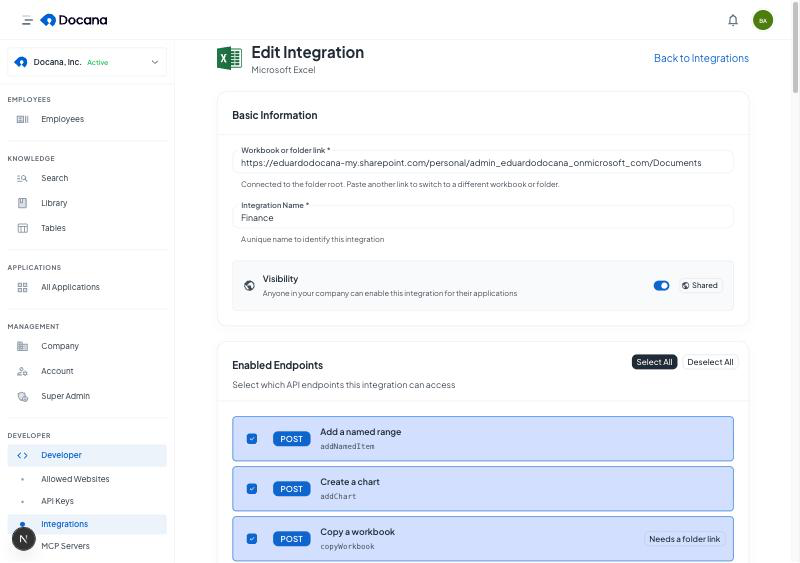
- In OneDrive or SharePoint, open the workbook or the folder, click Share → Copy link and paste the link into Workbook or folder link.
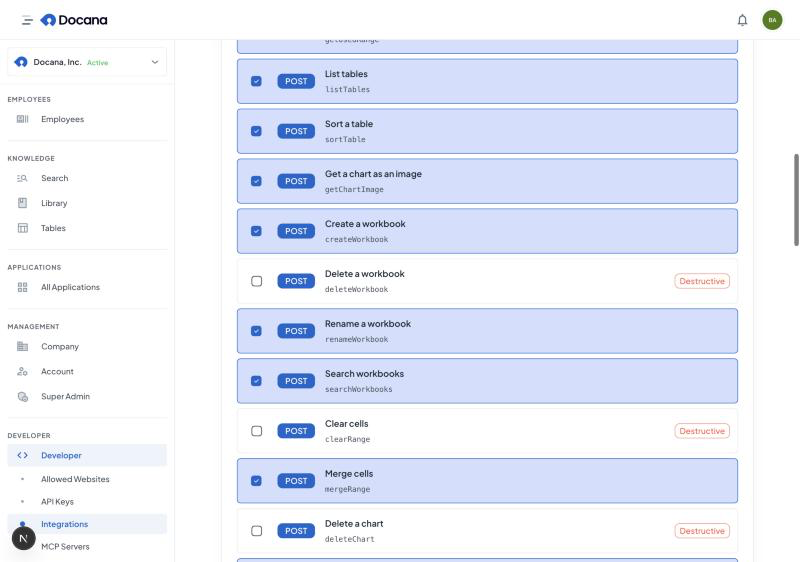
- Pick the operations the assistant may use. Everything that deletes or clears data starts unticked; see Operations.
- Click Save. Docana opens the link with your account to check it can reach it, and works out whether it's a workbook or a folder. If it can't open it, nothing is saved and you'll see why.
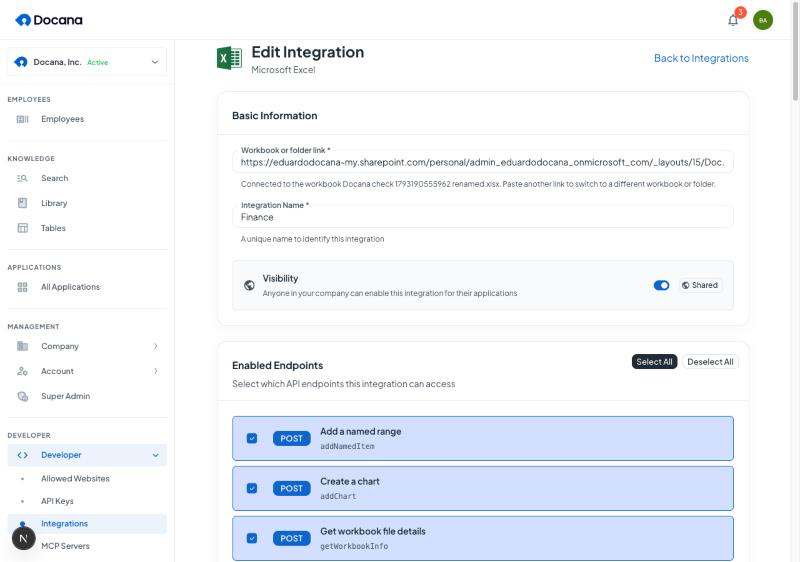
Each connection works with exactly one of these:
- A workbook. The assistant can read and edit that file and nothing else. It can't list, create, copy or delete files, so those operations are hidden.
- A folder. The assistant can work with every workbook inside it, subfolders included, and create, copy, rename or delete workbooks there.
Either way, it can't open any workbook outside what you linked. If you need another workbook or folder, create another connection.
To switch a connection, open it under Developer → Integrations, paste the new link and save. You can switch from a workbook to a folder or back.
Step 2: Enable it on an application
Open the application whose assistant should use the workbooks, go to Integrations, and turn on the connection. See How integrations work for who can use a shared connection.
Operations
The assistant can do almost everything Microsoft's Excel API offers. You choose which operations each connection allows.
| Group | What the assistant can do |
|---|---|
| Files | Rename a workbook and read its details. On folder connections only: list the folder, search workbooks by name, create a new workbook, copy, delete |
| Records | Look rows up by column, add a row, update the row that matches |
| Sheets | List, add, rename, move, hide, delete |
| Cells | Read, write values, formulas and number formats, insert, delete, clear, merge, sort |
| Formatting | Fonts, fill colors, borders, alignment, wrapping, column widths, autofit |
| Tables | Create, restyle, add and delete rows and columns, rename headers, sort, filter, convert to plain cells |
| Charts | Create, retitle, move, resize, change data, export as an image, delete |
| Other | Named ranges, sheet protection, recalculation, running Excel functions, reading comments |
These start unticked, because they remove data: delete workbook, delete sheet, delete or clear cells, delete table rows or columns, delete or convert a table, delete chart, and unprotect sheet. Tick them only on connections where you want the assistant to be able to do that. Deleted workbooks go to the OneDrive or SharePoint recycle bin.
How to lay out a workbook
For records, the assistant reads a workbook the way a person would: one record per row, with column names in a header row.
- Excel tables work best. Select your data and press Ctrl+T (⌘+T on a Mac). New records then go inside the table, so formulas, formatting and filters carry over.
- Plain sheets work too. The first row is read as the header, and new records go in the row after the last one used.
- Give each record a unique column, like an id or code. "Update order A-1042" then finds exactly one row.
Only .xlsx files can be opened. .xls and .csv files are skipped.
Built-in safety checks
Writing to a live spreadsheet is riskier than reading one, so the integration refuses some things outright:
- It stays inside what you linked. Every workbook the assistant names is checked against the connected workbook or folder before anything is read or written, whatever someone asks it to do.
- It doesn't guess which record to change. If nothing matches, nothing changes. If several rows match, the assistant lists them and asks which one you meant. It only changes them all when you clearly asked for that, and never more than 20 at a time.
- It re-checks a row before writing. If someone edited or sorted the sheet in the meantime and the row no longer matches, it leaves the row alone.
- It doesn't slip formulas in. A value that starts with
=,+,-or@is saved as plain text. The assistant only writes a formula when you ask for one. Negative numbers like-5are still saved as numbers. - It never overwrites a file. Creating or copying a workbook fails if one with that name already exists.
Permissions
Docana asks Microsoft for Files.ReadWrite.All, offline_access and User.Read. Files.ReadWrite.All is what lets it reach folders shared with you and folders on SharePoint sites. These are delegated permissions: the assistant can never do more than the signed-in account can, and the workbook or folder limit above narrows that further.
When something goes wrong
| Message | What to do |
|---|---|
| The workbook or folder could not be opened | Check that the signed-in account can edit it, and that the link is a OneDrive or SharePoint share link. |
| That link points to a file that is not an Excel workbook | Paste the link to an .xlsx file or to a folder. |
| No workbook was found in the folder | The workbook is outside the connected folder, or it was moved or deleted. |
| This connection is limited to one workbook | The assistant asked for a different workbook, or for a file operation that needs a folder. Link the connection to a folder if it should do that. |
| The item is not an Excel workbook | Only .xlsx works. Open the file in Excel and save it as .xlsx. |
| Excel refused the change | Someone has the file locked, or the sheet is protected. Wait a moment, or unprotect the sheet, and try again. |
| Unknown column | The assistant used a column name that isn't in the header. The message lists the real columns. |
If Microsoft is busy, the assistant waits and retries a couple of times before giving up.