Intelligent UI
Some answers are better used than read. A product catalog is something you pick from. An expense is a form with a receipt. A hotel booking is a summary you confirm. With Intelligent UI, the assistant and your agents answer with interactive interfaces drawn right in the conversation, and move them forward as people make choices. Each interface is saved with versions, and you change yours by asking in plain language.
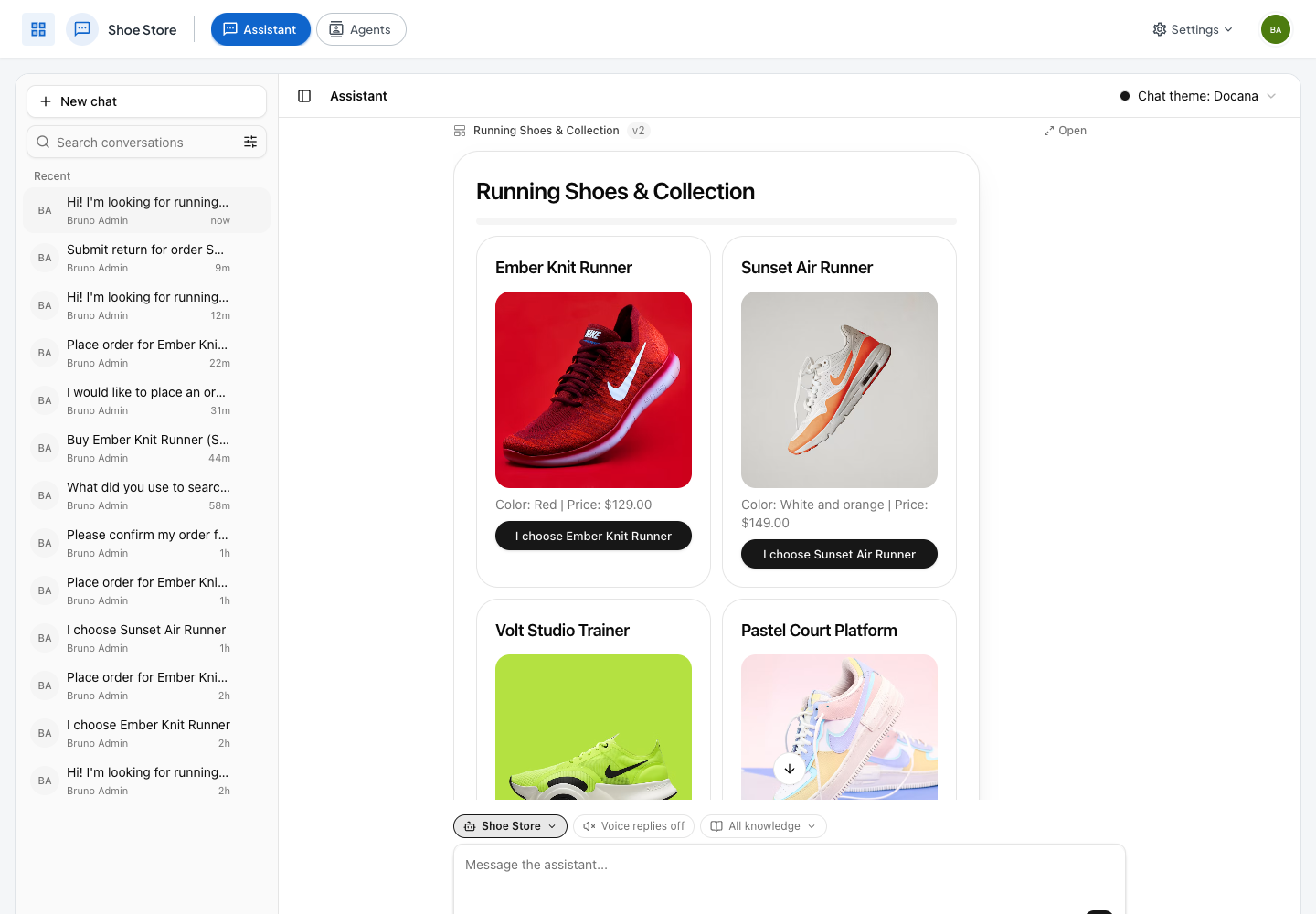
What it looks like
Ask the assistant to "show the Q3 expenses as a dashboard" and it draws KPI tiles, a chart and a table from the numbers in the conversation. Ask for a flight card, an event with a map, or a price calculator, and you get one. Controls work right away: tabs, filters, sliders and totals update in the page, with no wait.
You don't have to ask for an interface. When an answer is something you will act on, the assistant picks one itself. "How long until I pay off $6,000 at 24% if I pay $300 a month?" gets a payoff calculator with the answer up front and sliders to try another payment. "I need 3 days off next week for a family trip" gets a request form with the reason filled in. "Plan my day" gets a schedule. Explanations and advice stay as text.
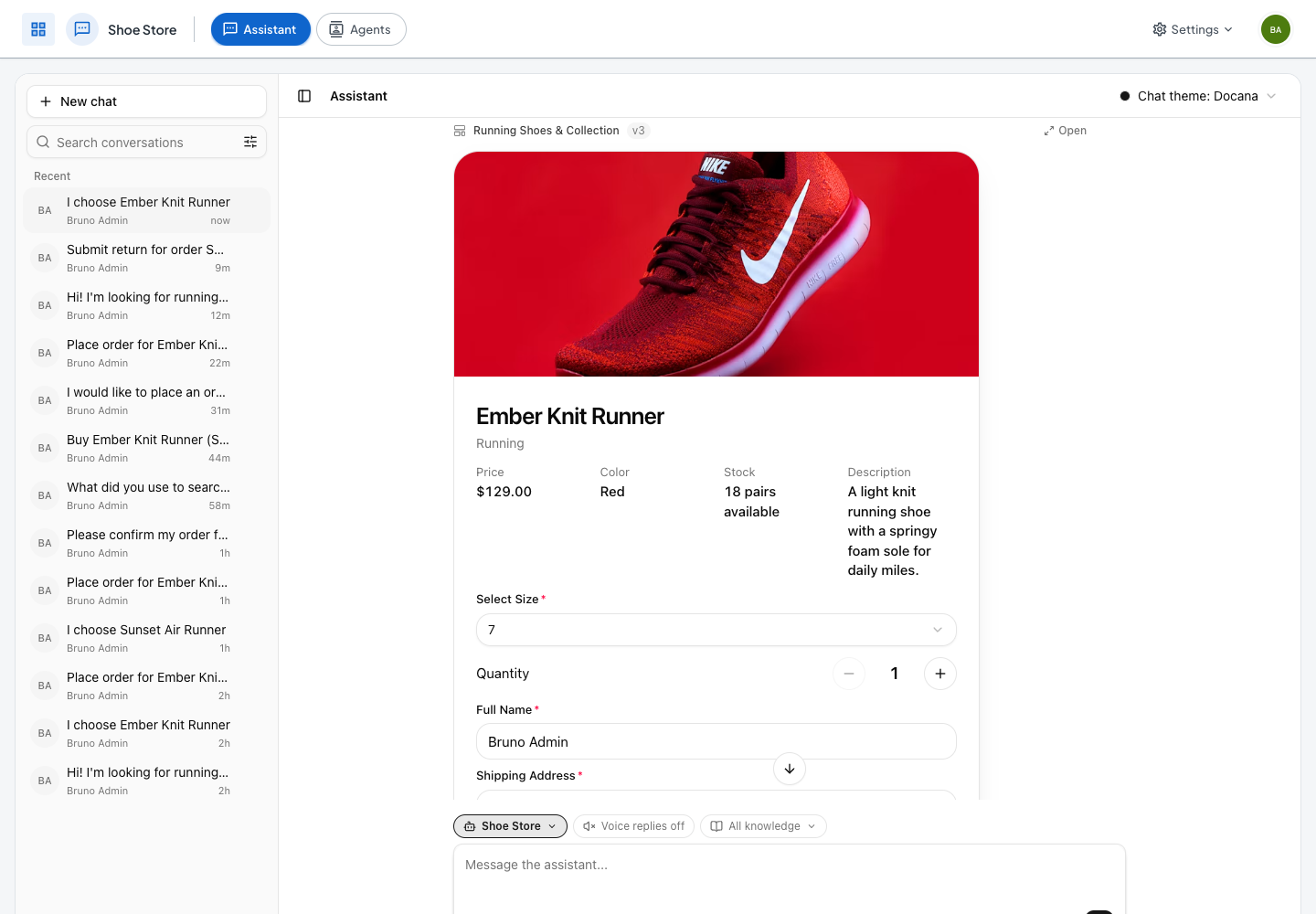
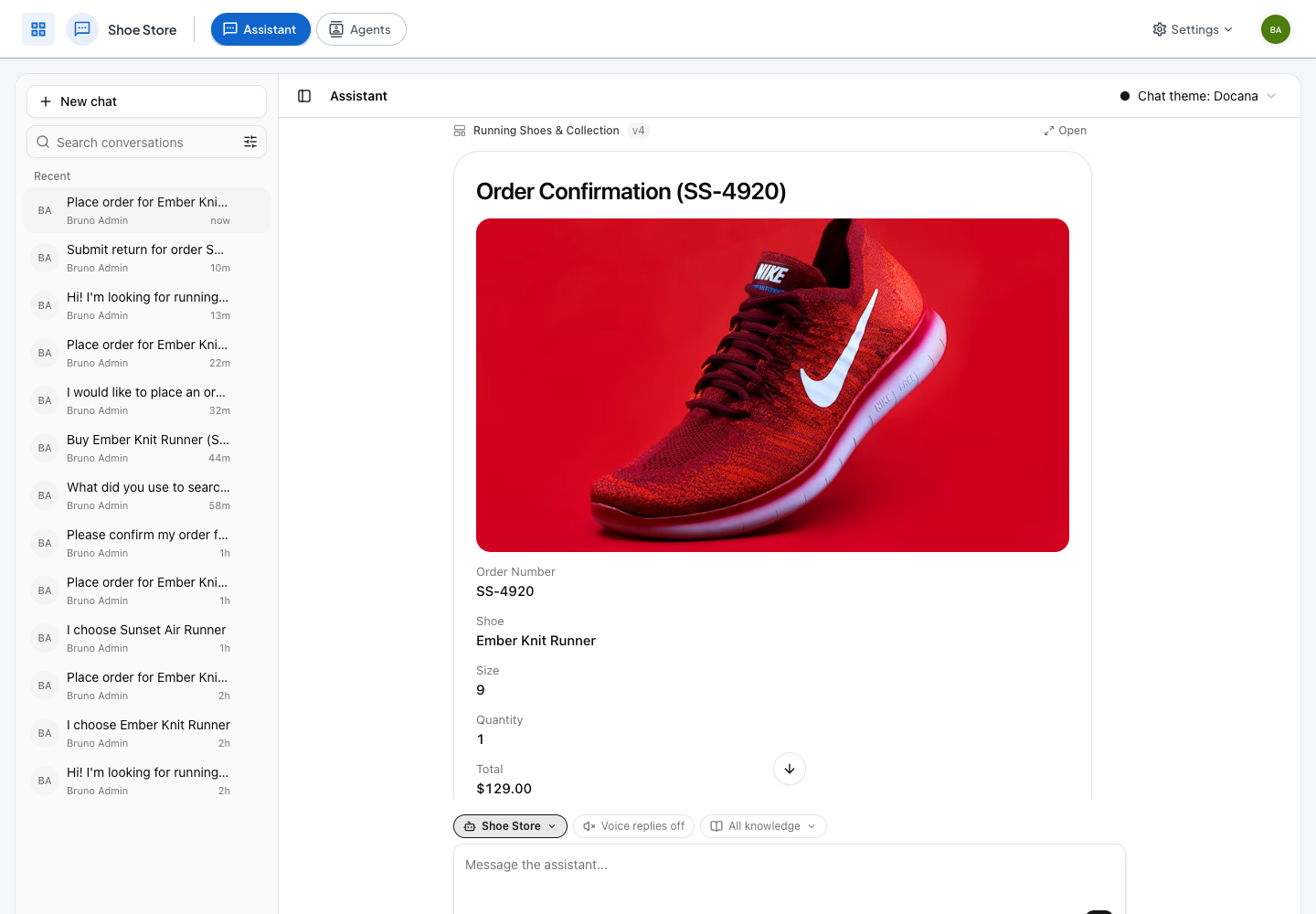
Interfaces shine in flows. In the shoe store above, choosing a shoe turns the same interface into that shoe's page, with its sizes, a quantity and the shipping fields. Placing the order saves it to an Orders table, and the page becomes a confirmation with the order number the save returned.
Built from what you tell it
The assistant builds each interface around your own situation, not a demo. Your numbers become controls that start at your values, your tasks become a checklist you tick off, and your options sit side by side with the totals worked out. Nothing generic gets added: no sample rows, made-up statuses or tips you didn't ask for.
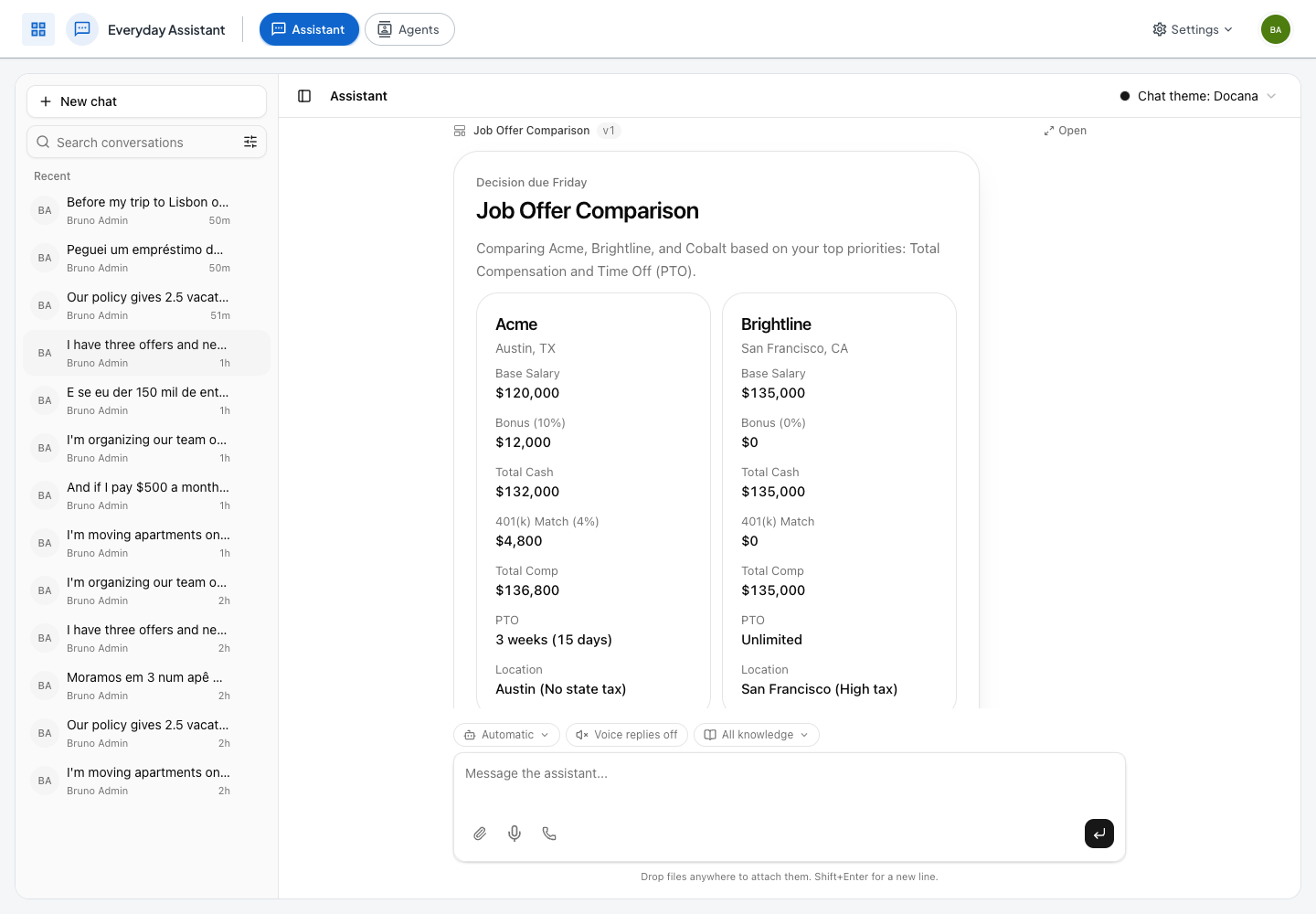
"I have three offers and need to decide by Friday", followed by each offer's base pay, bonus, city, time off and 401(k) match, gets a card per offer with its yearly total worked out, and a summary of what you said matters most.
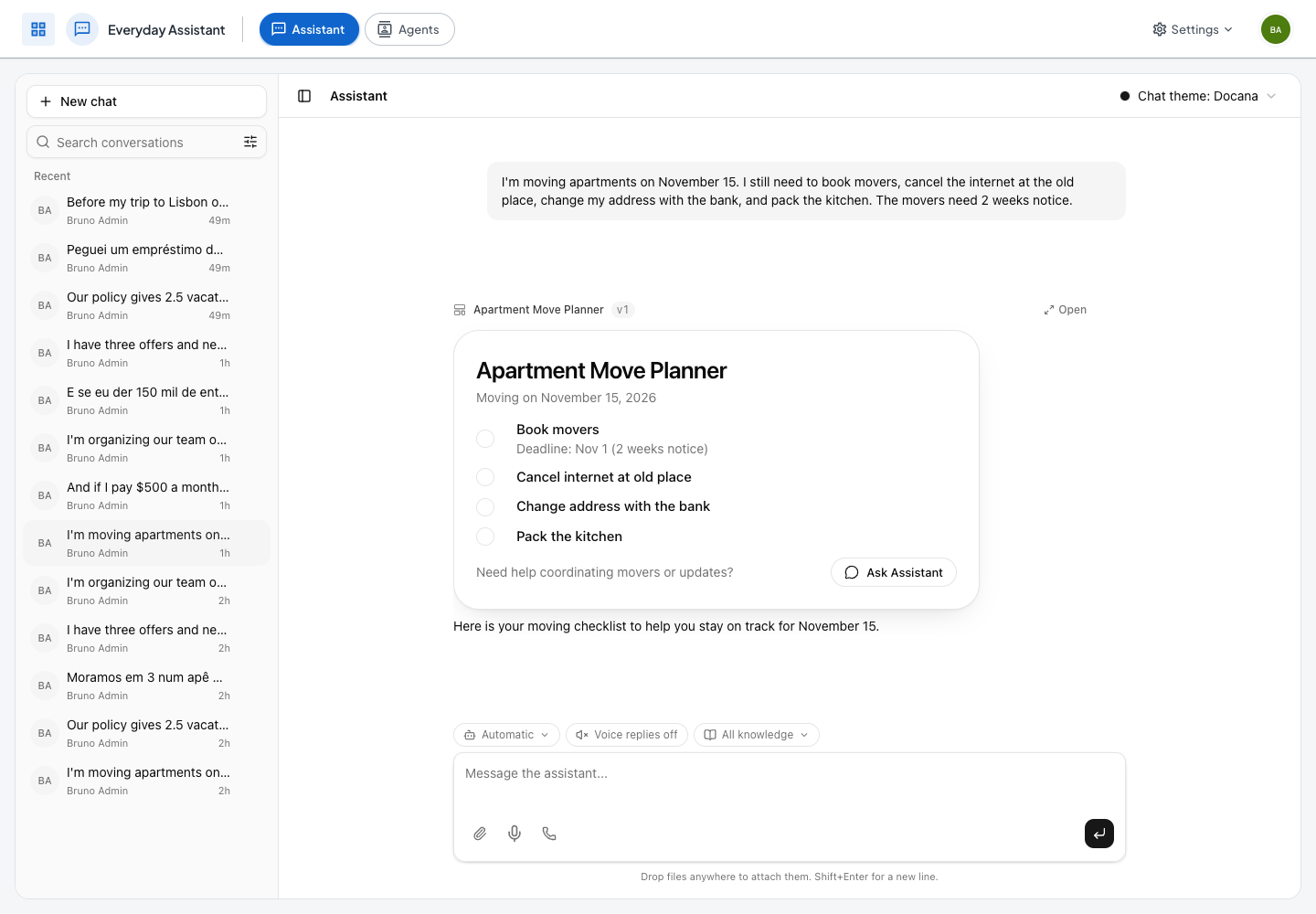
"I'm moving apartments on November 15. I still need to book movers, cancel the internet, change my address with the bank and pack the kitchen. The movers need 2 weeks notice." gets a checklist of exactly those four tasks, with the movers deadline worked out for you.
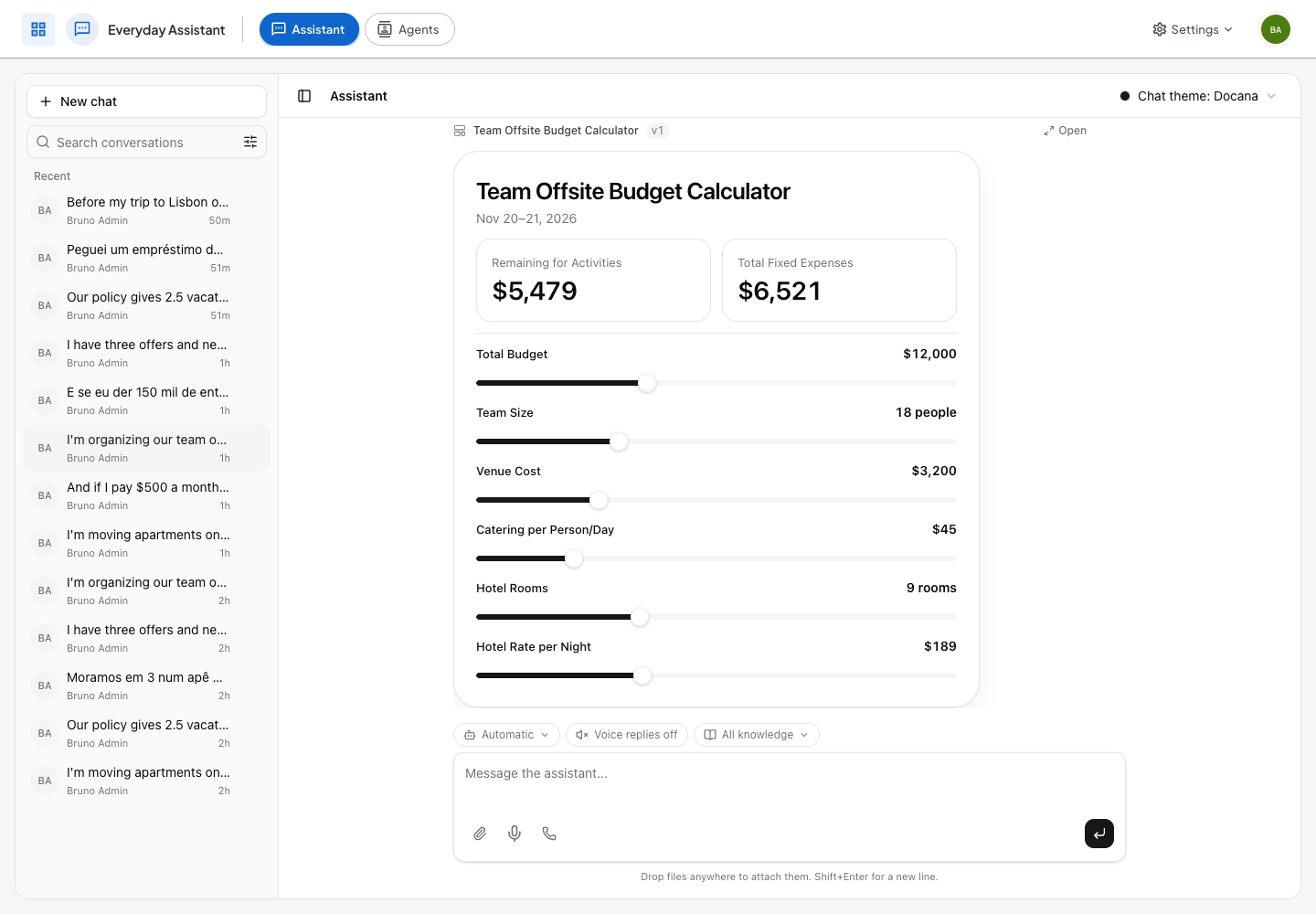
An offsite's quotes, the headcount and a $12,000 budget, asked "how much is left for activities?", get the answer up front and a slider for every number you gave, so you can try 20 people or a cheaper hotel.
Turn it on
Intelligent UI is off until a super admin turns it on. Turning it on for a company doesn't touch the applications it already has, so each one gets it only when you turn it on there.
- In Admin, open the company's Settings and turn on Intelligent UI. Every application created from then on starts with it on.
- For an application that already existed, open its Feature Flags in Admin and turn on Intelligent UI there.
- Send a message. It takes effect on the next one.
Application admins can turn it off for their application on its Details page, from Applications. That switch cannot turn it on.
Interfaces are drawn in the web chat. On WhatsApp, the web widget and other channels, the assistant and agents answer in text instead.
Buttons talk to the assistant
A button that needs the real world (choose, order, book, submit, check in) sends a message as you. The chat shows the exact message under the interface first, with Send and Cancel, and nothing goes out until you press Send. A form shows its values there as a summary, and can attach files such as a receipt.
The assistant answers that message like any other: it uses its tools, then moves the same interface to the next step. An interface never does anything by itself. An order, a booking or a payment shows as done only after a tool did it, such as a record saved to a table, and the confirmation shows what the tool returned. When nothing can send a request, such as time off with no HR system connected, the interface shows it prepared and ready to copy, and the assistant tells you nothing was sent.
Change an interface by asking
"Move the map to the top." "Add a total." "Remove the attendees." The assistant saves the next version of the same interface. Moving, removing or reordering parts usually takes about a second. When that quick path cannot make the whole change, the assistant rewrites the interface, which takes longer. Meanwhile the new message shows Updating the interface, and the new version appears once it's ready, never the old one first. Click Open on an interface to see it full size in the side panel, with its versions and its source.
Agents that draw interfaces
Any agent's instructions node can draw interfaces too. That's how you build repeatable flows such as shopping, booking or filing an expense: each step shows the screen it owns and moves the same interface forward.
- Open the agent, then the instructions node that should draw.
- Under Tool access, choose Specific tools and add Show an interface and Change an interface. Add the data tools the step needs too: Find tables and Read table columns, so the step finds a table by its name, then Read table rows and Save record to table. Name the table in the instructions ("the Shoes table"), not its id.
- In the instructions, describe each screen: what it shows, and what each button sends.
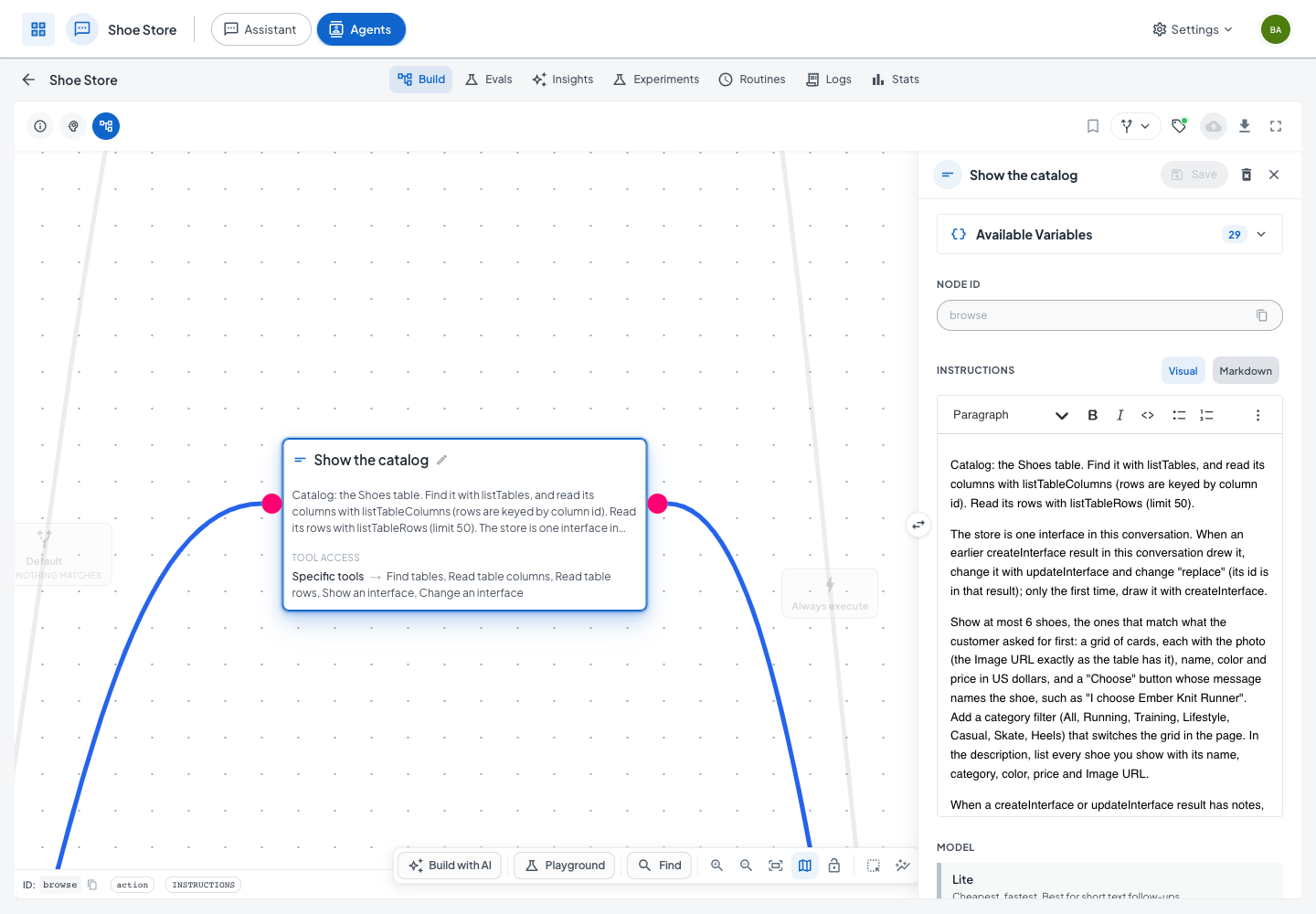
In a spec file, the node names the tools in toolChoiceToolNames:
{
  "id": "browse",
  "type": "action",
  "actionType": "INSTRUCTIONS",
  "mode": "sync",
  "config": {
    "instructions": "Find the Shoes table with listTables and its columns with listTableColumns, read its rows with listTableRows, and show at most 6 shoes with createInterface: a grid of cards with the photo, name, color and price, and a Choose button whose message names the shoe.",
    "toolChoiceMode": "tools",
    "toolChoiceToolNames": ["listTables", "listTableColumns", "listTableRows", "createInterface", "updateInterface"]
  },
  "transition": [{ "to": { "nodeId": "done" } }]
}
A few things to know:
- One interface per flow. The first step draws it with Show an interface. Later steps change the same one with Change an interface, which turns it into the next screen and saves it as the next version.
- A button starts a new turn. It sends a message as the user, so put a decision node first: a criterion that tells the steps apart (browse, choose, order) routes each message to the node that handles it.
- Save before you confirm. A step that places an order or files a request saves it with a tool first, then shows the number the tool returned.
- The agent builder knows these tools. In an application with Intelligent UI on, describe the flow ("a shoe store that shows the catalog, lets people pick a size and saves orders") and the builder wires the steps: the screens people pick from or fill draw interfaces, each step reads its table when it runs, and an order is saved before the agent confirms it.
Example: a shoe store
The Shoe Store agent reads its catalog from a Shoes table and keeps one interface for the whole visit. A decision node reads each message and routes it by intent:
The criterion's field is a plain list of values, intent: one of BROWSE, CHOOSE, ORDER, TRACK, RETURN, OTHER, and the criterion's own text explains each one. Every transition checks one value, and a default transition sends anything else to a text answer.
Example: an expense desk
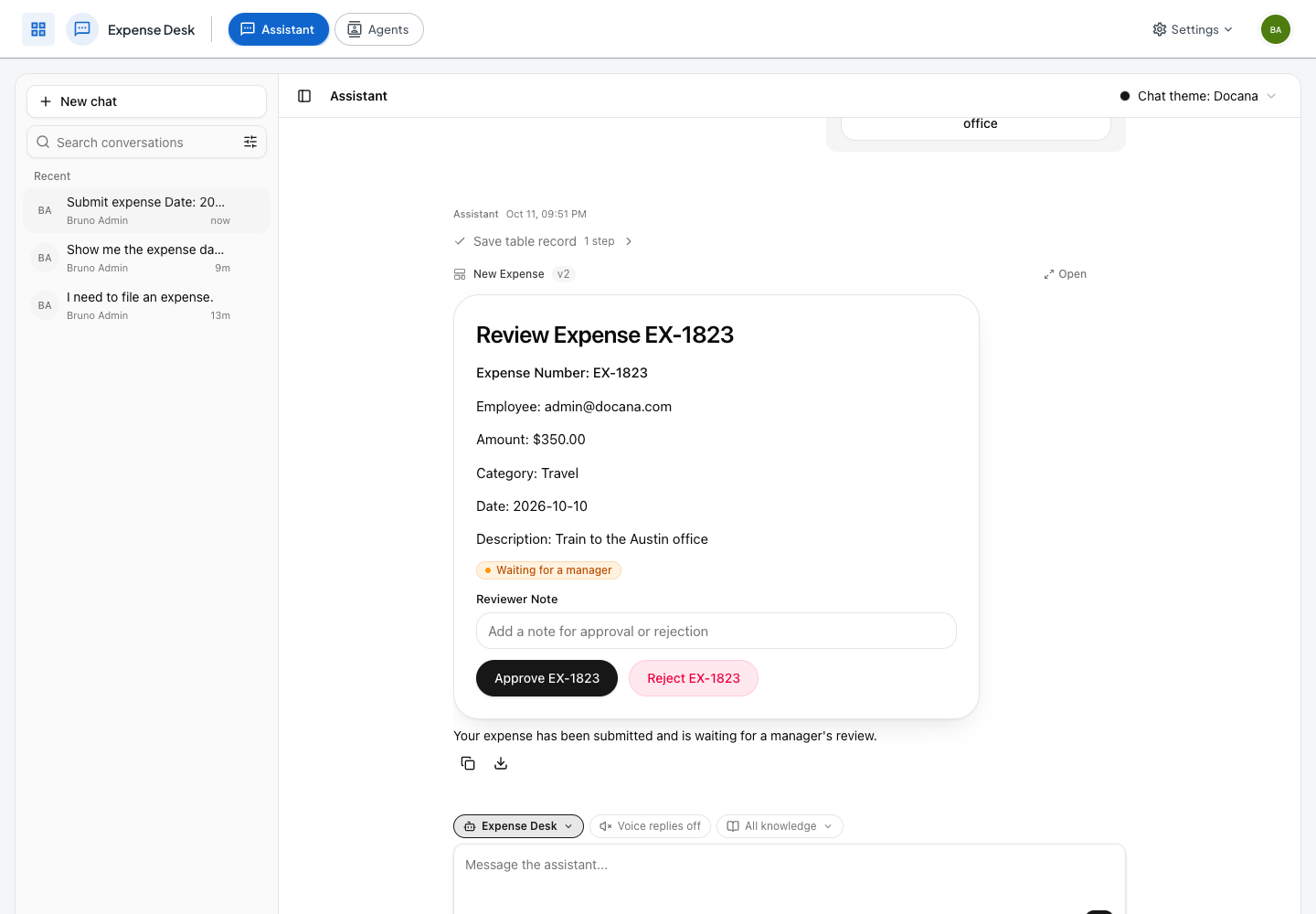
An employee asks to file an expense and gets a form with the date, category, amount, description and a receipt upload. A decision node reads the action and the amount from the submitted form and routes it:
- Up to $100: saved and approved at once.
- $100 to $1,000: saved, and the form becomes a review card with Approve and Reject buttons for a manager.
- Over $1,000: saved, and the card becomes a finance checklist.
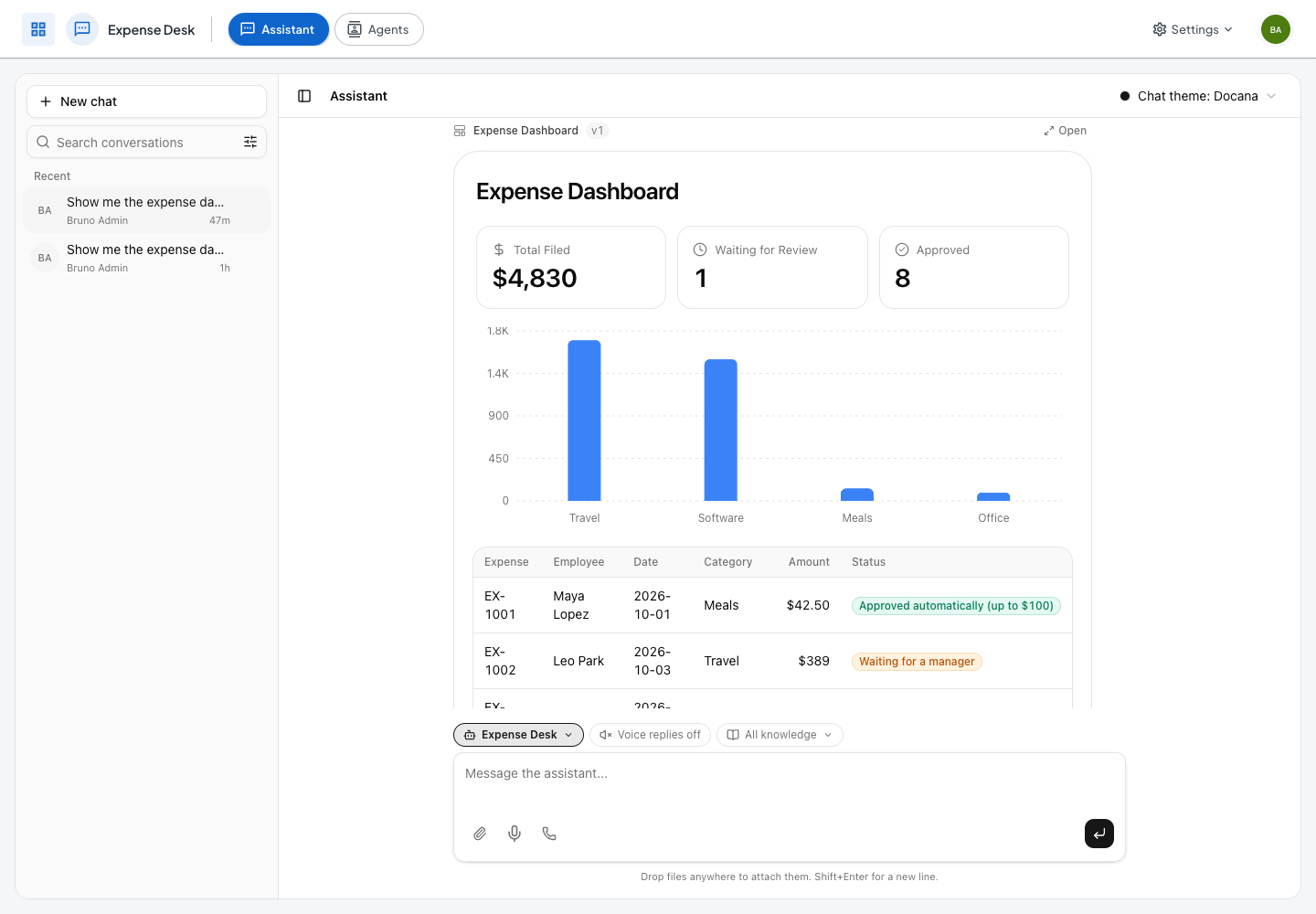
Asking for "the expense dashboard" draws KPI tiles, a chart by category and a table of every expense with its status, read from the Expenses table.
Example: a trip planner
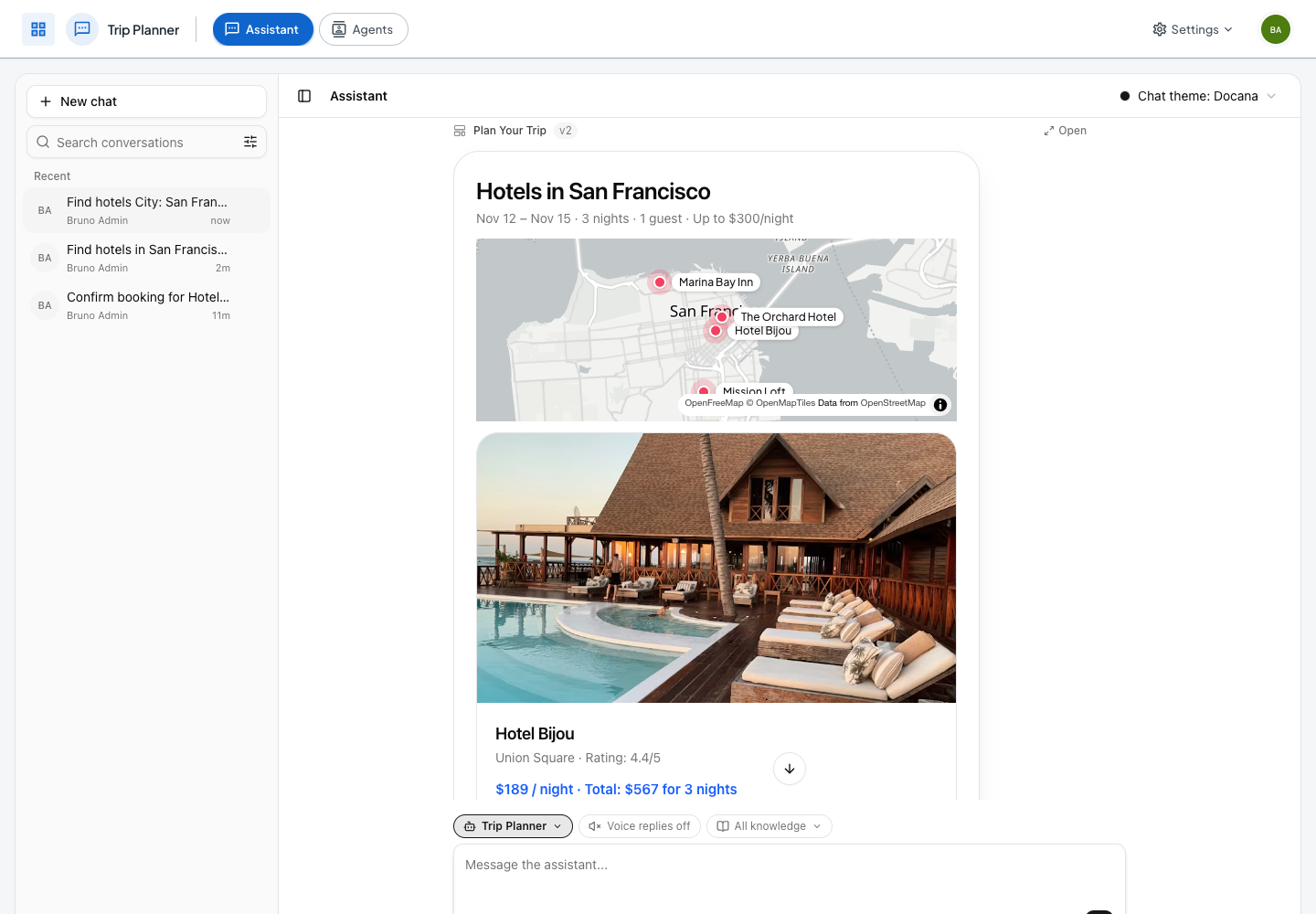
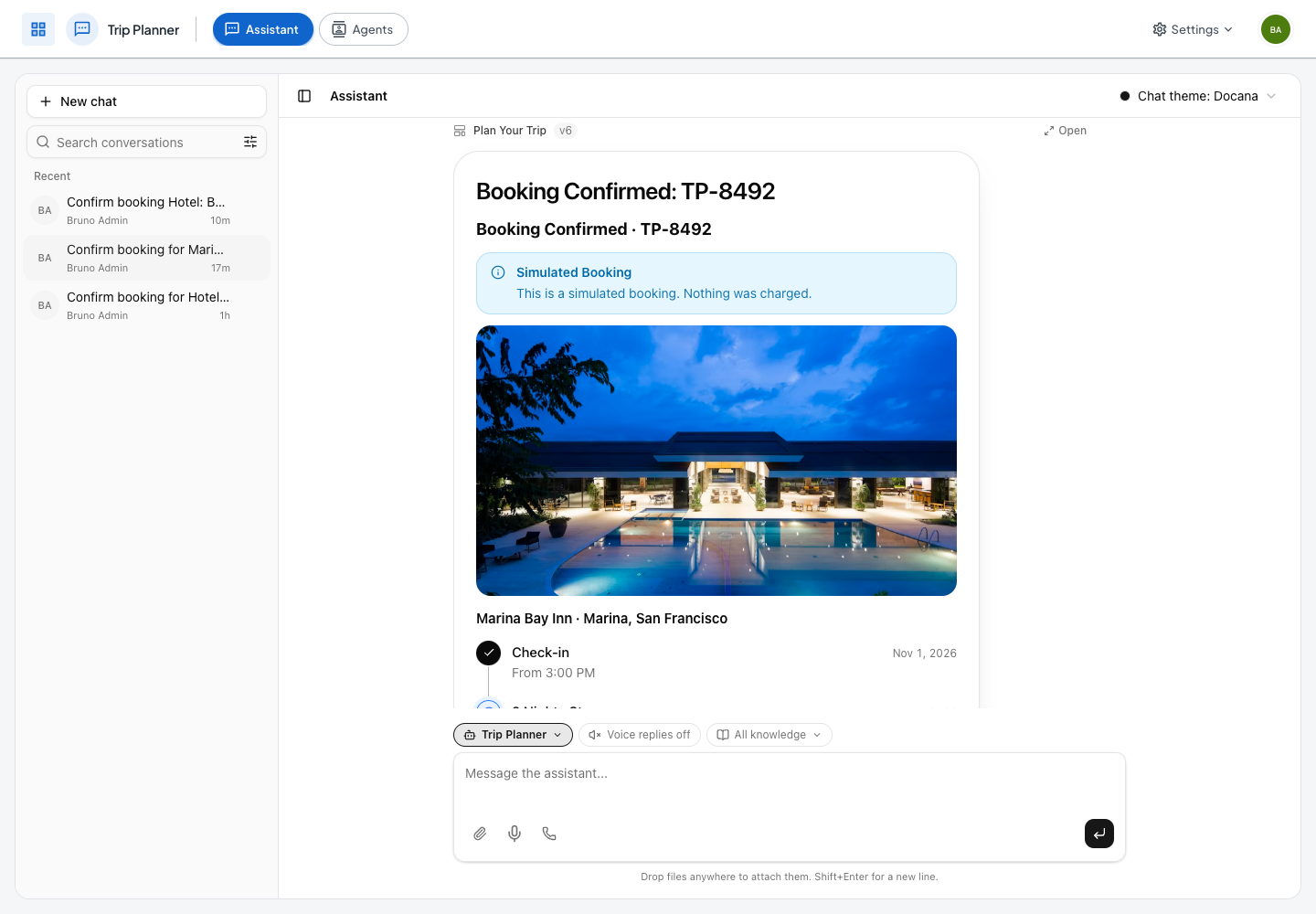
A trip form asks for the city, dates, guests and a budget. The next step shows the matching hotels from a Hotels table on a map, with a card and a Pick button each. Picking one turns the interface into a booking summary, and confirming it saves the booking and shows a timeline of the stay. A state node remembers the trip in the conversation, so the later steps know the dates and guests without asking again.
Example: a video finder
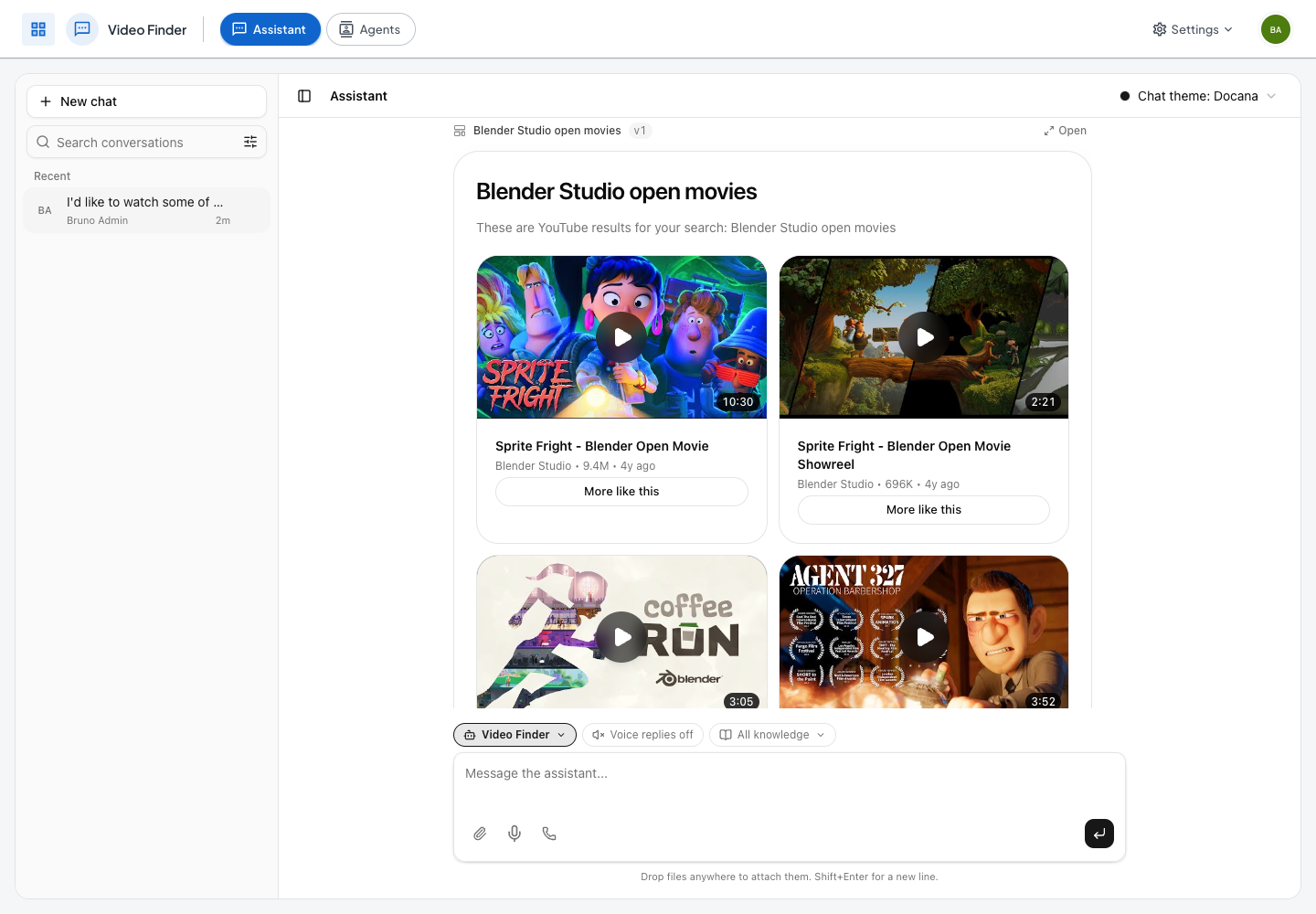
The Video Finder agent's allowed website is YouTube, on the Advanced engine, so it searches in a real browser. Ask for videos on anything ("I want to learn to bake sourdough bread at home") and it opens YouTube's results, reads each video's address, title, length and channel, and shows six of them as cards that play right in the chat. More like this on a card searches again from that video.
While it searches, the chat's Browser card shows YouTube's results page and what the browser is doing. The agent is one instructions node. Its tools open a page on the allowed website, find the links on it, read the page, and show or change an interface. A video's address must appear in what the browser read, like any other address, so a card never plays a video the agent made up.
What interfaces can show
- Native components. Cards, grids, charts, maps, timelines, tables, forms with files, sliders and calculators, built from the chat's own components so they look like the rest of the chat. The model never writes code, so nothing it writes runs. A calculator's results are formulas over its controls, such as a loan's months to pay off, and they update as you move them.
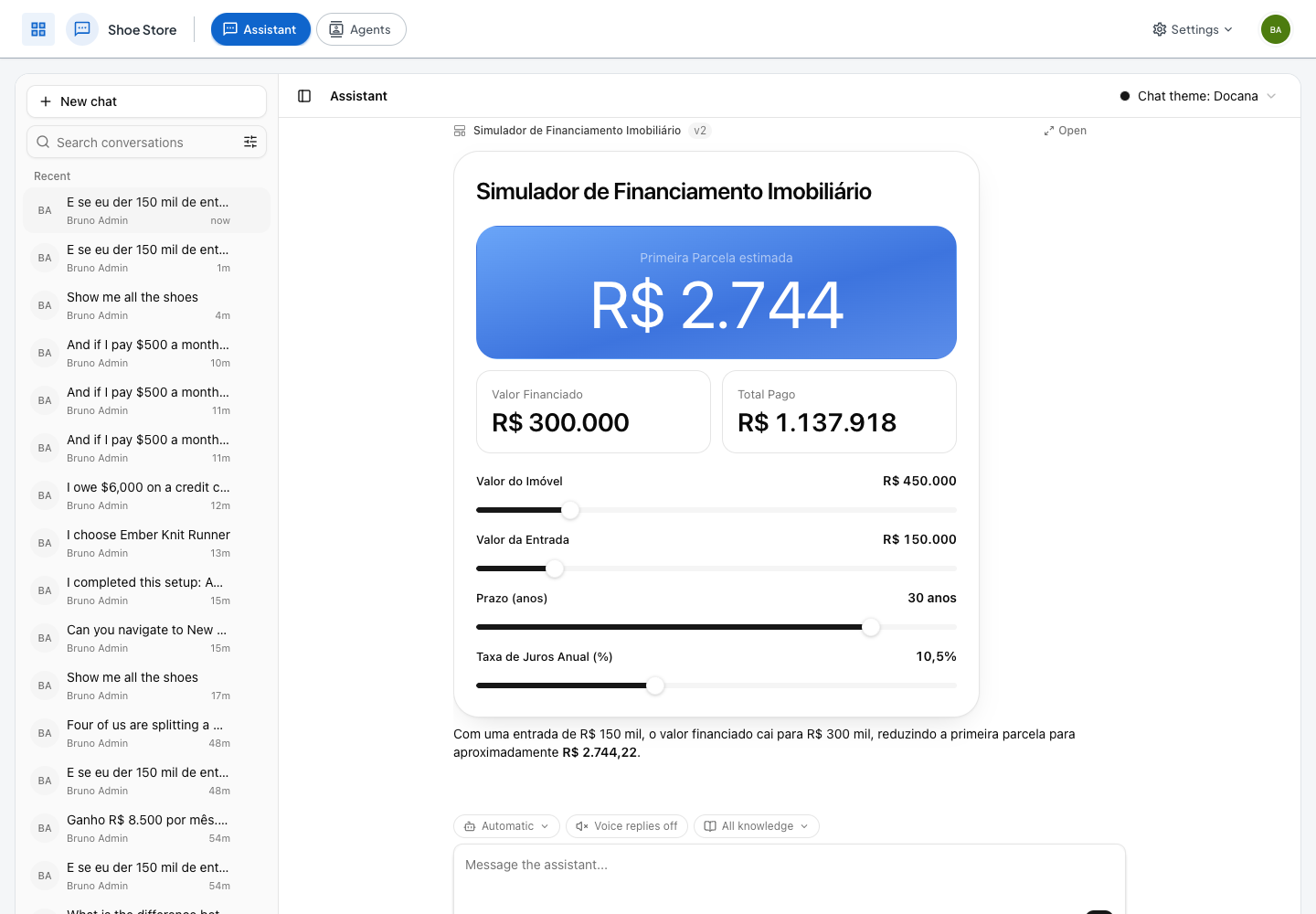
- Your language, numbers included. An interface is written in the language of the conversation, and so are its numbers, money and dates. Ask in Portuguese and a financing calculator shows R$ 2.744 and 10,5%, even when Docana itself is in English.
- Real data. Facts from the conversation, your knowledge and tool results. The assistant gathers the data before it draws, and a list nobody gave records for starts empty instead of showing samples.
- Real images, videos and links. Only addresses that appear in the conversation or a tool result. Anything else is left out, so a photo comes from your table or a document. A page the assistant searched or browsed can be linked to, and its videos played, but its pictures are not shown, so a page cannot make your browser load an address of its choosing.
- Videos that play in the chat. A YouTube, Vimeo or Loom link plays in that site's own player, and a video file plays in the browser's. Until you press play the card shows a thumbnail with the video's length, and the player loads only then. A video file can carry its captions. YouTube plays from its privacy-enhanced player, which sets no cookies before you play.
Works well with
- Web search. A super admin can turn on the Web search flag for the assistant. It searches the web for places, businesses, prices and news, and returns the real page addresses, so an interface can link to them. This is separate from Google Search grounding, which an agent's instructions node turns on for itself.
- Tables. The assistant reads a table's rows, so a catalog or a list of orders comes straight from your data, and saves records to it.
- Approval before acting on websites. Before the assistant clicks, types or runs anything that commits something on an allowed website, such as a booking or a payment, the chat shows the exact action and waits for your approval.
- Watching the browser. When the assistant or an agent browses an allowed website on the Advanced engine, the chat shows a Browser card. It says in a few words what the browser is doing and shows the page it's on, updated after each page it opens and each click. Open browser shows the page larger, with every step. The card only shows the page: nobody can drive the browser from it, and it shows nothing while the assistant signs in with a stored login.
- Websites proposed from the chat. When a task needs a website your application doesn't allow yet, the assistant proposes it, and an admin confirms it in a prefilled form. Any login goes in that form, never in the chat.
Limits
- Interfaces are drawn in the web chat only. Other channels get text answers.
- Interfaces belong to the application. Members can open each other's interfaces but change only their own: when someone asks to change another member's interface, the assistant makes them a copy.
- What you type into an interface stays in your view. The values a step needs travel in the message a button sends.
- Approval before acting on websites is web chat only for now. On other channels the assistant acts on allowed websites as it does today.