CSV datasets
Some questions need an exact answer, not a paragraph. "What were total sales in Q3?" "Which five customers are overdue?" "How many invoices are above 10,000?" Search can find the document, but it can't add up the rows. Datasets can.
Upload a CSV and Docana turns it into a data table your agent can query. You ask in plain English, the agent writes the SQL behind the scenes, and you get the exact number back.
Open a CSV and explore its rows
Go to Library, open the collection, then open the CSV document. Data preview shows the original file values, with Chat with CSV beside it. On a phone, switch between the two tabs. Expand the preview to inspect more columns, or choose Download CSV to save the original file.
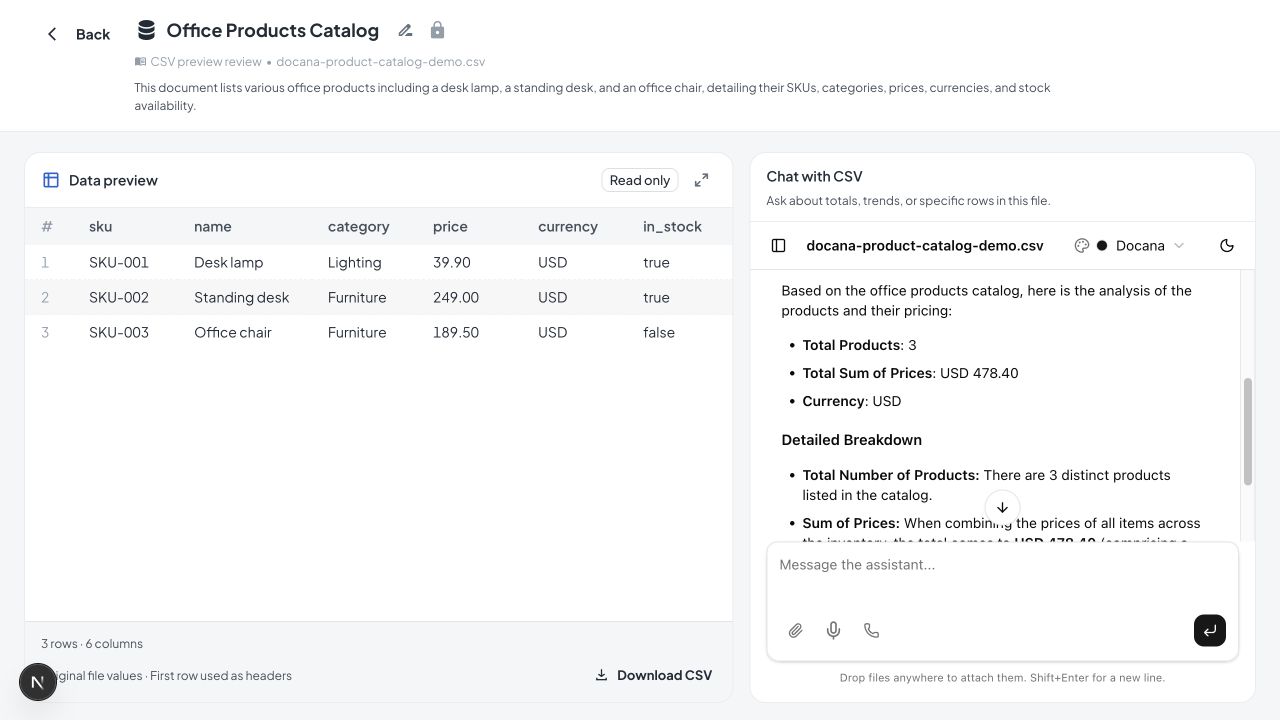
The preview reads at most the first 1 MiB, 100 data rows, and 50 columns. It labels partial previews and uses the first record as column headers. Values remain strings, so identifiers such as 00123 and decimals such as 39.90 keep their original formatting. Comma, semicolon, tab, and pipe separators and UTF-8 files are supported.
Use chat to ask questions across the dataset, such as “Which products cost more than $100?” or “What is the average price by category?” The agent uses the dataset tool to query the authorized file. Opening the preview itself only reads a sample of the file. A preview does not convert the document into a managed Table.
The same bounded preview is available headlessly:
| Interface | Operation |
|---|---|
| API | GET /api/v1/documents/{id}/data-preview/ |
| CLI | docana documents preview 42 |
| MCP | getDocumentDataPreview with id: 42 |
The response contains documentId, columns, rows, and preview limits and truncation flags. Rows are positional arrays, preserving duplicate or blank column names. This endpoint is a sample, not a full-table query or a total row count. It checks the caller's document permissions before reading the file.
How it works
When you upload a CSV to a collection, Docana treats it as a data table by default. The first dataset query or request for its columns prepares the file for analysis. New CSV snapshots preserve values as text, including leading zeros and decimal formatting. Queries can convert values explicitly when calculating totals or comparing dates.
From then on, any agent in that application can answer questions about the data. Ask "what was our average deal size last quarter?" and the agent looks at the table's columns, writes a query, runs it, and answers with the real figure.
The dataset tool reads your data. It can filter, sort, group, count, and add up rows. The query result is the evidence for the answer. Check that its filters, units, currencies, and source version match your question.
If a generated query counts an array as text or tries to clean a numeric value as text, the agent receives correction guidance and can retry with a corrected query. Docana does not automatically rewrite that query or guarantee that the retry succeeds.

Data table or knowledge?
Every file you upload is used in one of two ways:
- Knowledge: Docana reads the text and searches it by meaning. Right for documents you ask about in words, like "what does the contract say about termination?"
- Data table: Docana loads the rows and queries them with SQL. Right for spreadsheets you ask about in numbers, like "what's the total by region?"
CSVs become data tables by default, since that's almost always what you want from a spreadsheet. You can switch any file between the two from the collection's menu: Use as data table or Use as knowledge. A file marked as a data table shows a database icon.
Ask a question
- Upload your CSV to a collection the application uses, or attach it directly to a chat
- Ask the assistant a question about the data, in plain English
- The agent finds the table, writes a query, and answers with the exact result
A few examples:
"What were our total sales in Q3?"
"List the top 10 customers by revenue."
"How many support tickets were opened last month, and how many are still open?"
If you upload more than one spreadsheet, the agent can combine them. Ask "which customers in the sales file are missing from the contacts file?" and it joins the two and answers.
What's supported
- File type: CSV today. Docana detects column headers and separators (comma, semicolon, tab, or pipe). Malformed rows produce a load error instead of being silently dropped.
- Size: uploads remain subject to your plan's file-size limit. Initial loading takes longer for larger files. Queries also have time and scan limits. Aggregations run over the full loaded dataset, but a million-row import and interactive shopping workflow have not yet been validated as a supported scale guarantee.
- Results: a single question returns up to 100 rows of detail by default. Summaries (totals, averages, counts) always run over everything.
Uploading a CSV does not populate a managed Table in the Tables directory. Background bulk imports, catalog upserts, and incremental replacement of managed records are still in development. For a shopping assistant today, connect the CSV collection to its application and use dataset queries. Validate the actual catalog and query latency before using it with customers. Check current price and stock with the commerce system before purchase.
Best practices
- Use clear column headers: the agent reads your headers to understand the data, so "invoice_total" beats "col3".
- One subject per file: a clean "Invoices" file and a clean "Customers" file query and join better than one giant mixed sheet.
- Keep a data table a data table: if you want exact numbers, leave the file as a data table rather than switching it to knowledge.
- Ask for the calculation you want: "average," "total," "count of," and "by month" all translate directly into the query.
To turn a catalog into a customer experience, follow From a catalog to a shopping assistant. It connects the dataset to document knowledge, employee preparation, tests, publishing, and channels.
Next steps
- Tables: Extract facts from documents or save records from an agent
- Creating an Agent: Build an agent that answers data questions
- Connectors: Sync spreadsheets in automatically