Classify saved table data
Add a classification column to decide something about facts already in a table. Mark support conversations that need attention, categorize products, or score the completeness of a supplier record. Classification reads the saved fields you choose. It does not extract the document or conversation again.
For example, Conversation Insights can save a conversation's topic, resolution, sentiment, and follow-up flag. A Follow-up priority classification turns those fields into Needs attention or Resolved. Give each label a color, then use the result to review records or filter a weekly delivery.
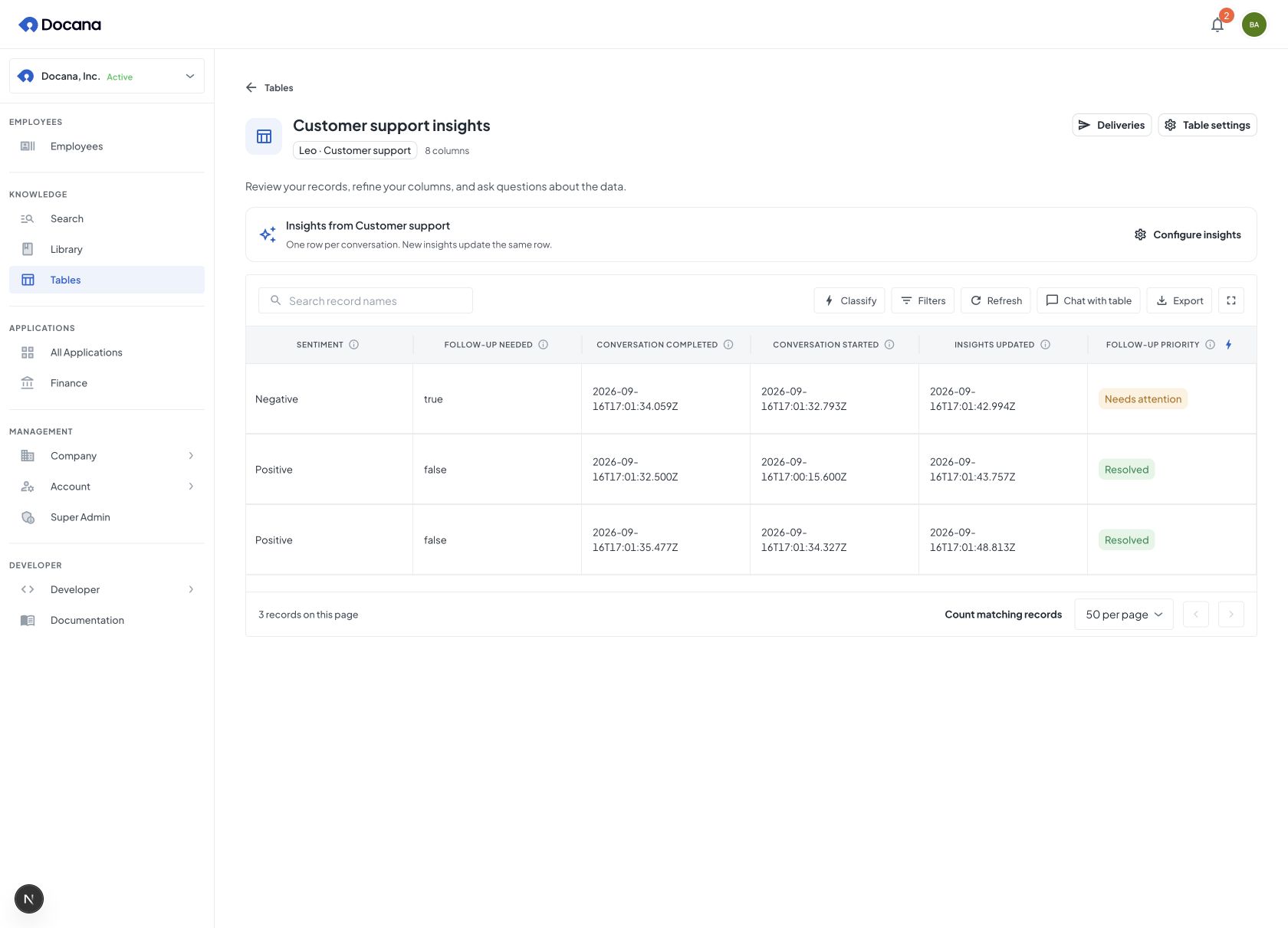
Add a classification
Open a table and choose Classify, then Add classification. Give the column a name and select the saved fields it should read. Write a decision rule and define the possible results.
| Result type | Use it for | What the cell stores |
|---|---|---|
| Category | Follow-up priority, product category, request type | One of your labels |
| Yes / no | Whether a record needs review | true or false |
| Score | An ordered rubric, such as incomplete through complete | A numeric score between the first level, 0, and the last level, number of levels - 1. Fractional scores are possible. |
For categories and yes/no decisions, choose a minimum answer probability. Results below it show Needs review instead of an accepted value. The default is 0.7. Model probability is not a guarantee of accuracy, and a rubric score is not a probability.
You can choose a color for each category or yes/no result. Labels remain visible, so color is never the only way to read the decision. Renaming a column or changing colors updates its presentation without making another model call.
Preview before saving
Choose Preview results to evaluate up to 5 saved records. The preview shows the selected input fields, the proposed answer, and the answer probability for category and yes/no results. Check examples near the boundary between categories before applying the rule.
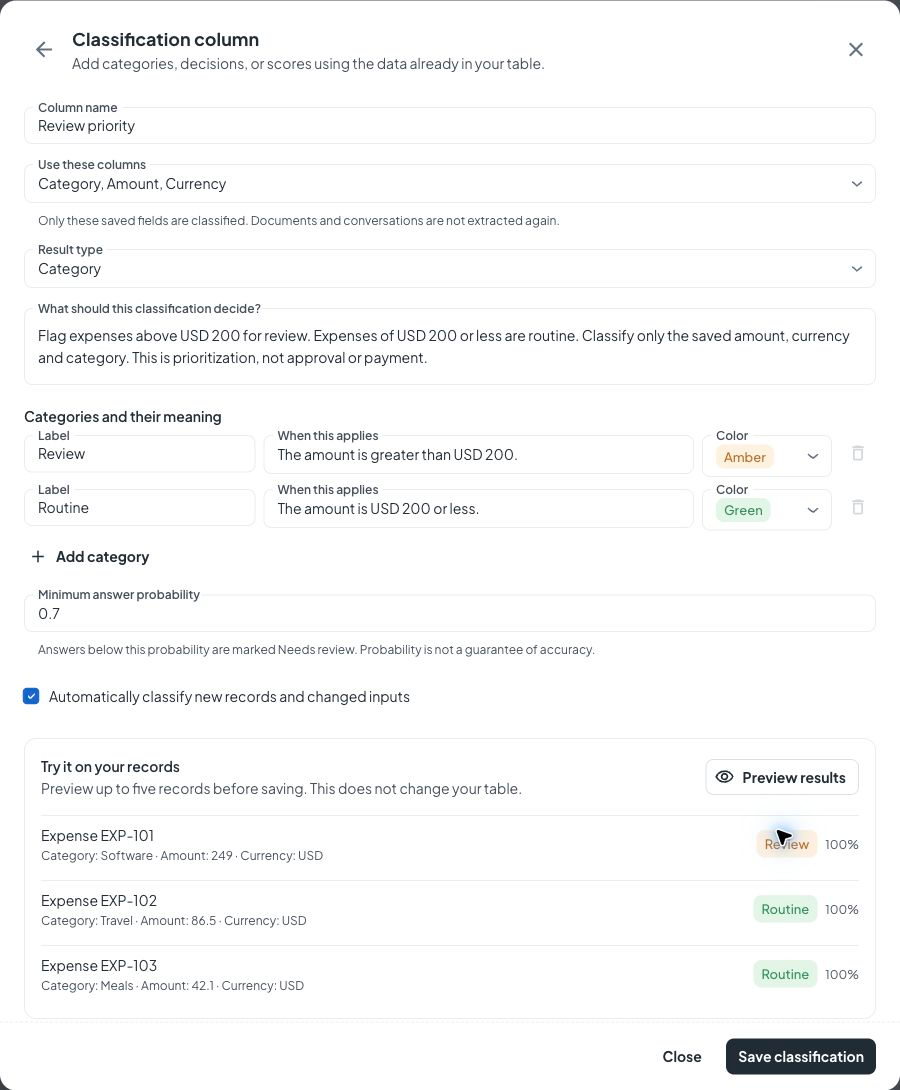
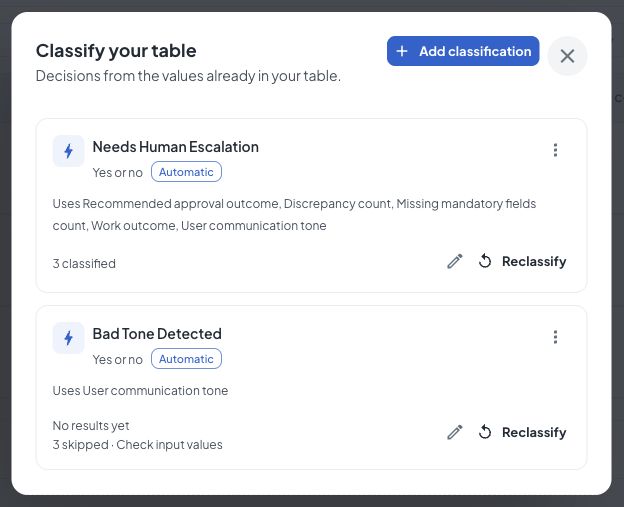
Choose Save classification to add the column and queue its first run. Classification columns have blue headers and a light blue cell background. The pencil in the header edits the rule; the lightning button reruns that column. Open Classify to see progress and choose a different rerun scope.
Reclassify when the decision changes
Click the lightning button in a column header to reclassify all eligible records for that column. It shows a spinner while the run is active. Results refresh as the worker saves progress, so short runs can arrive together. Fresh results briefly highlight and show their recorded duration, such as 84 ms, in the corner of the cell, even when the answer stays the same. The duration doesn't move the cell's value. Existing values stay visible while their replacements are computed. Reduced-motion settings disable the animation.
For more control, open Classify, choose Reclassify for the column, and select what to recompute:
| Scope | What happens |
|---|---|
| New records and changed inputs | Reuses accepted results whose selected inputs and decision rule have not changed. Also retries results that need review or failed. |
| Missing results | Classifies records without an accepted result. |
| All records | Recomputes this classification even when an accepted result already exists. |
Reclassifying changes only that classification column. Source fields and other classification columns remain intact. When Automatically classify new records and changed inputs is on, later arrivals and changes to selected fields are picked up in the background. Unchanged failed or uncertain results wait for an explicit rerun so they do not consume usage repeatedly.
A provider outage or usage limit pauses the run without marking the remaining records as failed. Temporary failures retry automatically. Invalid rules stop and show an error so you can edit, retry, or remove the classification. Reclassifying selected rows preserves the progress of automatic updates.
If a selected input changes, the old classification is cleared until it can be recomputed. Blank inputs and fields still being extracted wait for usable values. Changing a decision rule queues a new run, so allow it to finish before using the new results in a report.
Inspect a decision
Click a classification cell to see its saved result, answer probability when available, classification duration, and saved time. Opening these details reads the existing result and consumes no AI usage. An older result is labeled when its inputs or rule have changed.
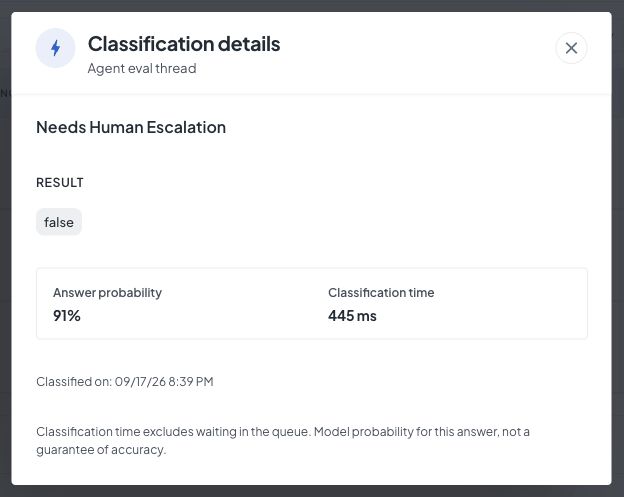
For a yes/no result, the dialog shows the probability of the displayed answer: a false result with a 2% probability of true appears as 98%. Scores do not have an answer probability. Duration excludes time waiting in the queue. If older results lack timing or probability metadata, the dialog leaves it unavailable rather than estimating it.
A dash can mean that no classification result has been saved yet. Check the selected input columns: rerunning a classification cannot fill an extraction field that has no value. The dialog distinguishes a missing result from a failed or uncertain saved result.
Use the result elsewhere
Classification values are table columns. Include them in exports, query them through Chat with table, or select them in a delivery. A support team can filter a Friday report to Needs attention, attach a PDF summary, and include a chart of request topics.
A product team can save catalog records through the API or CLI, classify descriptions into product categories, and let a configured agent query the table. Changing the category policy then requires a classification rerun, without rebuilding the catalog or re-extracting descriptions. An uploaded CSV uses the separate dataset flow. To classify its rows here, first save them as table records through an integration.
Ask an employee to set it up
The employee preparation assistant can create the source columns, then add a classification that combines them. For example:
Collect the issue summary, resolution, and customer impact from each support conversation. Use those saved fields to classify follow-up priority as Routine or Needs attention. Preview a few existing records, then apply the rule and classify future updates automatically.
Supplied values stay ordinary columns. Facts that need the document or conversation become extraction or insight columns. Classification makes a separate decision from those saved facts. If it needs more context, collect a short source summary as a column and select it explicitly. The classifier does not read the source attachment or conversation automatically.
Preparation can inspect, preview, create, update, and rerun classifications in the employee's application. Preview consumes AI usage without saving results. Creating a classification queues its first run immediately, including when automatic updates are off. The assistant reports queued work separately from completed results. It can prepare a paused delivery for review, so applying a classification does not send a report by itself.
Access and limits
Classification uses Typesafe AI's Jev evaluation model through AI Gateway. Your deployment needs an AI Gateway key. Preview and saved runs consume AI usage. A classification can use up to 20 existing data columns and 2 to 20 categories or rubric levels. Each request is limited to 24 KB of selected input and decision instructions. Another classification cannot be used as an input.
Runs use the access of the person who creates or explicitly starts them, with fresh permission checks before saving results. Table access and row scope still apply. Classification does not grant access to other people's records or send unselected columns, full documents, or whole conversations to the classifier.
Use the headless classification guide to manage the same rules through the API, CLI, or MCP.