Deliver reports
A table becomes more useful when its records reach the people who need them. Open a table, choose Deliveries, and create a saved report. You can send it by email or webhook, on a schedule or when processing finishes.
Export → Send via email opens the same deliveries panel from a table in Knowledge or a document site. Review or create a delivery there, then choose when to send it. Opening the panel does not send an email.
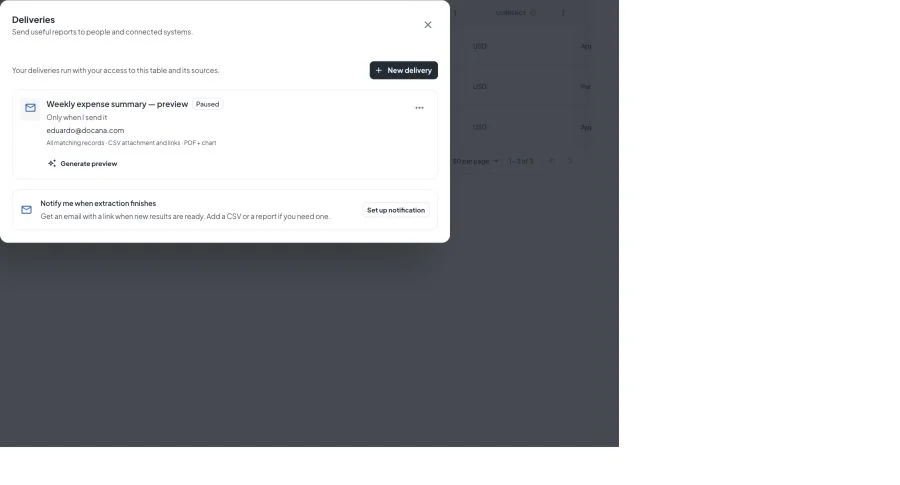
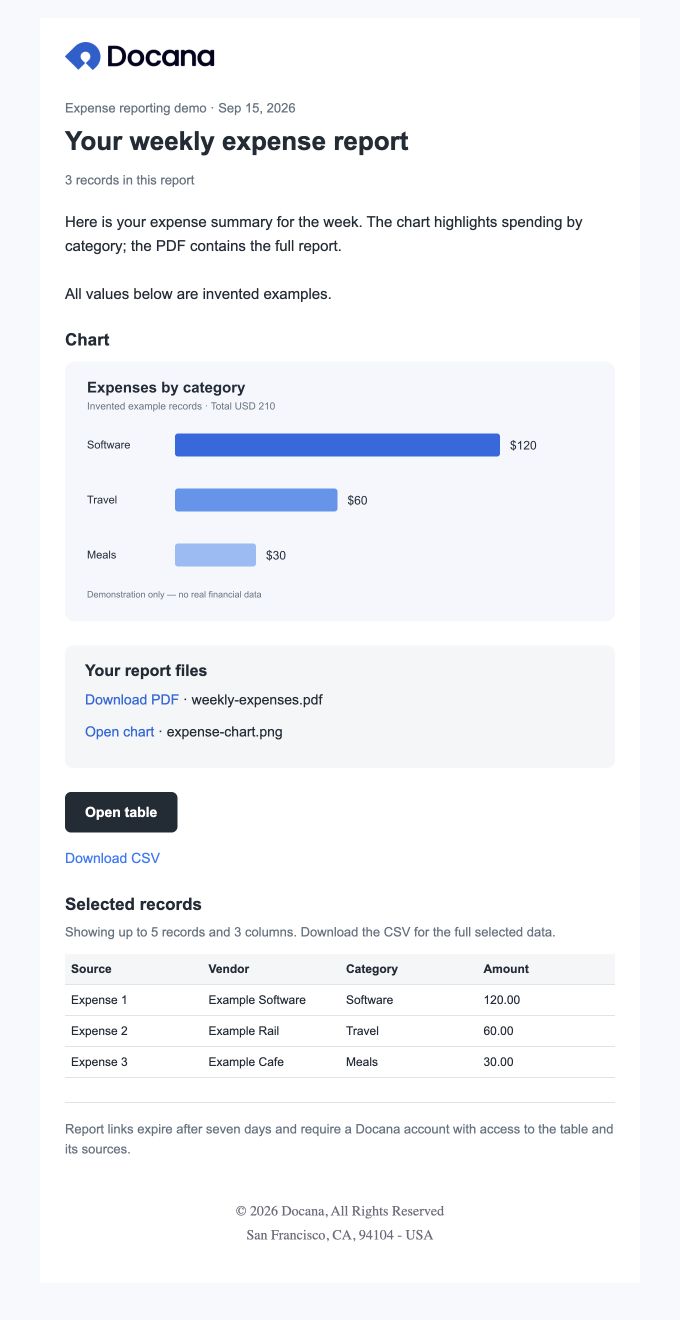
For example, an expense employee saves confirmed expenses and their receipt references. Finance receives a CSV every Friday. A second delivery notifies an expense system when new records are ready. Both use the same table. Neither runs document extraction again.
Get notified when extraction finishes
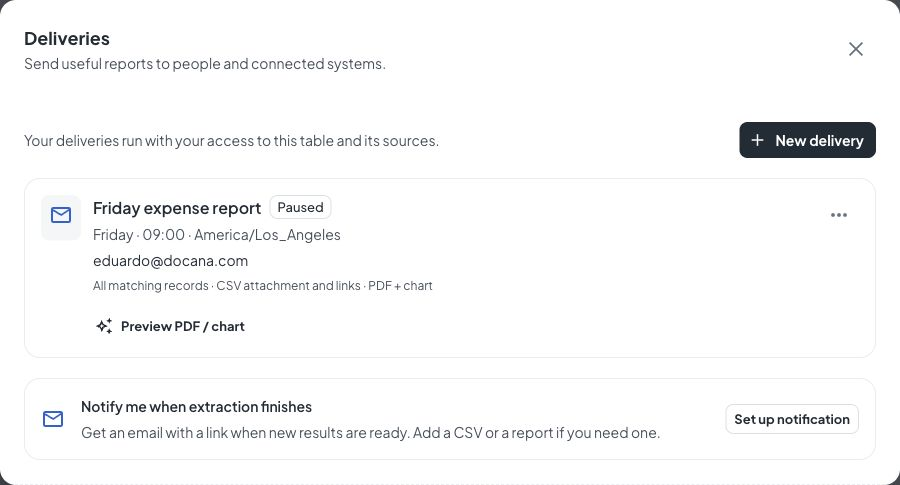
Choose Set up notification under Notify me when extraction finishes. This fills in your email, When an extraction batch finishes, New records, and Table link. Review the rule and switch it to Active when ready. Add CSV, PDF, or chart output from the same editor.
All automatic table emails are managed here. Table settings contains the name and extraction instructions.
Set up a Friday report
- Choose Deliveries → New delivery. New deliveries include All matching records, All columns, and a PDF + chart report by default. Narrow the selection or add filters, such as Approval equals Ready for review. Use Preview records beside these settings to check a sample. You can do this before entering a name or recipients.
- The name starts as Weekly report, with a Friday schedule. Keep those defaults or change the name, time, and timezone.
- Email starts with your signed-in email address as the recipient and CSV attachment and links selected. Edit the recipients if someone else should receive it. Expand Customize subject and message if you want to add a note.
- Save it paused while reviewing. Switch it to Active when it should start sending.
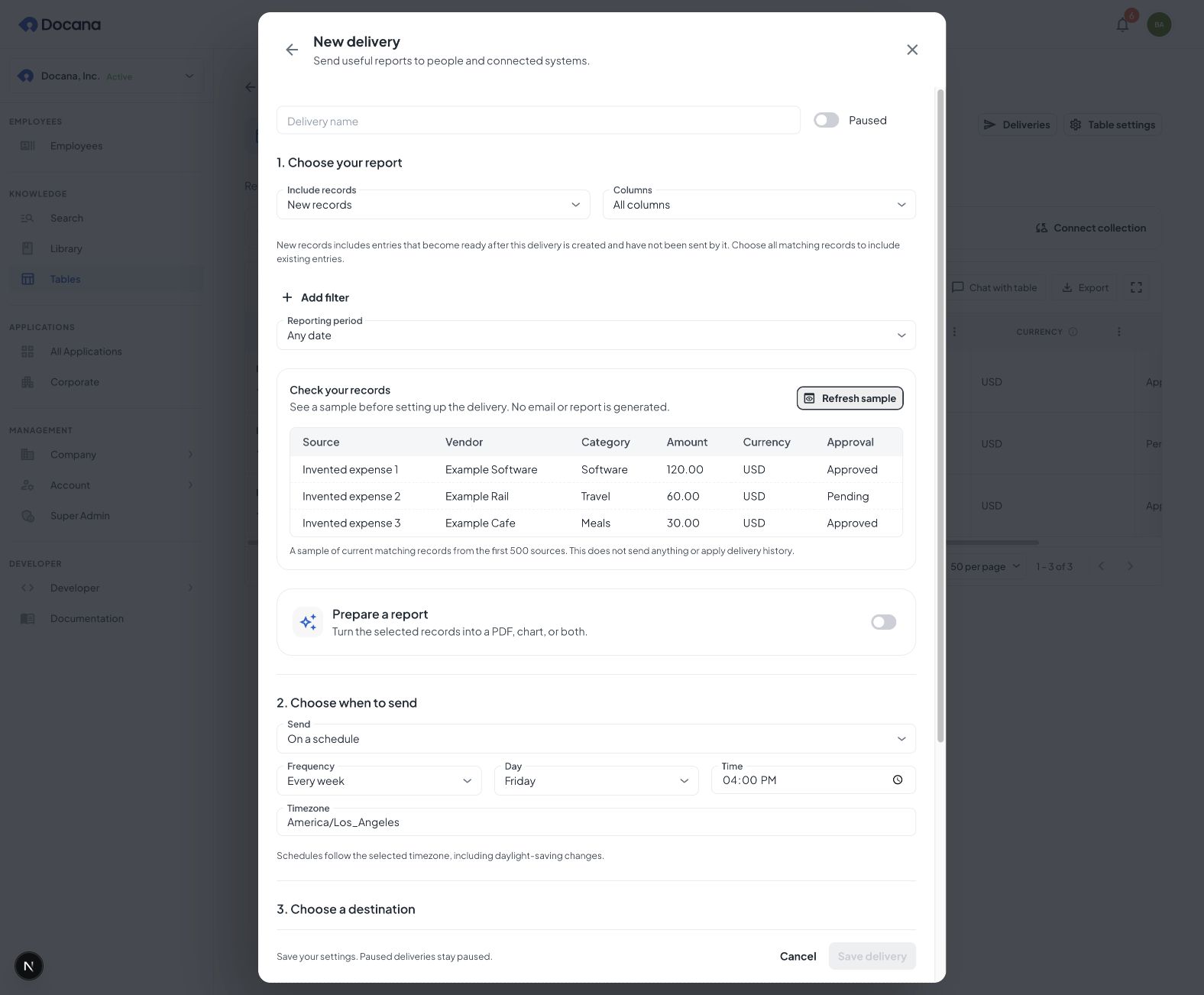
The preview samples matching records from the first 500 sources. It does not send anything or apply the rule's delivery history. An empty sample does not prove a large table has no matches.
Add a PDF or chart
Prepare a report is on by default for new email deliveries, with PDF + chart selected. You can turn it off or choose PDF report, Chart, or PDF + chart, then start with an expense summary, sales and products, table overview, or your own instructions. For example: “Chart expenses by category, show the largest vendors, and summarize approvals.”
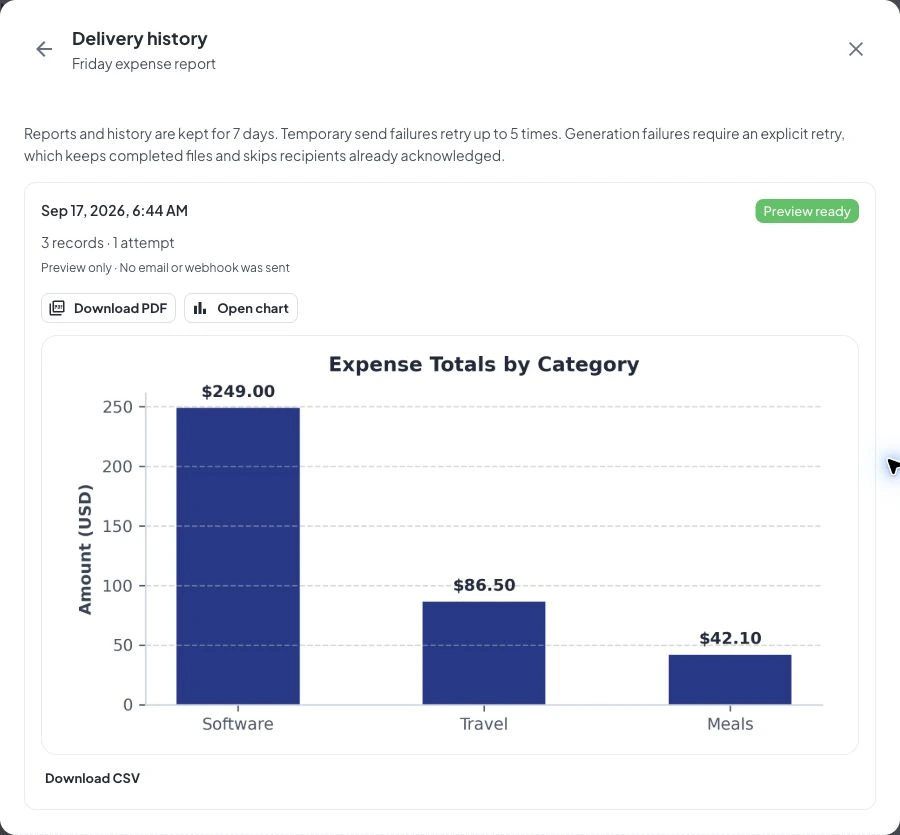
Choose Save & preview report to save the settings and open Report preview. This creates the files without sending email or marking new records as delivered. A paused schedule stays paused. Choose Save only to save without generation. Preview PDF / chart on the delivery card opens the latest saved preview without starting another run. If no preview exists, choose Generate preview. Use Generate new preview when you want fresh files and Previous reports to reopen an earlier result. While generation runs, the same panel shows progress and then the finished chart and PDF links. Review them before activating scheduled delivery.
The delivery card shows a thumbnail of the latest ready PDF, or the chart when no PDF is available. Click the thumbnail to open that saved report. Inside Report preview, the PDF appears first, followed by the chart. You can also open either file in a separate tab.
Preview generation runs in the background so you can close the window and return. Repeated requests reuse an active preview. If no ready records match, the panel explains how to adjust the selection without spending AI usage to generate an empty chart. Editing delivery settings cancels queued previews made with the old settings; completed reports remain available in history.
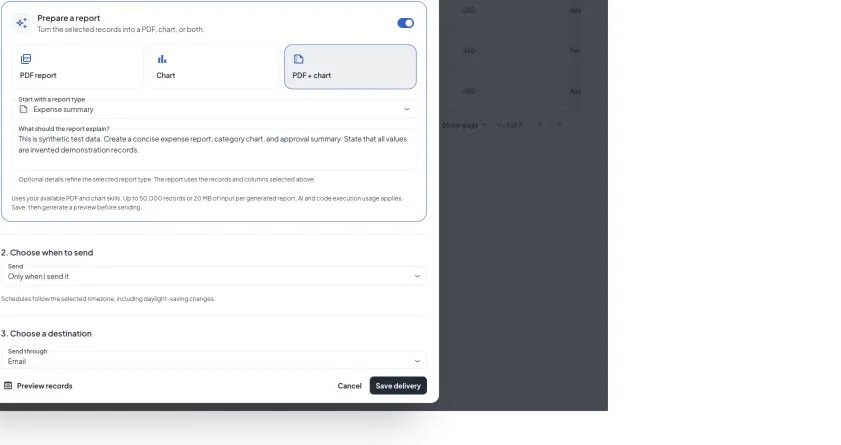
Reports use the same selected records, columns, filters, and reporting period as the delivery. An isolated code execution workspace creates the files using your available PDF and chart skills, or the built-in rendering tools when no matching skill is installed. This uses normal AI and code execution allowances. Each generated report supports up to 50,000 records or 20 MB of input. If that limit is exceeded, generation stops and asks you to narrow the period, filters, or columns. Future scheduled reports stay enabled. CSV exports remain available separately.
The narrative, calculations, and chart choices are AI generated; the server does not certify their numerical accuracy. Compare totals and charts with the CSV before relying on them. Keep amounts as numeric values and currency in a separate column to avoid ambiguous formatted amounts or identifiers such as 00123. Missing values should be reviewed rather than treated as zero.
Email includes your message, the chart in the body, links to the table and report files, and the generated PDF as an attachment when the files fit the attachment limit. CSV deliveries also include a compact record sample. Larger files use protected download links. Generated files expire after 7 days and require continued access to every source included in the report. A retry reuses completed files. If generation times out or cannot produce a requested file, it stops until you explicitly retry. This avoids automatically paying for repeated generation.
Use a workflow agent when a report needs several data sources, approvals, or follow-up actions. Table deliveries are useful when the recurring report starts from one saved table selection. Both can use the same PDF and chart skills.
Choose what to send
| Choice | Includes | Use it for |
|---|---|---|
| All matching records | All currently ready records that match your filters | A full register or a recurring report for a calendar period |
| New records | Records that become ready after the delivery is created and have not been successfully sent by it | Ongoing intake without resending previously delivered entries |
| Reporting period | Records whose selected date column falls in this week, last week, or this month | Weekly expenses or monthly invoices |
A reporting period uses a date column with YYYY-MM-DD values. Weeks start on Monday in the reporting timezone. Choose All matching records + This week for “send this week's expenses every Friday.” Choose New records for “send what this delivery has not sent yet.” Updating a previously delivered row does not make it new again.
Filters combine with and. Equality preserves exact values, including leading zeros. Contains ignores case. Range conditions compare JSON numbers numerically and text lexically. Use separate numeric amount and currency columns for numeric ranges, and ISO dates for date ranges.
Only rows with all current columns completed enter a report. Failed or still-processing rows are left out. Reports use the available table records when preparation starts, then keep that snapshot for retries. They do not wait for analytical chat or a published CSV.
Choose when and where
On a schedule supports daily or weekly delivery and follows the selected timezone, including daylight-saving changes. If the worker is temporarily unavailable, it catches up with a due report when it resumes, then calculates the next scheduled time. It does not send a separate report for every missed interval.
When new records are ready groups arrivals into short batches, normally about a minute, instead of sending one message per row. When an extraction batch finishes waits for document extraction and connected collection work to finish. This is useful for a bounded document review. A continuously growing backlog can delay it. For regular updates during ongoing intake, choose a schedule or new-record delivery.
Only when I send it saves the configuration without an automatic trigger. Send now also works on paused rules and asks you to confirm the destination.
Email supports up to 20 recipients per rule:
- Table link sends your message and a link to the live table.
- CSV attachment and links includes a short preview and the CSV. Files above 10 MB become download links.
- Report download link links to the prepared report without attaching its data.
A webhook sends a signed JSON event with up to 20 records, column definitions, a record count, and a link to the full paginated report. Very large records can be omitted from the event preview. Follow the report link for the complete data. See the API and webhook guide.
Review delivery history
Each rule has a menu for editing, history, sending now, and deleting. The creator manages the rule, and it runs with that person's current table and source access. Other table members do not see its private destination settings.
Reports and run history are retained for 7 days. Temporary failures retry automatically up to five attempts with increasing delays. Invalid filters, oversized reports, rejected generation requests, and incomplete PDF or chart outputs stop immediately. Correct the settings or review the preview before retrying. Temporary provider outages and rate limits use the normal retry policy. After that, the failure stays in history without blocking later reports. You can retry it when no other send is queued or running. A retry uses the same prepared records and skips email recipients already acknowledged. Webhook receivers should deduplicate using the event ID. An email provider can accept a message but lose its acknowledgement, so email delivery is not guaranteed to be exactly once.
A delivery pauses if its creator loses access or scheduling fails repeatedly. Check the warning and settings before reactivating it. Deliveries whose creator has been deleted are removed.
Report links require a signed-in Docana account or API credential with current access to the table and its sources. Revoked or reassigned sources are withheld. Outgoing reports recheck table and source access before each recipient. If access changes between recipients, later sends stop; retries keep the earlier delivery receipts. Attachments and webhook payloads share selected data directly with the configured destination, so choose recipients accordingly.
Settings cannot change while a send is running. Editing a rule cancels its queued or failed reports so a later run can use the new configuration. Deleting a rule removes its reports and history but keeps the table.
You can configure the same rules through the API, CLI, and MCP, or ask the employee preparation assistant to prepare a paused delivery alongside its table and capture workflow. Preparation always leaves deliveries paused; activate them after reviewing the destination and report.