Put tables to work
These examples show what to collect, how it arrives, and what a person or agent can do with it. Start with Tables for the interface or Automate tables for API, CLI, and MCP examples.
Choose a starting point
The right source depends on whether you are extracting facts or already have structured values.
| Goal | Source | Suggested columns | A useful question |
|---|---|---|---|
| Review upcoming contract renewals | Agreements in a collection | Vendor, renewal date, notice period, amount, currency | Which agreements renew next quarter? |
| Review incoming invoices | An invoice collection connected to a folder | Vendor, invoice number, invoice date, due date, total, currency | Which invoices are due this month? |
| Collect reimbursements | A conversation with an explicit save step and receipt references | Merchant, category, date, amount, currency, review status | Which expenses still need review? |
| Compare research papers | Selected papers or a connected collection | Research question, method, sample size, reported finding | Which papers used the same method? |
| Record service requests | A form, integration, or agent conversation | Request reference, category, reported issue, requested date | How many requests arrived in each category? |
| Explore a product catalog | An uploaded CSV in the separate dataset flow | Existing SKU, name, category, price, currency, availability | Which in-stock products match these filters? |
Contract renewal register
A contract register brings dates and terms together while retaining a link to each agreement for review.
- Create “Vendor contract register” in Tables, or in the application whose members will review it.
- Add Vendor, Renewal date, Notice period, Annual amount, and Currency columns. Tell extraction to leave missing facts blank. Ask for notice periods exactly as stated when a cancellation deadline cannot be calculated from the text.
- Add a few agreements and check the results against their sources. Refine the instructions, then add the remaining documents or connect their collection.
- Sort by renewal date or ask the published table, “List agreements renewing next quarter with their notice periods and source names.” Keep amounts grouped by currency.
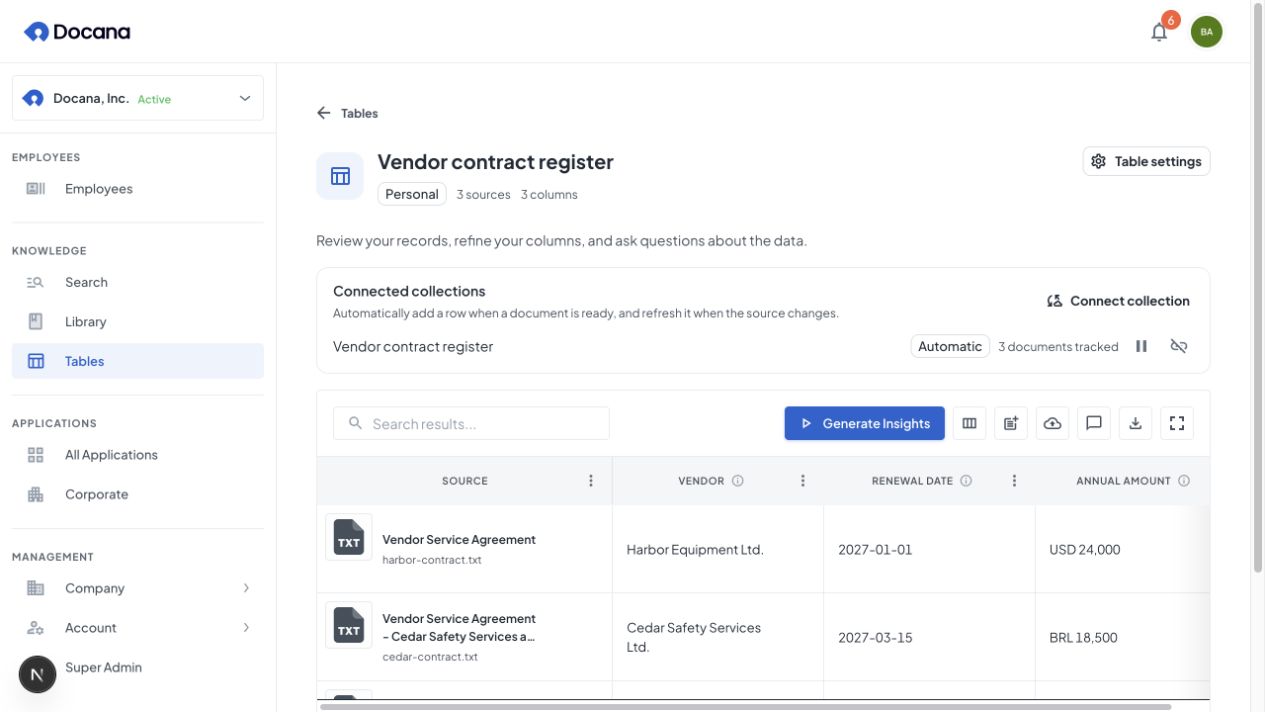
The result supports review. A renewal date or amount extracted from an ambiguous agreement still needs checking against its source. A date column does not, by itself, schedule renewal reminders.
Invoice intake from a connected folder
A collection connection lets you review new invoices in the same table as older ones.
- Create an invoice collection in Library. Use the existing connector setup to authorize the provider and choose the folder.
- Create an application table with Vendor, Invoice number, Invoice date, Due date, Total, and Currency. Keep the invoice number as text so leading zeros survive.
- Choose Connect collection on the table and select the invoice collection. Include existing ready documents if you want the backlog as well as future arrivals. Review the discovery preview when starting from a paused authoring connection.
- Add a sample invoice to the folder. Wait for connector ingestion and document readiness, then check the table's connection activity and completed values.
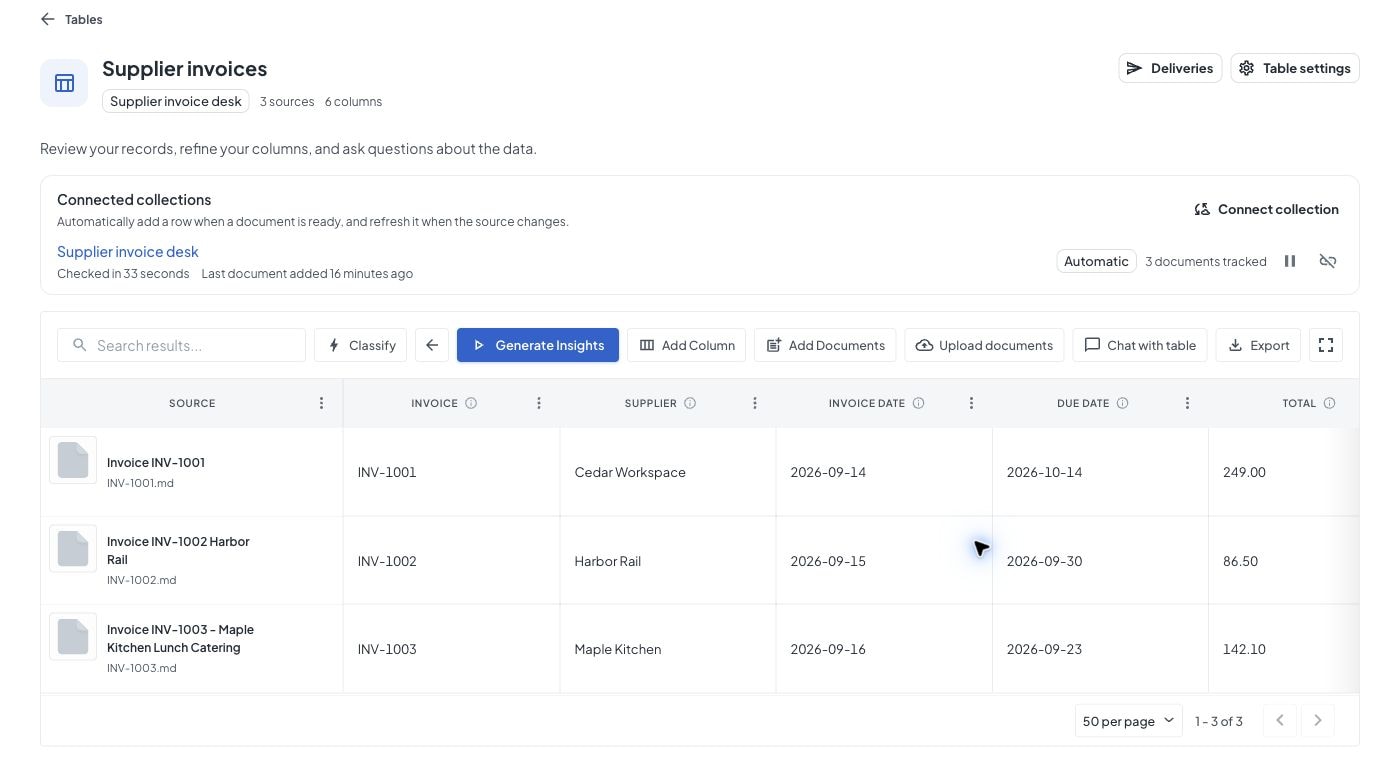
Provider sync, document processing, extraction, and publication happen in sequence. A completed connection request does not mean all invoice rows are ready. Pause the connection when needed, or disconnect it while retaining existing rows.
A saved delivery can email a weekly invoice report or send a signed webhook when new records are ready. Choose an extraction completion delivery to notify someone once a batch finishes. This setup collects invoice facts, but does not create an accounting approval or payment workflow by itself.
Reimbursements from a conversation
An employee can ask for missing expense details and save a confirmed record with its receipt, instead of treating every chat message as a new row.
Ask the employee preparation assistant for a draft such as:
Create an expense collector with an application table for merchant, category, date, amount, currency, and review status. Ask for missing details and save only when the person confirms. Keep a reference to any receipt document they attached, and use the expense reference as the unique record key. Keep notifications off while I test it.
Preparation can create or reuse the table, read its column IDs, and add the Save record to table step. Review the table and mappings before using the employee. Creating the table takes effect immediately, while the employee workflow remains a draft until published.
- Confirm that the destination is a table in the employee's application. In preparation, the Tables section shows the tables selected in the primary workflow separately from other available application tables.
- Inspect the save step. It should supply the confirmed values, a stable expense key, and the authorized receipt document IDs. Saving values does not automatically attach every file or copy all conversation history.
- Test a conversation with an image receipt. Confirm the merchant and amount, then ask to save. Check the row, its receipt, and the originating conversation and execution.
- Retry the same save. The same key and payload should return the existing record. A changed payload under that key should report a conflict rather than create a second expense.
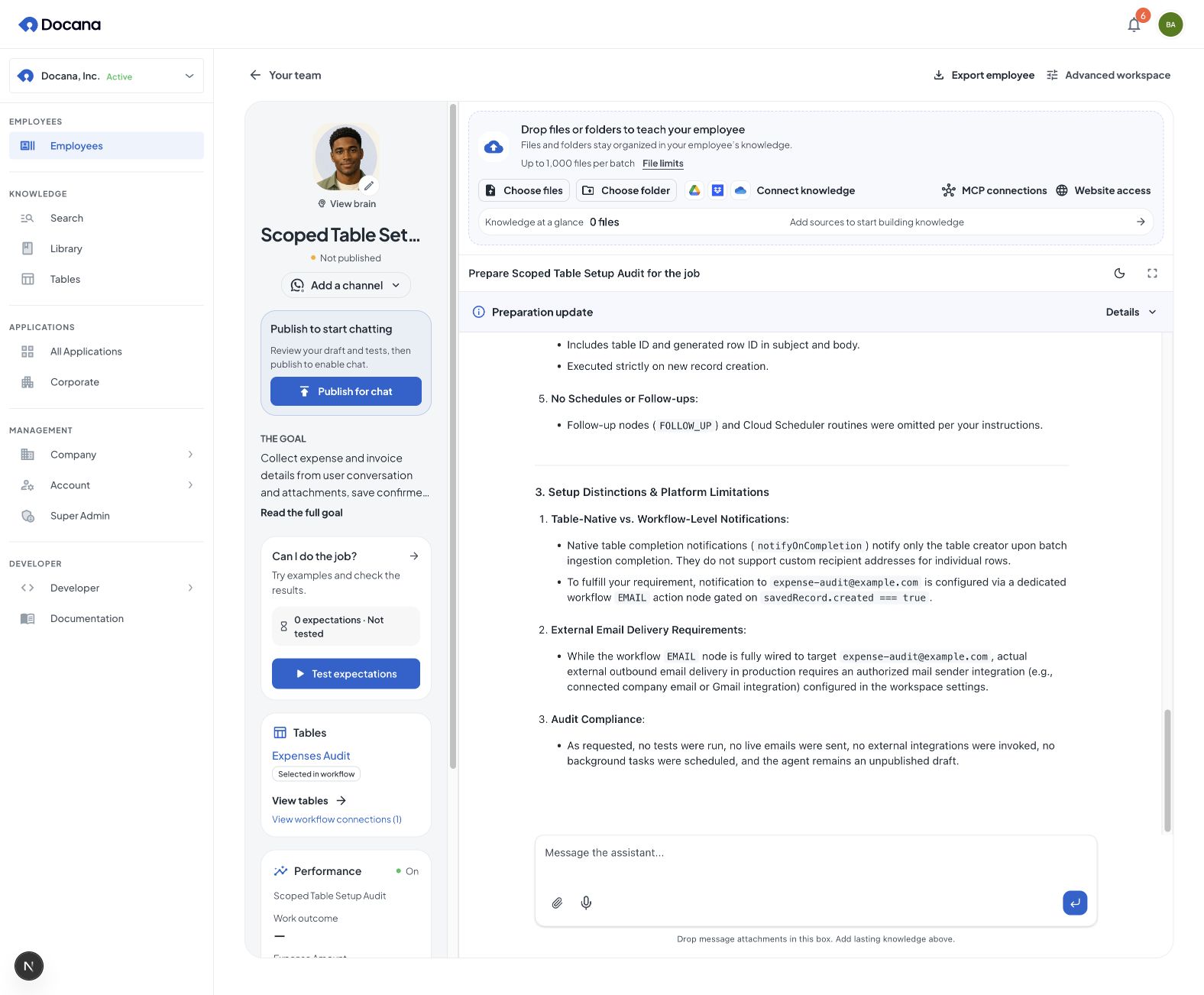
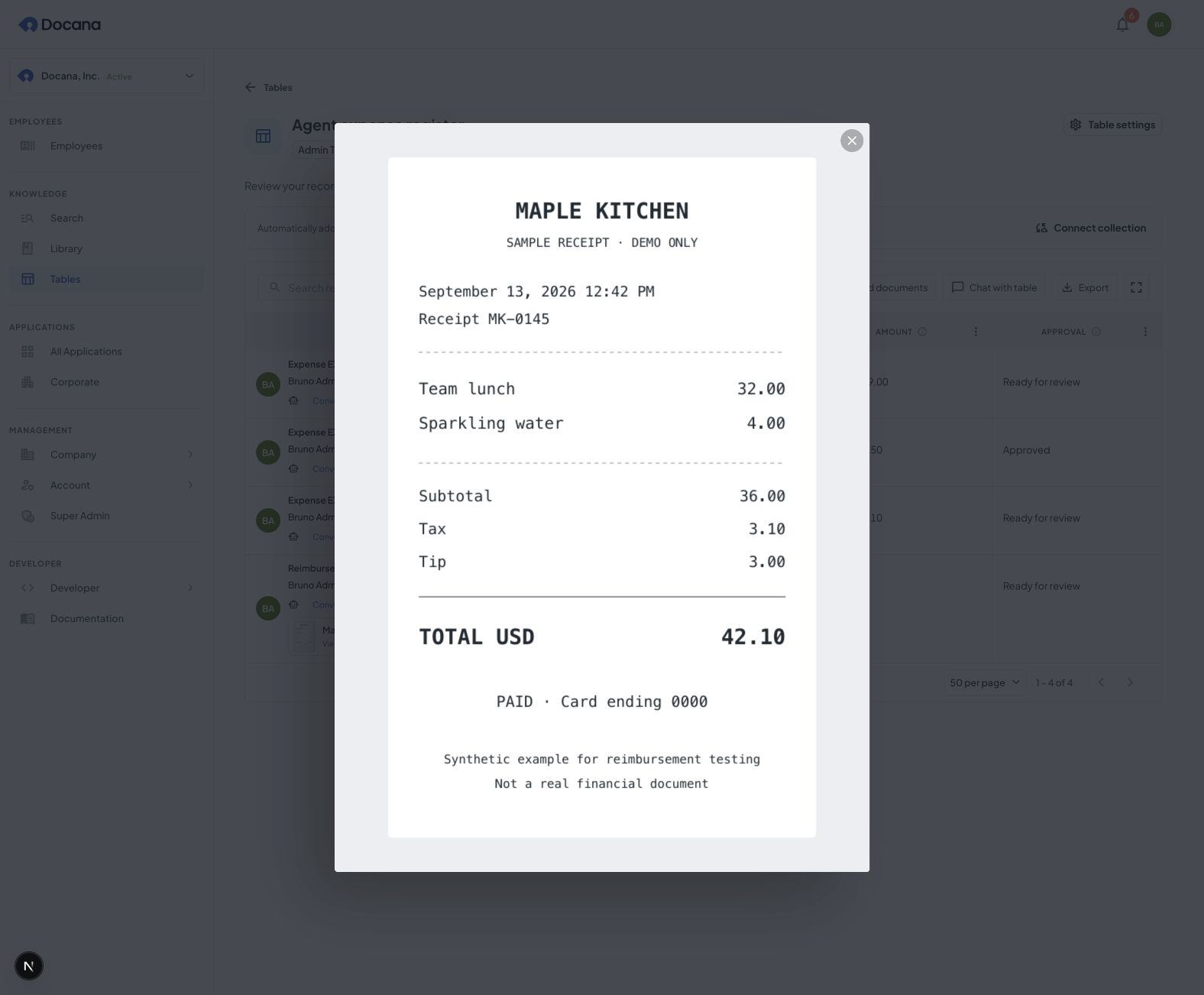
The demonstration below used an actual local agent execution with a synthetic receipt. It saved the merchant, meal category, amount, review status, and supporting document reference. The table shows the submitting person and opens the receipt from the source cell.
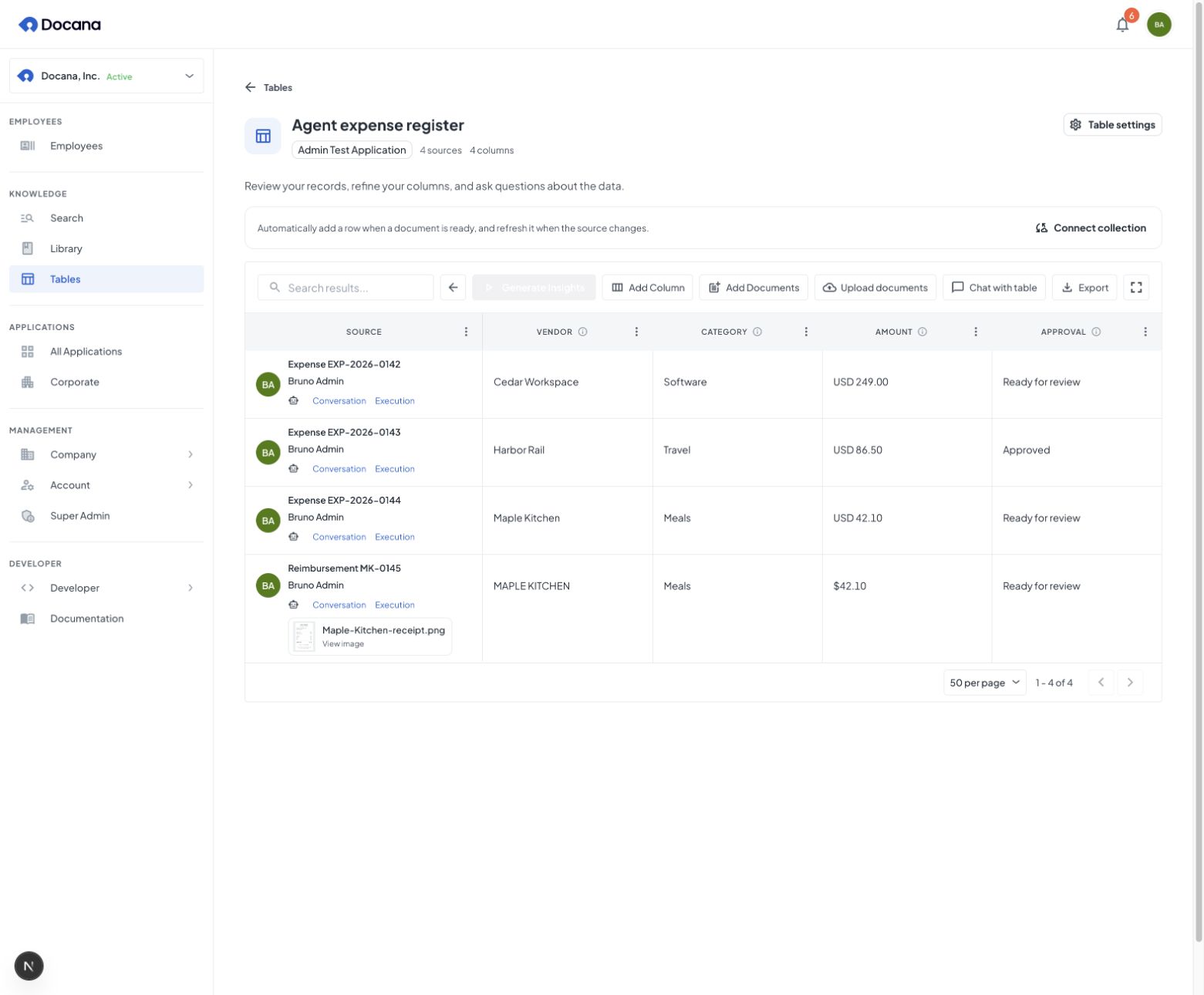
An “Approved” value is a saved field, not proof that an approval process ran. If the workflow needs approval, build and test that decision separately. A shared table also does not grant a reviewer access to another person's private conversation or receipt.
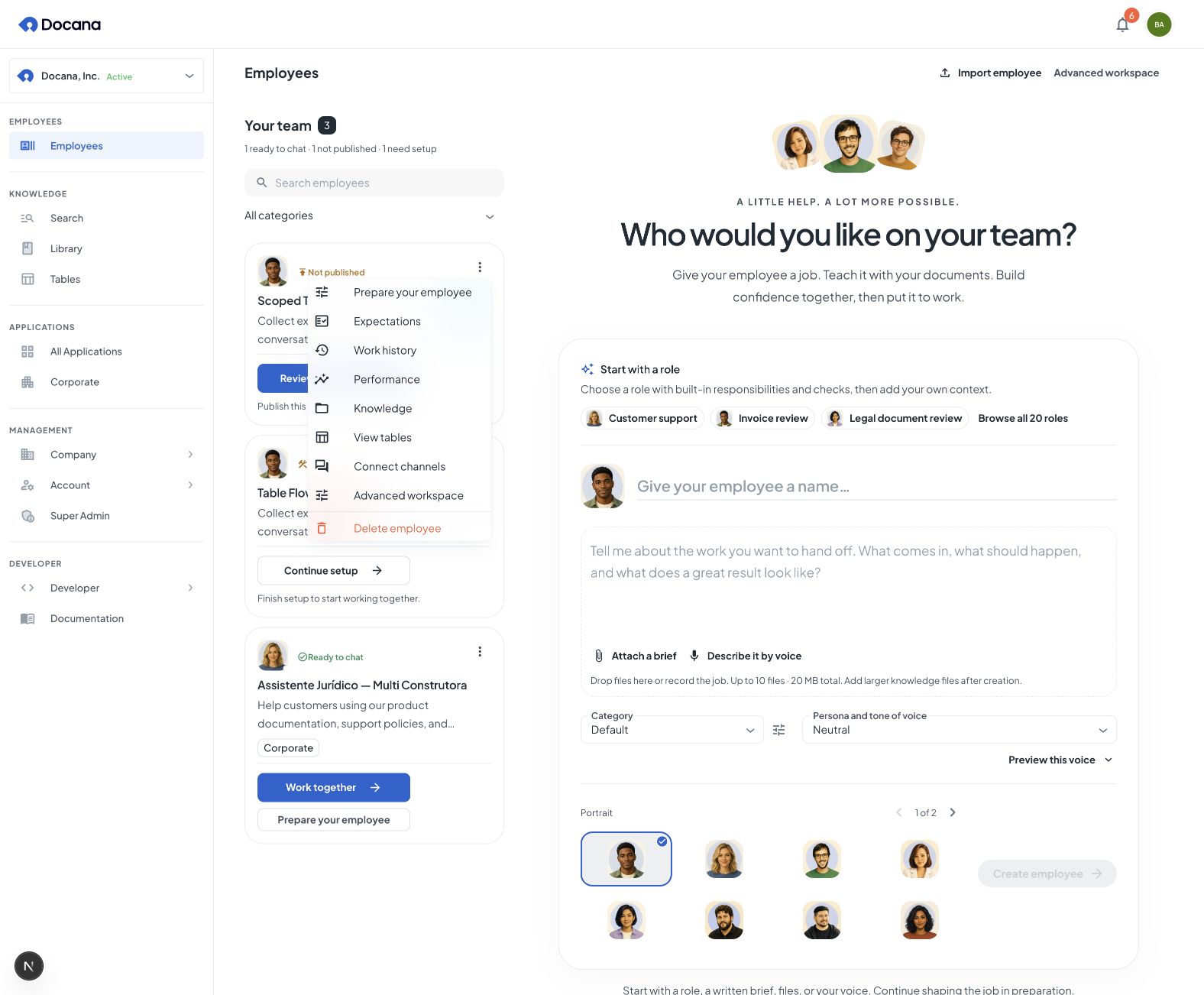
Use the employee card's actions to return to Expectations, Work history, Performance, Knowledge, or Tables. Opening Expectations shows the review panel without starting a test run.
From a catalog to a shopping assistant
Imagine a retailer whose product facts live in a CSV, product guides in PDFs, and return policy on a separate page. A shopper should be able to ask, “I need a desk chair for a small room, under USD 200,” then refine the answer over several messages. Connecting those sources to an employee turns the catalog into something people can use in a conversation.
The catalog supplies facts such as SKU, dimensions, price, and availability. Document knowledge supplies explanations such as assembly instructions or return conditions. The agent combines a data query with relevant document passages, asks for missing preferences, and presents a small set of choices. It can answer a different question next, such as “Which of those has adjustable arms?”, without placing the entire catalog in every prompt.
Build it in stages:
- Prepare the catalog and knowledge. Follow the CSV steps below, then add product guides and policies to the relevant collection. Use connectors for files maintained in an external folder.
- Give the employee a focused job. In employee preparation, connect the catalog collection to its application and describe the buying questions it should answer. Review the resulting agent workflow and its access to the dataset and document tools. Tell it to ask about budget, dimensions, or intended use when those facts affect the choice.
- Test the decisions. Add expectations for a matching product, no matches, a missing price, an unknown SKU, and conflicting stock information. Check that answers use the correct dataset, currency, and policy source. A useful answer can be “I don't have a matching product,” followed by a relevant question.
- Publish and connect a channel. Publish the tested employee, then configure the web widget or WhatsApp. Use agent runs from code if the experience belongs inside your own product. Channel access and catalog access must match the audience you intend to serve.
- Learn from real use. Review work history and performance to see which questions succeed and where the employee needs better data or instructions. Add those cases to its tests before publishing the next version. For a code-managed workflow, run those tests in CI.
The same pattern applies beyond shopping. A supplier directory can support procurement questions, a parts catalog can help a technician identify a replacement, and a service register can help a team compare past requests. The data, business instructions, and channels change. The relationship between structured facts, document knowledge, and a tested workflow stays the same.
Query a growing dataset without sending every row to the model
Docana queries the data and returns the relevant result to the agent. “Show five matching chairs” and “Count products by category” return different small results, even when the catalog is much larger. The model helps interpret the question and explain the result. Existing structured product values can be queried directly, without running a column extraction prompt over every row.
That separation makes larger catalogs practical to explore: the dataset can contain more information than fits in a conversation, and the agent can ask a new question without rereading every product into its prompt. Query scope, returned fields, and result limits still matter for latency and cost. Use exact SKU filters for known products and narrow criteria for recommendations. Paginate detail reads through the table JSON interface when working with a managed Table.
The current product-catalog route is an uploaded CSV dataset. It remains separate from the managed Tables directory. Bulk imports, incremental catalog updates, and million-row shopping performance for managed Tables are still being completed and validated. Choose the current file route with that boundary in mind, and measure the actual catalog's loading and query times before launch. The checkout flow should verify current price and stock with the commerce system.
A weekly customer support report
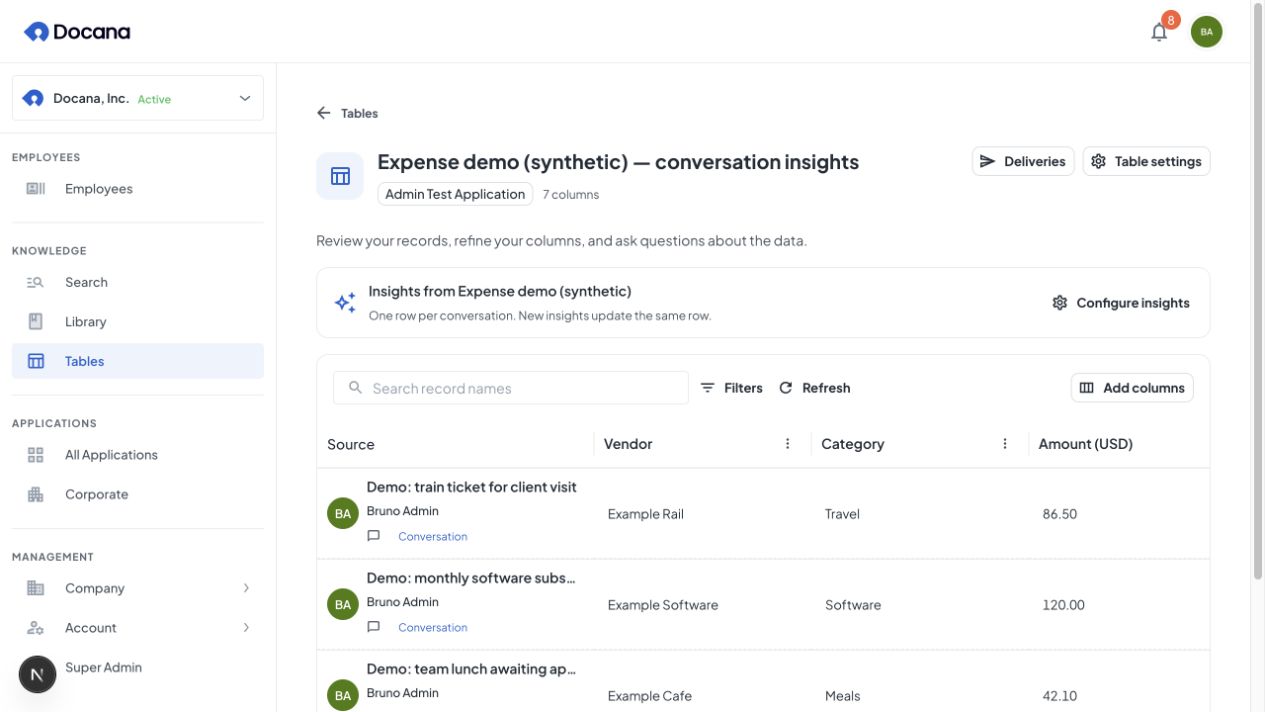
Define Conversation Insights such as topic, resolution, and escalation needed. Use Add Column in Insights to define what to extract, then Start insights. The resulting table appears in the same view. Open Deliveries to set up a report. Choose conversations completed this week and send a Friday email with a resolution chart and PDF summary.
Each conversation occupies one row, even if insights are extracted after several messages. You can open the source conversation when you have access. This gives the support team a report built from the same records they can inspect in the table.
For an expense-intake employee, the same setup can track the merchant, amount, and whether each conversation supplied complete details. Use the explicit save step when one conversation needs to submit several separate reimbursements.
Product questions from an existing CSV
When you already have SKU, price, and availability columns, use the uploaded CSV dataset path to preserve those values rather than extracting them from documents.
- Upload the CSV into a collection the application can use. Keep identifiers as text and use clear headers.
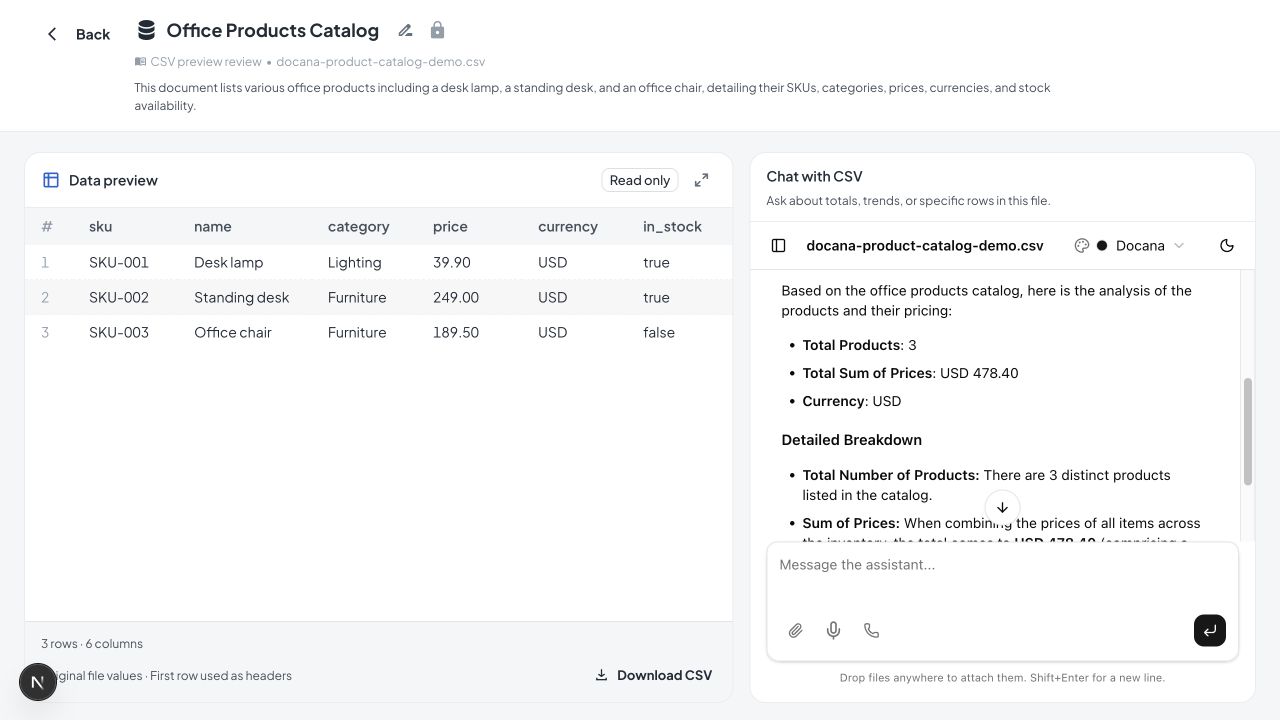
- Open the file in its collection. Data preview shows original values beside Chat with CSV.
- Ask a bounded question such as “Show in-stock office chairs below USD 200, with SKU and price.” The assistant queries the dataset and uses the result in its answer.
CSV loading does not run an extraction prompt for every product. The assistant may use a model to understand the question and produce the query. A first query can take longer while the dataset loads.
See Datasets for file formats, preview limits, and how assistants query uploaded CSVs.