Build an employee
The Build tab is the preparation room. You add what the employee should know, talk through the job, test it, and publish. Only people who can change the employee see this tab.
Open the employee, then select Build.
The layout
Left column
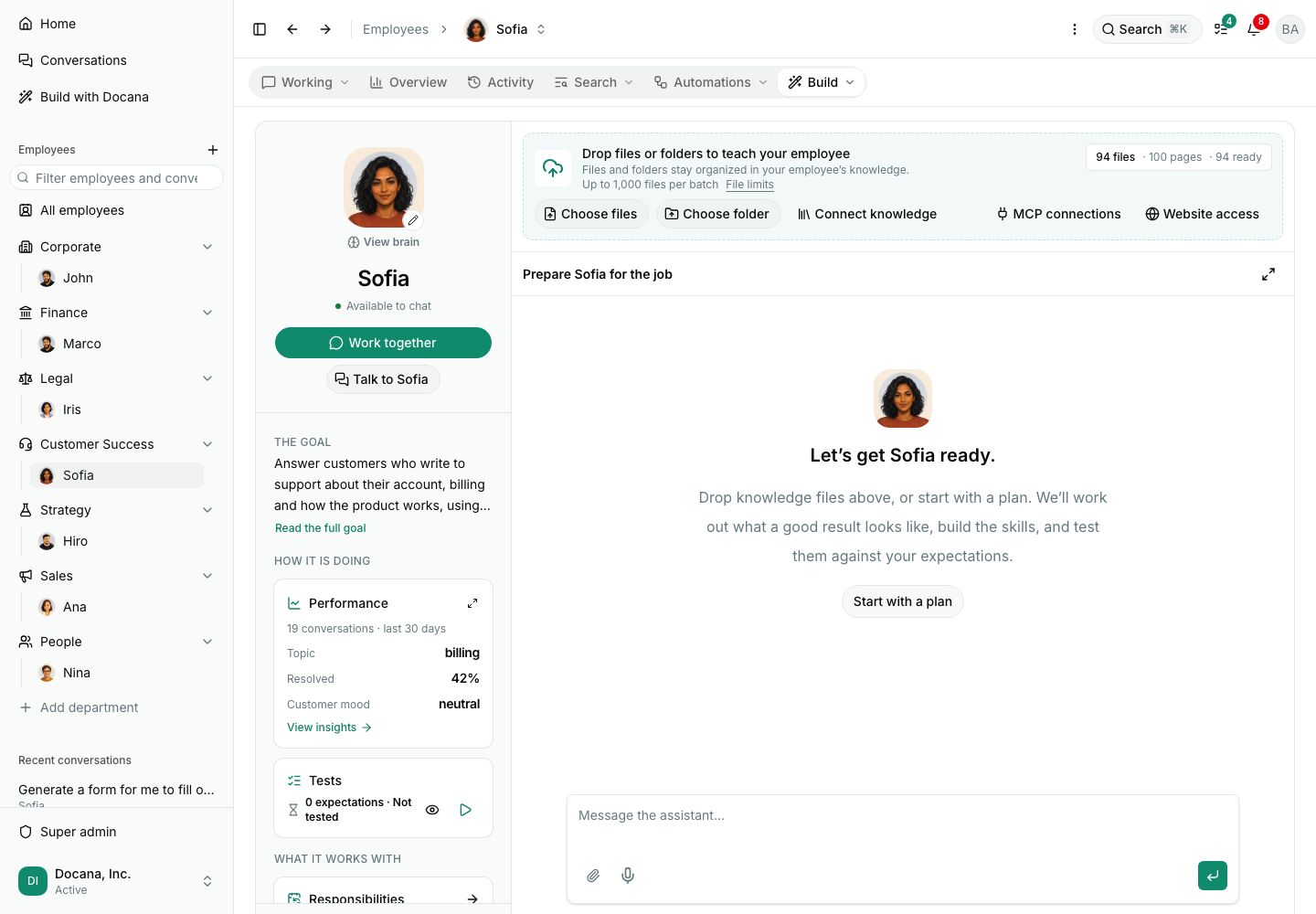
- The portrait, name, and state. The pencil on the portrait changes the portrait and department. View brain opens the employee's instructions, tools, and automations.
- Talk to (name) opens the Working tab.
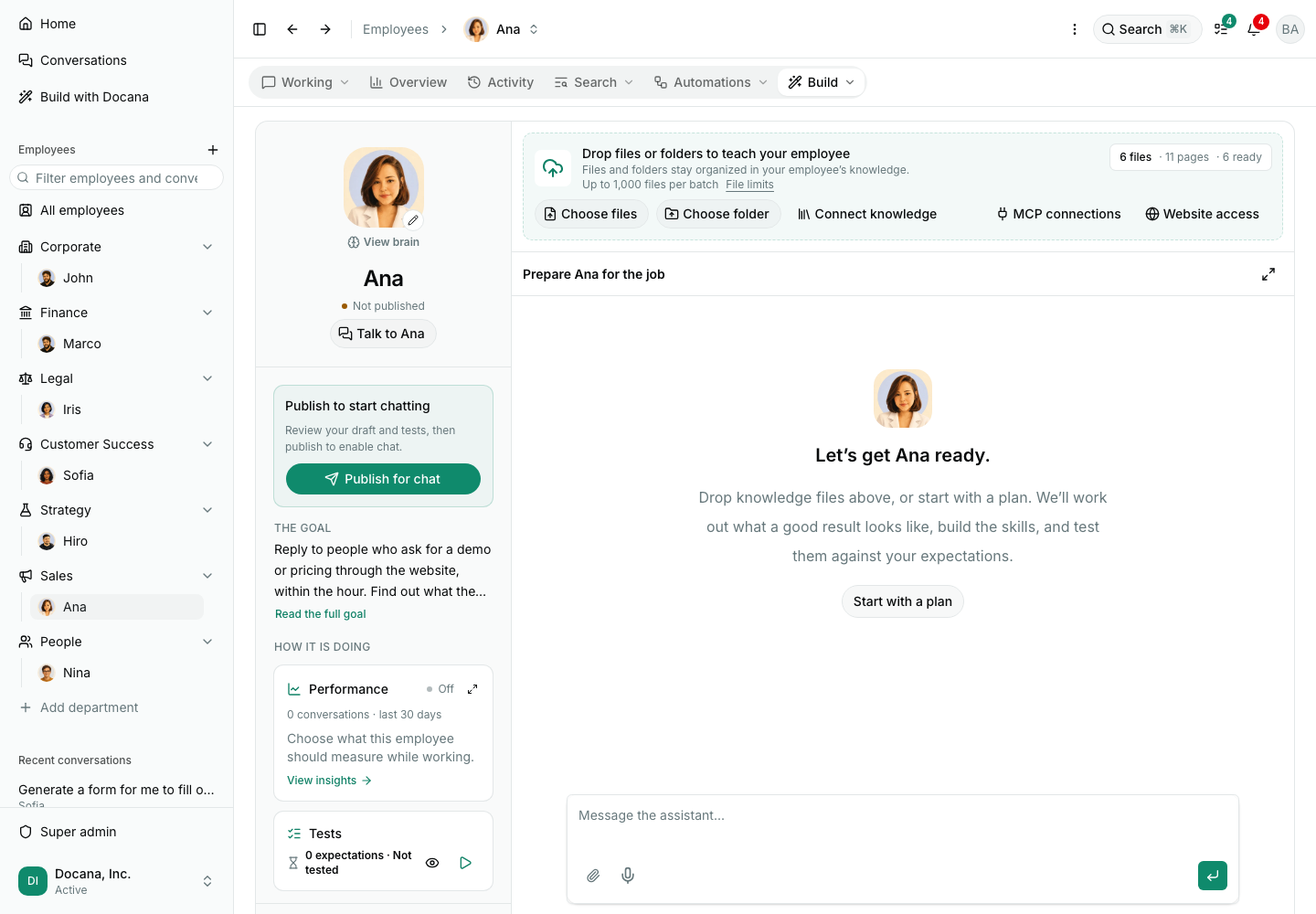
- The publish card: Publish to start chatting with Publish for chat while it is a draft, and Work together once published.
- The goal, with Read the full goal and Show less for long goals.
- How it is doing: the Performance card and the Tests card.
- What it works with: Responsibilities (its routines) and Tables.
- Advanced workspace opens the underlying agents.
Right column
- The knowledge area, with MCP connections and Website access.
- The preparation conversation, titled "Prepare (name) for the job". The expand icon makes it larger.
Add knowledge
Drop files or folders into the knowledge area, or use Choose files, Choose folder, or Connect knowledge.
- A batch accepts up to 1,000 files. Select File limits to see the maximum size per document and for audio and video.
- A folder upload keeps its root folder and subfolders in the employee's collection.
Company policies/Legal/policy.pdfandCompany policies/Finance/policy.pdfstay separate. - Connect knowledge connects a collection you already use, without uploading again. From the same dialog you can connect a file source. Setup opens in a new tab and your preparation stays where it is. See Connectors.
- Files attached in the message box belong to that conversation. Use the knowledge area for documents the employee should reuse in all its work.
Select View uploads to follow progress, search filenames, or page through a large batch. You can close the dialog and keep preparing while uploads continue. Saved means the file reached the collection. It still has to be processed in the background before the employee can search it.
The summary at the top right of the knowledge area counts the files in the connected collections and how many are ready, processing, or failed. Page totals count only ready files with a known page count. Select the summary to browse the files 50 at a time, search by filename, and open each file, collection, or folder in a new tab. These counts describe coverage. They are not a measure of accuracy.
The employee's Search tab searches the same documents, so you can check what it will find.
Prepare the workflow in a conversation
Creation starts the first preparation turn. Keep talking to refine the job. The preparation assistant can create and revise the agents, connect knowledge, define expectations, and set up measures. Review what it built and ask for what is missing.
With no conversation yet, select Start with a plan.
Tell it the details that matter:
- Which sources support an answer, and how to check totals or conflicting information.
- When to ask for missing information or hand a decision to a person.
- Whether the output is a PDF, a document, a chart, or a report.
- Whether the work needs conversation history, a follow-up, or a recurring routine.
For work that answers from sources, preparation plans for matching the right document version and entity, bounded retrieval retries, and an independent review step for consequential answers.
While it works, the panel above the conversation shows the current step: building the draft, checking the workflow, running expectations, or fixing and retesting a failed check.
- A tool marked Completed means the tool call finished. It does not mean a test passed. The test verdict says that.
- Expand a tool chip to read its result: test outcomes and failure reasons, saved workflow fields, schedules, or connection status.
- Consecutive test calls appear as one group with the latest result per scenario. A service error means the result could not be verified, not that the expectation failed.
- After a saved workflow or expectation changes, earlier results show Needs retest until a new run verifies them.
- If preparation stops, the recorded results stay. The panel never claims the whole employee is ready from a partial set of checks.
How steps get their tools
Steps that answer from your sources, create files, or read and save data keep their tools, so the employee can search its knowledge, including documents you add later. This holds when you start without documents too: preparation builds the workflow to search when it runs and tells you which sources to add. Only steps that acknowledge or rephrase earlier output run without tools.
If an edit leaves no step able to reach a tool or a source, the canvas warns that the agent cannot search its knowledge. Saving the employee's main workflow through preparation, the API, MCP, or the CLI is refused until a step that answers keeps its tools.
A step set to answer without tools can only write text. A step that asks for several details or offers choices should name the interface tools so it can draw a form. See Interfaces and artifacts.
Files the employee creates
Every new employee starts with skills and sandbox code execution on, for PDF reports and data charts. Ask for the output you need. A business template is optional. Test file creation with representative data before relying on it. The deployment needs sandbox credentials configured.
Websites and tools
- Website access registers a site the employee works on. Enter its login in the secure form. The password is encrypted and never goes into the conversation. Saved access does not verify the sign-in. The employee checks it when it uses the site, and a step such as MFA may need your help. See Website access.
- MCP connections adds tools from another service. Choose a saved connection or Add a provider, enable it for this employee, sign in, and select Test connection. OAuth opens in another tab. Each person signs in with their own provider account. Adding a new provider needs a company administrator. Advanced MCP settings opens the full configuration. Then select Continue preparation so the employee learns to use the tools. See MCP servers.
Keep passwords and API keys out of the conversation. They belong in the secure forms.
Collect records in a table
An employee can save confirmed information from a conversation into a table. Ask preparation to create or reuse a table, define its columns, and add a Save record to table step with a stable record key. Link supporting receipts or documents explicitly. The Tables card on the Build tab separates tables connected to the employee from other tables available to it.
See Document Insights and Tables, the table use cases, and Table workflows for the API, CLI, and MCP.
Test before you publish
The Tests card separates looking at results from running tests.
- The eye icon (View results) opens saved results without starting a run. Every enabled expectation appears once, failures first, with the reason when there is one. Expectations that never ran stay visible.
- The play icon (Run tests) runs the saved scenarios.
Use examples of successful work, missing data, conflicting sources, and requests that should reach a person. For an invoice reviewer, test a complete invoice, a missing purchase order, a duplicate, and an amount that needs finance review. Check the final answer, the sources, the calculations, and any file it made.
From a result you can open Details (the execution log for that test conversation), Edit expectation, or Review all tests (the agent's Evals page). All expectations shows when each scenario last ran, how long it took, and its recorded score out of 10 when there is one.
Rules worth keeping:
- Fix the workflow when it fails a correct requirement. Change an expectation only when the requirement itself is wrong or has changed.
- Structural validation checks the workflow's format. It does not prove the business result.
- Earlier passing tests describe the version that was tested. Run them again after changing the workflow, the instructions, or the knowledge.
- Tests improve the workflow and its instructions. They do not change the underlying model.
For reviewed changes and automated checks, keep the workflow and its test cases in an agent project and test in CI. Testing agents covers the underlying controls.
Publish
A draft shows the Publish to start chatting card. Review the workflow and the test results, then select Publish for chat. The state changes from Not published to Active and the card becomes Work together.
- You can also ask the preparation assistant to publish. It reviews the recorded results and asks for your approval first. Creating or testing an employee does not authorize publishing.
- People without edit access see that an editor needs to publish the draft.
- Publishing starts the routines marked Starts after publishing. Paused and imported routines stay paused. If a routine fails to start, the employee stays published and the Build tab tells you to review Responsibilities and publish again.
- Channels are a separate choice. See Work with an employee.
Publishing makes the employee available. It does not replace testing.
Continue preparing
A published employee can keep improving. Open Build again, or select Continue preparing on the Overview tab. Changes are saved as a draft and need publishing again before people get them.