Create an employee
You create an employee by giving it a name and a job. Docana prepares it with you from there.
Select the + beside Employees in the sidebar, or open All employees and select New employee. You can also ask for one in plain words in Build with Docana.
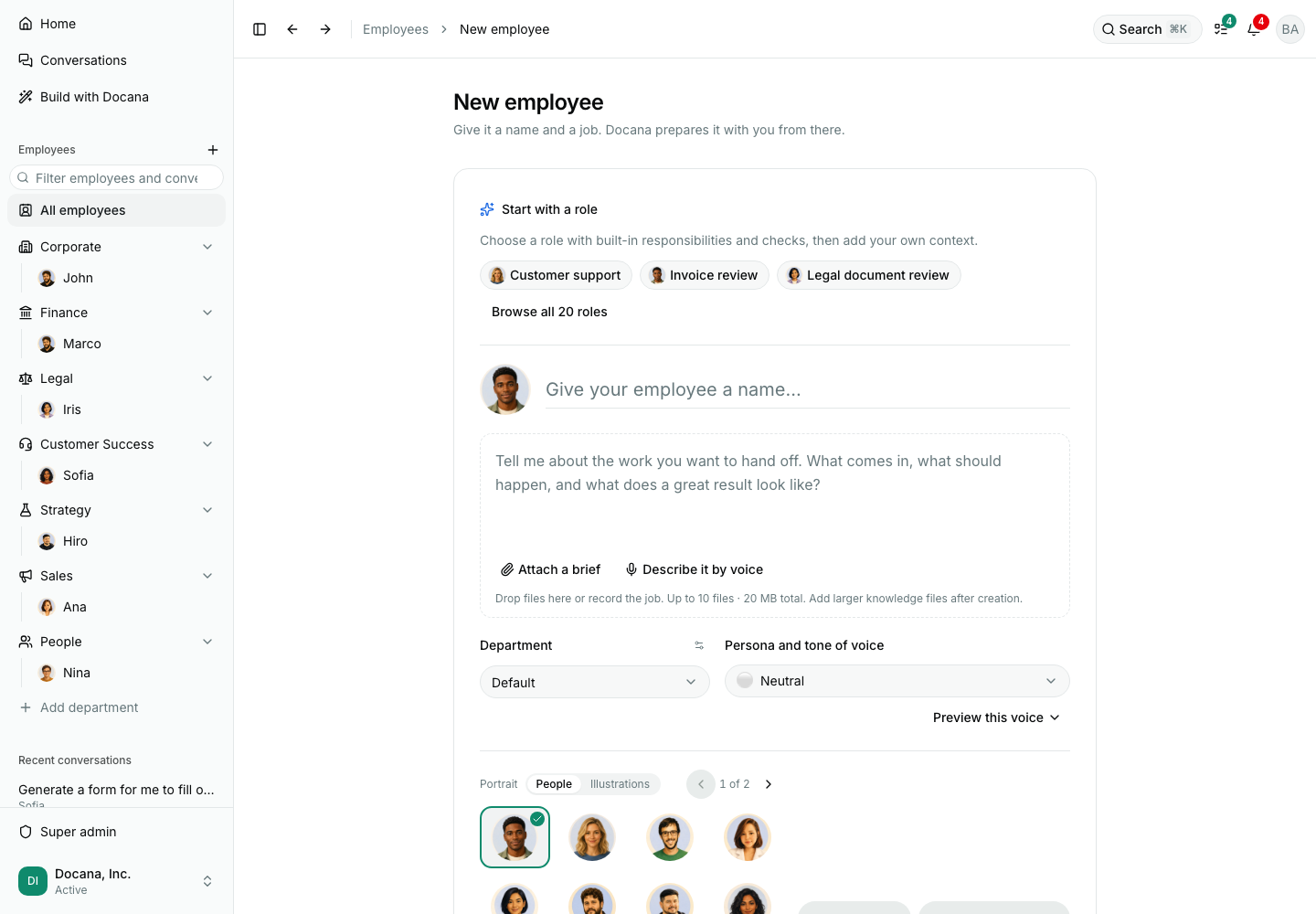
Start with a role
Start with a role is at the top of the form. Choose Customer support, Invoice review, or Legal document review, or select Browse all 20 roles to search the catalog.
A role supplies detailed responsibilities and checks behind the scenes, plus a suggested name, department, portrait, and persona. It also picks the measures the employee starts with. The role says so: "It starts by measuring", followed by the measures. See Measure an employee's work.
The 20 roles are Customer support, Invoice review, Legal document review, Research analyst, Sales assistant, Lead qualification, HR onboarding, Recruiting coordinator, IT helpdesk, Meeting follow-up, Executive assistant, Expense review, Procurement assistant, Project coordinator, Construction coordinator, Compliance review, Content assistant, Financial reporting, Knowledge assistant, and Order operations. Roles include source verification, expected outputs, PDF and chart creation, and the cases that need a person.
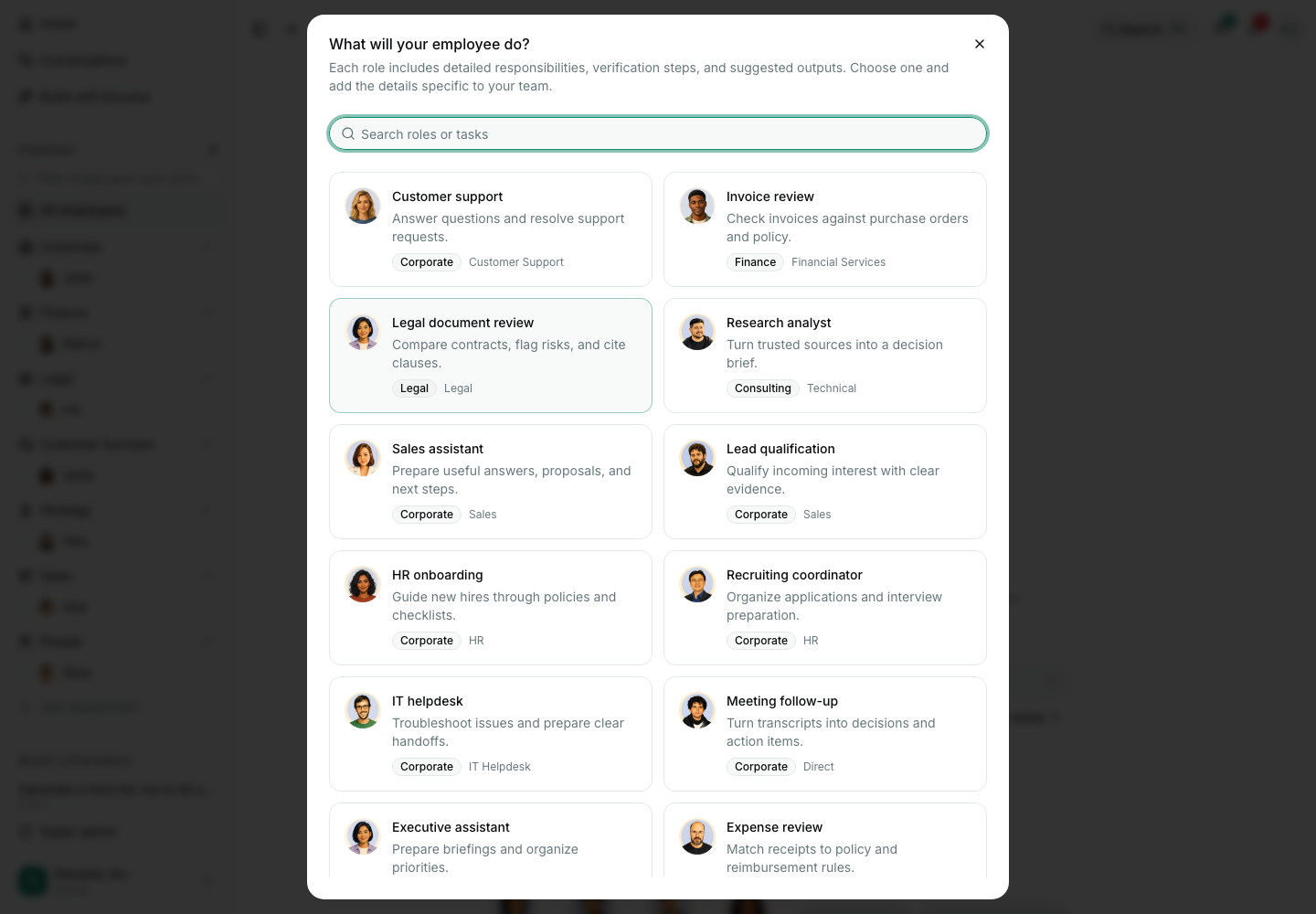
Things to know about roles:
- Choosing a role does not create anything. Review the form, then select Create employee.
- The text area stays open for your own context: your process, policies, systems, examples, and the result you need. Your notes are added to the role's instructions. You can leave it empty and start with the role alone.
- Switching roles or selecting Clear role keeps your notes and attachments. Clear role resets the suggested name, department, persona, and portrait.
- A role is a starting point. It is not a workflow that has passed tests. Preparation combines it with your context and turns your requirements into expectations you run.
Or describe the job yourself
You do not need a role. Type a name and describe the work in the text area. Say what comes in, what should happen, and what a great result looks like. Include when the employee should ask a person for help.
For example: "Review incoming invoices against our purchasing policy. Check the supplier, amount, due date, and purchase order number. Flag missing information and prepare a summary for a person to approve."
Create employee is available as soon as there is a role or a sentence about the work. With neither, the form says: "Describe the work in a sentence, or choose a role, to create and prepare it."
If you leave the name empty, the selected portrait supplies a starting name.
Create empty
Create empty creates the employee with nothing built. Use it when you want to build it later, with Docana or by hand. The employee starts In preparation.
Attach a brief or describe it by voice
- Attach a brief adds files that describe the job, such as a job description or a process document. You can also drop files into the text area.
- Describe it by voice records you explaining the job. Select Stop & review, listen to the recording, then select Attach recording or Discard. The recording stays as audio in the preparation conversation.
A brief accepts up to 10 files and 20 MB in total. You can create an employee from attachments alone, without typing a goal.
Brief files are context for preparation. They are not the employee's lasting knowledge. Add source documents and larger folders on the Build tab after creation.
Department, persona, and portrait
- Department groups employees in the sidebar and on the Employees page. The company shares one list of departments. The small icon beside the field opens that list. See Manage an employee.
- Persona and tone of voice sets how the employee communicates. Preview this voice shows a sample conversation in that tone. The persona is independent of the portrait. You can fine-tune it later in Manage, then Persona.
- Portrait is the face shown wherever the employee appears. Switch between People and Illustrations and page through the picker.
What happens when you select Create employee
Docana saves the employee and starts preparing it.
- With a written goal or a role, the Build tab opens and the first preparation turn starts at once. You do not submit a plan first.
- With files or a voice brief, the brief is saved first, then preparation starts. Keep the page open until it finishes. If it is interrupted, Open saved employee lets you check progress and attach any missing files without creating a second employee.
A new employee starts with these on:
- Intelligent UI, so it can draw forms, dashboards, and pages in the chat. See Interfaces and artifacts.
- Insights, with a baseline of three measures plus the set of its role. See Measure an employee's work.
- Skills and sandbox code execution, for PDF reports and data charts.
Human handoff is off until you turn it on. See Human handoff.
Continue in Build an employee.
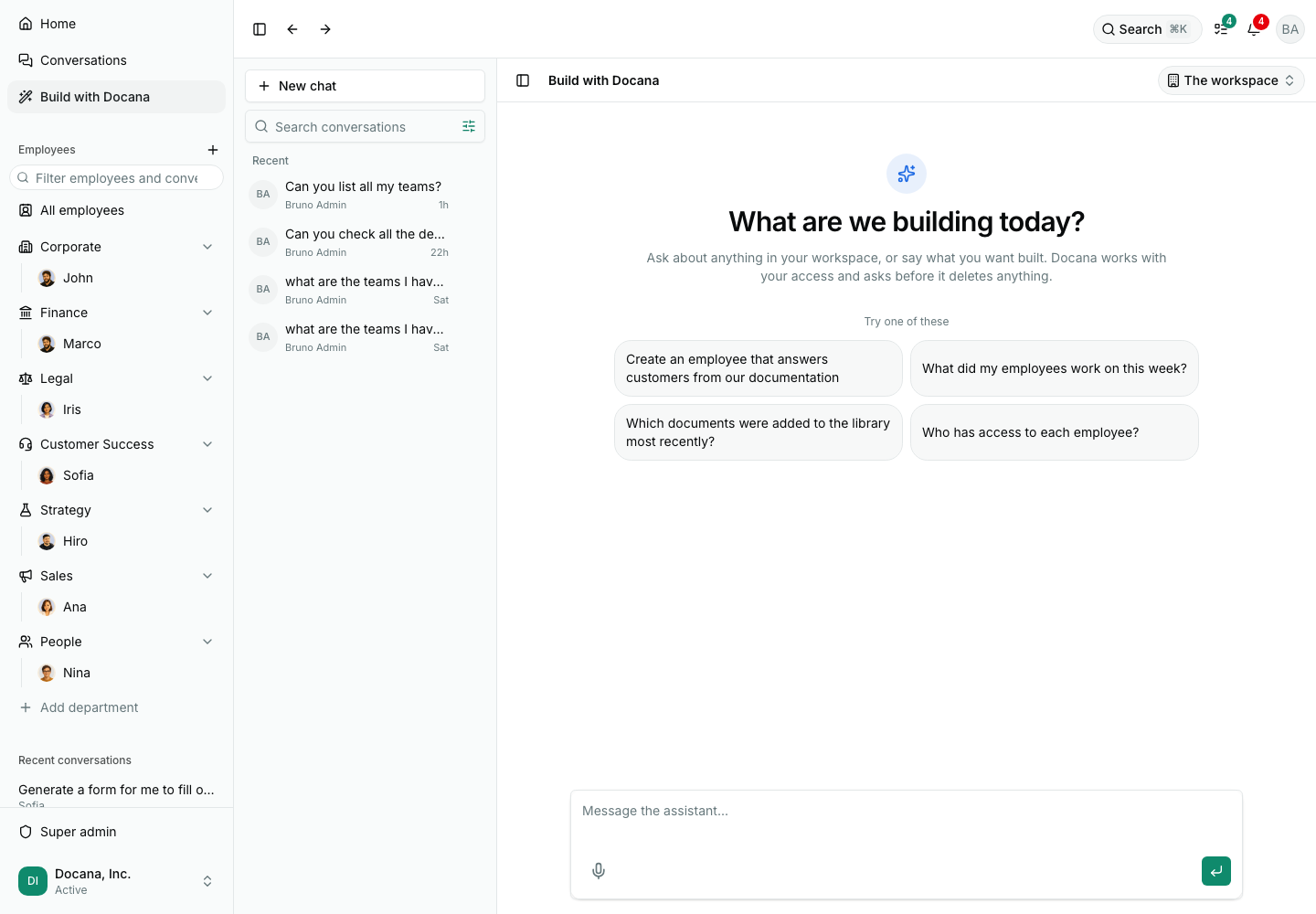
Ask for one in Build with Docana
Build with Docana in the sidebar is a conversation about your whole workspace. Ask it to create an employee, for example "Create an employee that answers customers from our documentation." It works with your access and asks before it deletes anything.
Create one from code
The same creation is available through REST, MCP, and the CLI, including the role templates and their measures. See Employees from Code.