Measure an employee's work
An employee measures its own conversations. After it works, it records a few facts about each conversation, such as the topic, whether the request was resolved, and whether a person is needed. These are insights. You read them on the Overview tab, on the Insights pages, and in a PDF report.
Measures describe observed work. They are separate from test results, and they are not a score for the employee.
The Performance card on Overview
Open the employee, then Overview. When the employee has measured conversations, the Performance card comes first.
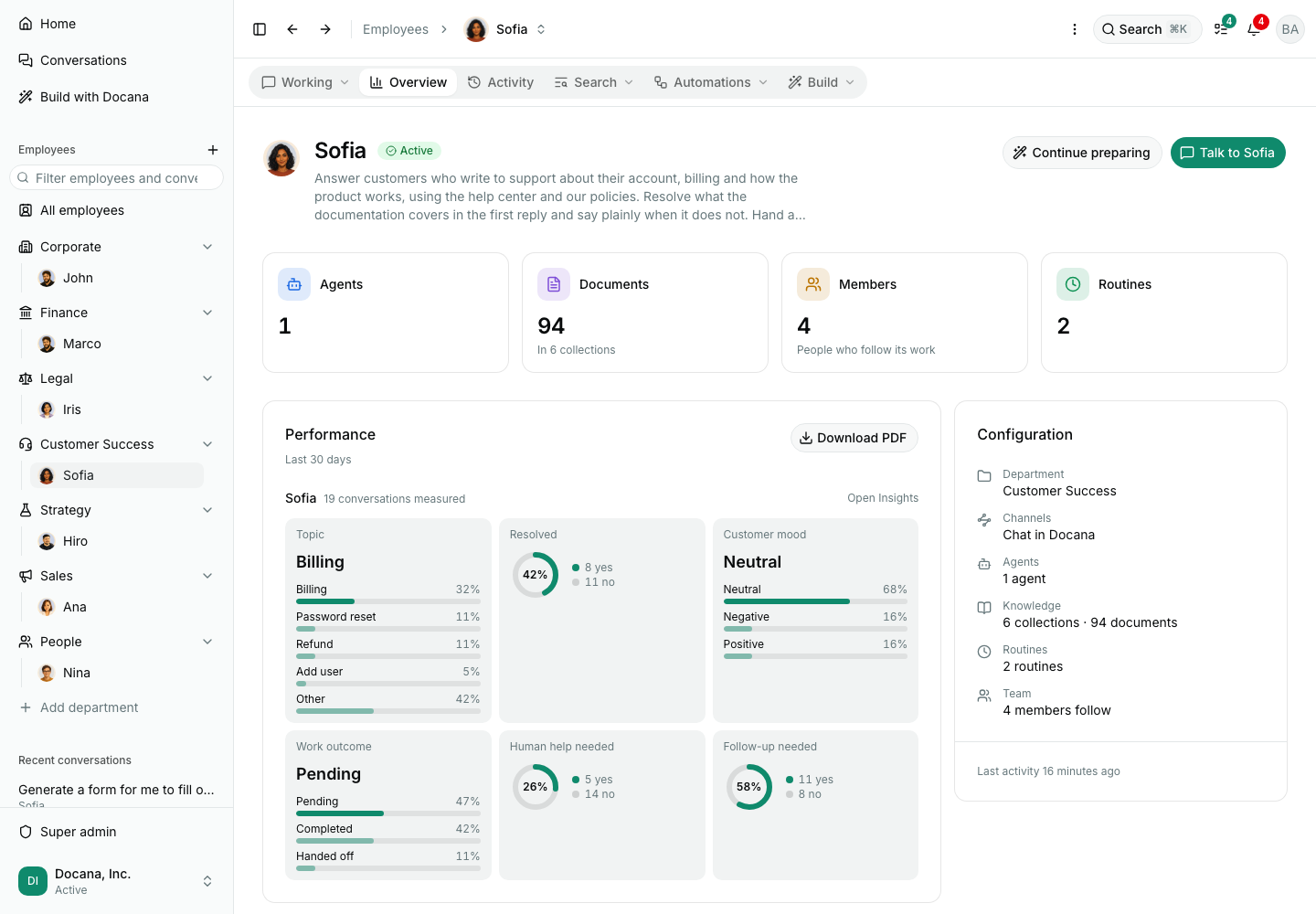
- The card covers the last 30 days and says how many conversations were measured.
- A yes or no measure shows a ring with the share of yes, and the counts of yes and no.
- A category measure shows the most common answer and bars for the top answers. The rest count as Other.
- A number shows its average, with its lowest and highest value.
- Each measure uses the latest saved value per conversation. Test conversations and experiment observations are left out.
- Open Insights goes to the charts. Download PDF makes the report.
A new employee has no values until real conversations are processed.
Measures
A measure is one thing recorded per conversation. It has a name, a description that tells the employee what to record, and a type: text, number, or yes or no. Most measures are extracted by AI from the conversation. Some are recorded by the workflow itself, for example when a run reaches a step. Those are exact and involve no AI.
Every new employee starts with insights on, captured after every message, and a baseline of three measures:
| Measure | Type | What it records |
|---|---|---|
| Work outcome | Text | Completed, pending, blocked, or handed off |
| Human help needed | Yes or no | Whether an unresolved issue needs a person |
| Follow-up needed | Yes or no | Whether a next step is still open |
Preparation can add measures that fit the goal. Ask it, for example: "Measure which product each question is about."
Ready-made sets of measures
A set of measures fits one kind of work. An employee created from a role starts with the set of that role on top of the baseline. The role picker says which measures it starts with.
| Set | Measures | Roles that start with it |
|---|---|---|
| Customer support | Topic, Resolved, Customer mood | Customer support, IT helpdesk, Order operations, Knowledge assistant |
| Sales and leads | Lead temperature, What they want, Qualified, Next step booked | Sales assistant, Lead qualification, Content assistant |
| Finance documents | Document type, Discrepancy found, Ready to approve | Invoice review, Expense review, Procurement assistant, Financial reporting |
| Legal and compliance | Document type, Risk, Clause flagged | Legal document review, Compliance review |
| People and hiring | Request type, Step completed | HR onboarding, Recruiting coordinator |
A role not listed starts with the baseline alone. So does an employee created without a role.
The Insights pages
Open the employee, then Automations, pick the agent, then Insights. Insights opens on its charts.
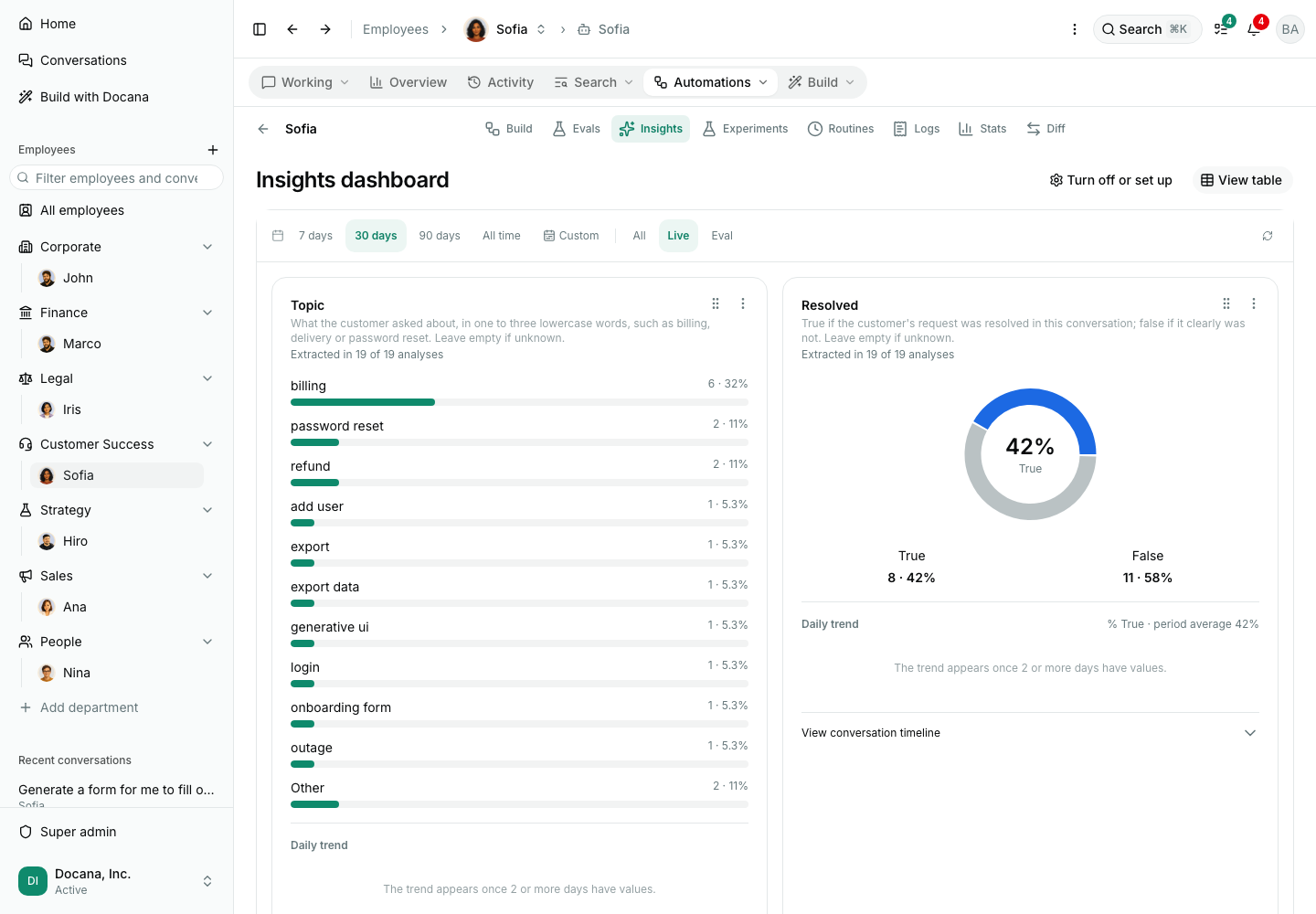
The dashboard
- Choose 7 days, 30 days, 90 days, all time, or a custom period.
- View table opens the table behind the charts.
- Turn off or set up opens the table page, where the switch and the settings are.
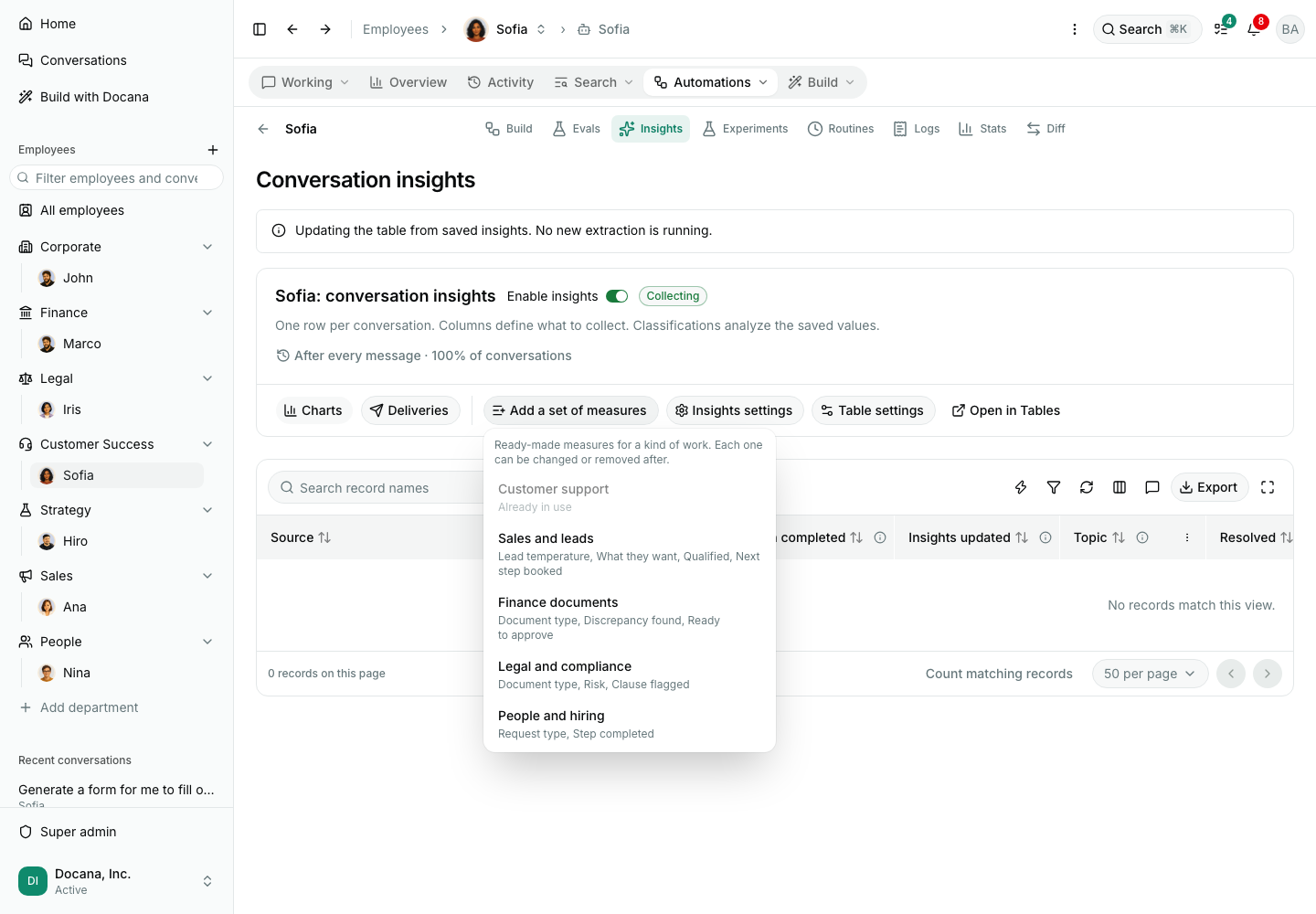
The table
One row per conversation, one column per measure.
- Enable insights is the switch. Turn it off to stop collecting. Existing rows stay. While insights are off, Insights opens on the table, not the charts.
- Charts goes back to the dashboard.
- Add a set of measures lists the five ready-made sets. A set the agent already has says Already in use. Adding a set appends its measures. You can change or remove each one after.
- Add column adds a measure of your own. Edit or remove a column from its header. Changes apply to future insights. They do not rerun past conversations. Removing a column keeps its history.
- Insights settings sets when insights are captured: after every message, when a conversation ends or is archived, when your system asks through the API, or on an event, and for what share of conversations.
- Deliveries, Table settings, and Open in Tables work as for any table.
The Build tab shows the same numbers in its Performance card, with View insights to open the charts.
For how insights are extracted, grouped, and delivered, see Insights.
Download the report as a PDF
On the Overview tab, select Download PDF in the Performance card. The report is a designed page with the employee's portrait, the period, the number of conversations measured, and a chart for each measure showing how its answers split.
It covers the last 30 days, the same figures as the card. The file is made when you ask, so it is current.
Email the report on a schedule
Open the employee, then Manage (the three dots), then Details, and find Performance report.
- Under Email the report, choose Every week or Every month. Never is the default and turns it off.
- Under Who gets it, tick the members who should receive it. With nobody ticked, nothing is sent.
Weekly reports go out on Mondays and monthly reports on the first day of the month, in the morning. Each covers the last 30 days and arrives as a PDF. The setting shows when the next one goes out.
Only members of the employee can be chosen.
From code
The measures, the ready-made sets, the PDF report, and its email schedule are all available through REST, MCP, and the CLI. See the Employees API reference and Employees from Code.