Work with an employee
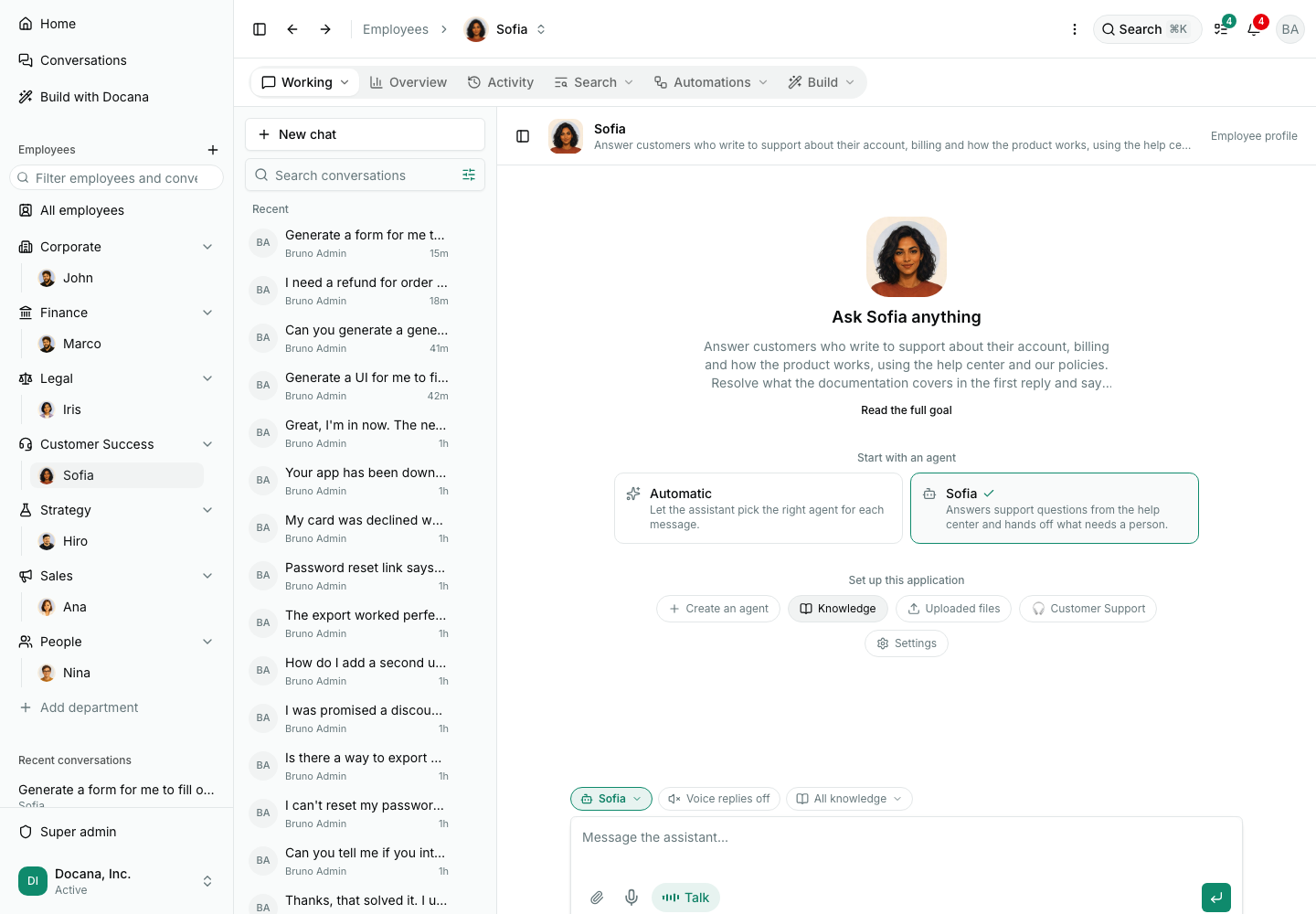
The Working tab is where you talk to an employee. Open the employee and it opens here, or select Talk to (name) from Overview or Build.
An employee must be Active before anyone can chat with it. See Build an employee.
Conversations
- New chat starts a conversation. The list on the left holds your past conversations with this employee, with a search box. A conversation's menu renames, pins, archives, or deletes it.
- Conversations in the main sidebar lists every conversation with all your employees: the ones you started, and the ones from routines, from the team, and from customers.
- The header shows the employee and its goal. Employee profile opens its Build tab for people who can change it.
- The welcome screen shows the goal. Long goals start short, with Read the full goal.
Automatic or a specific agent
Under Start with an agent, and in the selector above the message box, you choose who answers.
- Automatic lets the assistant pick the right agent for each message.
- The agent named after the employee is its published primary agent. An employee's chat opens with it selected.
Messages on channels always go to the published primary agent.
Attachments and knowledge
- Select the paperclip (Attach files) or drop files into the message box. A message carries up to 10 files. They belong to this conversation.
- When you drop files, Docana offers Add to knowledge instead. Files added that way become documents the employee can search in every conversation.
- The All knowledge selector limits a question to some collections.
- The microphone records a voice message. Voice replies turns spoken answers on or off.
What an employee can do in the web chat
An employee runs its workflow. In the web chat, where a person is at the screen, it can also:
- Ask you a question on a card and wait for your answer.
- Show a setup form, for example to connect a channel.
- Write a document or a page beside the conversation.
- Draw a form, a dashboard, or cards in the conversation. See Interfaces and artifacts.
- Schedule a routine for this conversation.
Web search needs nobody at a screen, so the employee has it on every channel where the company or the employee has web search on.
A workflow step that lists its tools keeps only those, so a workflow that must stay narrow still can.
Approval cards
Some actions wait for you. The employee stops and shows a card: Approve this action? Nothing happens unless you approve.
- A browser action that commits something, such as submitting a form on a website.
- Opening a website that is not in the employee's allowed websites. You can Allow once or Always allow on this site. Allowing adds it to the allowed websites, private to you.
- Removing something from the workspace.
A card nobody answered does nothing. It shows "Not answered, so nothing was done".
Voice calls
Select Talk in the message box to call the employee and speak with it in real time. Each request you speak runs the employee's own workflow, the same one a typed message runs, and the answer is spoken and written in the conversation.
See Voice calls for a recorded call, what the call can do, and its limits.
Channels
Channels put the employee where people already are: WhatsApp, WhatsApp Business, Slack, Microsoft Teams, a phone number for calls and SMS, and the web widget.
Open the employee, then Manage (the three dots), then Channels. You can also ask in the preparation conversation, for example "put this on WhatsApp". For WhatsApp, and SMS where your company has it, it opens the setup for you to review. For Slack, Teams, the widget, or your own WhatsApp Business number, it links to that channel's settings, because those need credentials that never pass through chat.
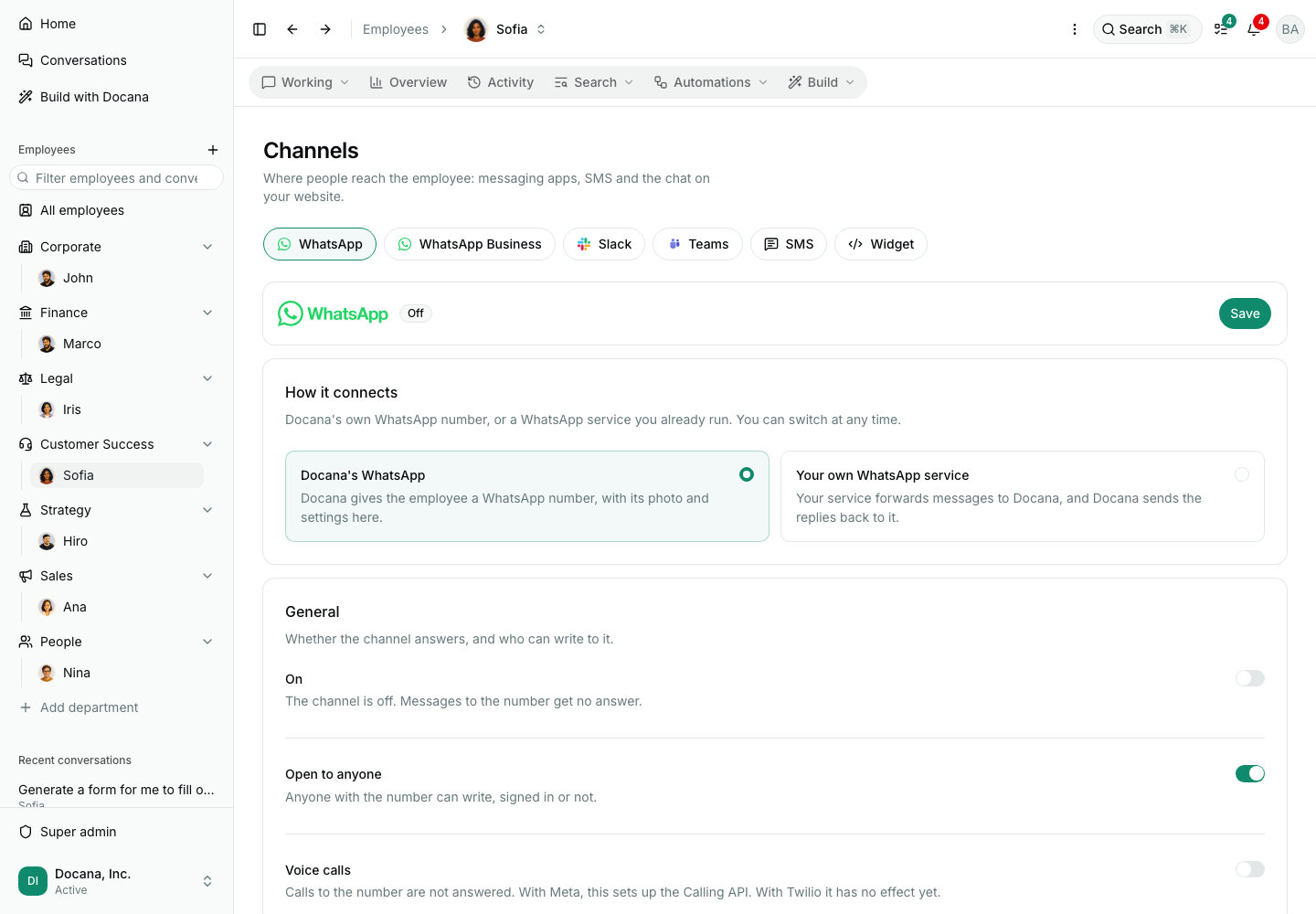
- Publish the employee before turning a channel on. Every channel sends messages to the published primary agent.
- A new WhatsApp or SMS number is open to anyone by default. Turn that off to answer only members of the employee. Opening the setup does not activate anything or buy a number. Getting a paid number needs you to confirm the purchase.
- A new SMS number is a US toll-free number and cannot send until its toll-free verification is approved.
- With Docana's own WhatsApp number, the employee's portrait is its WhatsApp profile picture unless you upload a channel logo. Changing the portrait updates it. Meta and proxy connections keep the picture their provider manages.
- On channels the employee answers in text. Interfaces are drawn only in the web chat.
- Conversations from WhatsApp and SMS appear on the Working tab. You read them there. You answer one only after the employee handed it to a person. See Human handoff.
Channel guides: WhatsApp, Slack, Microsoft Teams, Web widget.
Recurring work
A routine is a saved job an employee repeats, such as reviewing invoices every Friday or checking a document when it arrives. The Build tab calls them Responsibilities. They cover every agent of the employee, so a specialist's routine appears beside the primary agent's.
- The Automations tab lists the employee's routines and opens each agent's Routines page, where you add and edit them.
- A routine shows its triggers, whether it is active or paused, its next scheduled run, and its last run. Schedules are labeled in UTC. API and document-arrival triggers are shown separately.
- Starts after publishing means it was asked to be active while the employee was a draft. Publishing starts it.
- Active means the agent and the routine are on and at least one trigger is on. Paused means the routine or all its triggers are off. Agent disabled means its agent is off.
- These states say when work can start. The execution logs say what happened.
- A conversation can have routines of its own. The calendar icon in the conversation header lists them. Conversations, then Routines, lists all of yours.
Confirm the prompt, schedule, and time zone before turning a routine on. See Routines. To send a one-off request from your own backend, run the agent through the API.
See what happened
- Activity tab: messages by month, response time, and who changed what.
- Automations, then an agent, then Logs: every run, step by step, with what each step decided, how long it took, and the workflow version. Test runs are kept apart from real work.
- Overview tab: the Performance card. See Measure an employee's work.