Home and navigation
Everything in Docana is one or two clicks from the sidebar. This page names each part of the frame, so you know where to look and what each thing is called.
Home
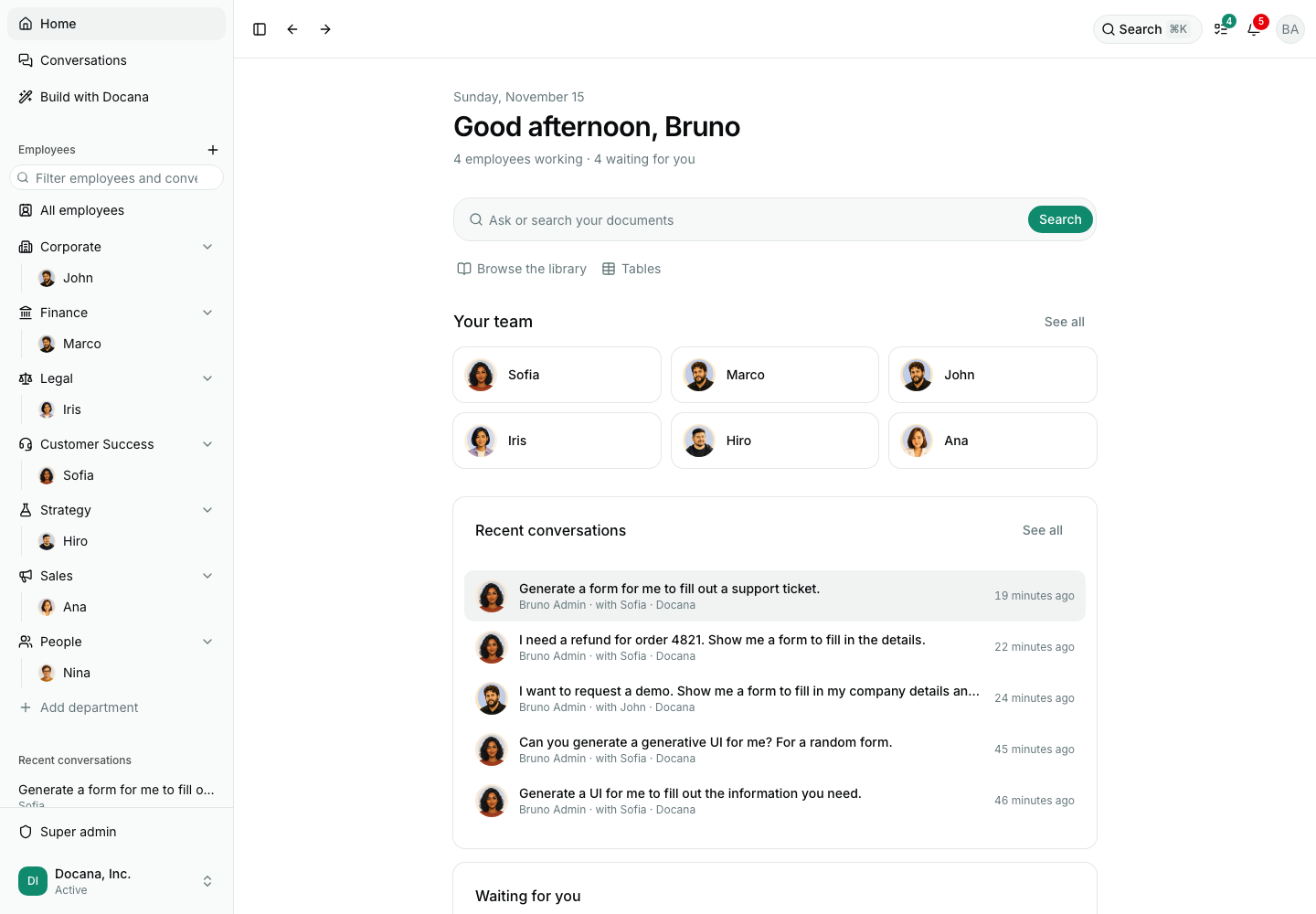
Home is the first page after you sign in. From top to bottom it shows:
- A greeting with the date, how many employees are working, and how many things are waiting for you.
- Ask or search your documents. Type a question or a few words and click Search. It searches every document you can open.
- Browse the library and Tables, two shortcuts to the knowledge pages.
- Your team. A card for each of your employees. Click one to open it. See all opens the Employees page.
- Recent conversations. The latest conversations you can see, each with the person and the employee. See all opens Conversations.
- Waiting for you. What needs a person. See Waiting for you below.
With no employees yet, Home asks "Who do you want on your team?" and offers New employee.
The sidebar
The sidebar stays with you on every page. The button at the left of the header shows or hides it.
| Part | What it does |
|---|---|
| Home | Back to the first page. |
| Conversations | Every conversation with your employees, and your routines. |
| Build with Docana | A conversation with Docana itself, to build or ask about anything in your workspace. |
| Employees and + | The + opens New employee. |
| Filter employees and conversations | Narrows the lists below as you type. |
| All employees | The Employees page: a table or a grid, with search, department filters and Favorites. |
| Departments | Each department lists its employees. Click a department to fold it. An employee that is working on a conversation shows it here, with a link to that conversation. |
| Add department | Creates a department. Shown to people who may manage departments. |
| Recent conversations | Your latest conversations, each under its employee's name. |
| The company, at the foot | Opens the workspace menu. |
To move an employee, drag it onto another department. Employees with no department are listed under No department.
The header
The header runs across the top of every page.
- Back and Forward arrows move through the pages you visited.
- Inside an employee, the header shows Employees, then the employee's portrait and name. Click the name to switch to another employee and stay on the same tab.
- Search opens the search of everything.
- The list icon with a number is Waiting for you.
- The bell is your notifications.
- Your initials open the account menu: Appearance (Auto, Light or Dark), Manage my account, the companies you belong to, and Sign out.
The workspace menu
Click your company's name at the foot of the sidebar. The menu has three groups. A member sees only Knowledge. Administrators also see Company and Developer.
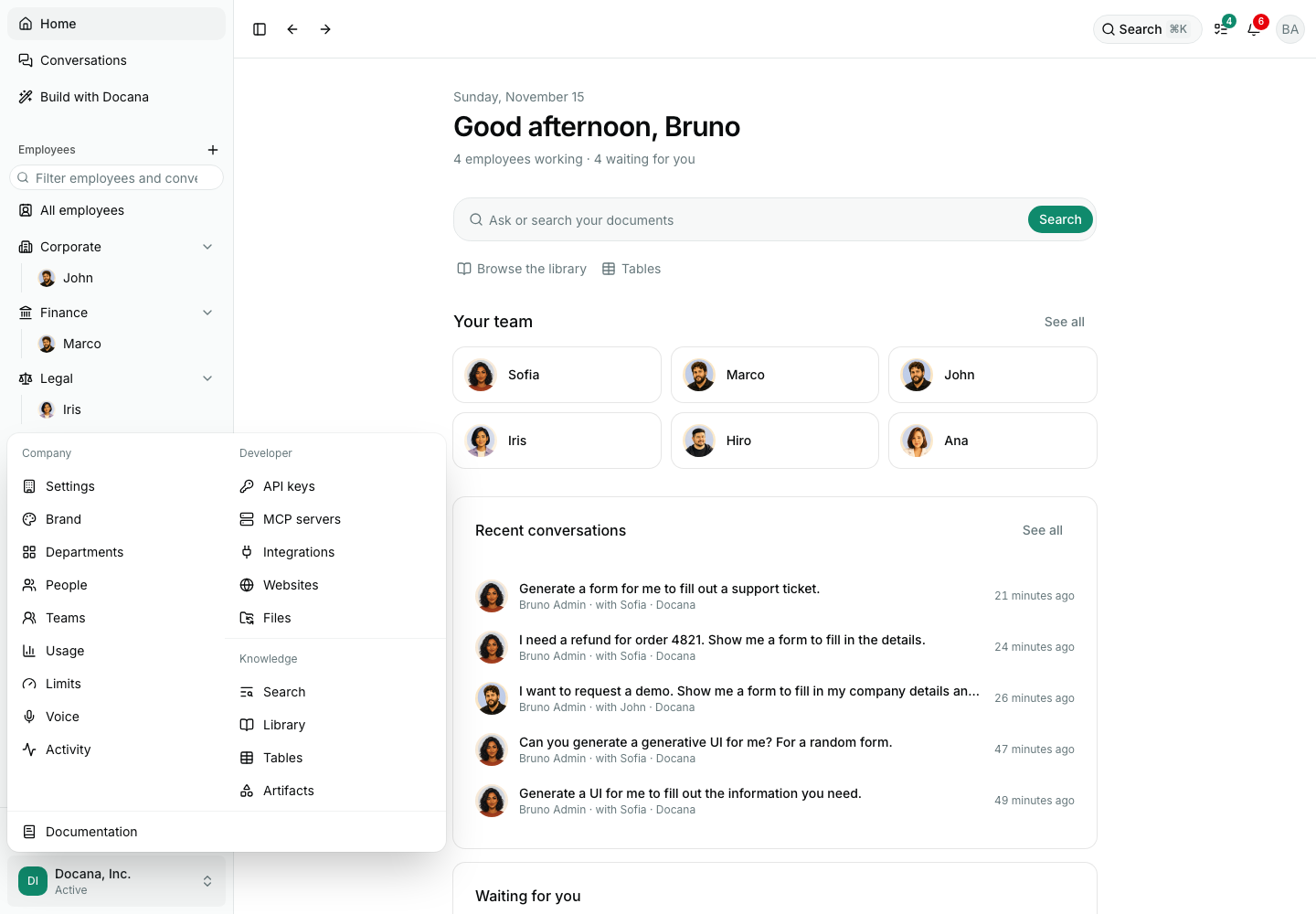
| Group | Page | What it is for |
|---|---|---|
| Company | Settings | The company's name, domain, language, time zone and images. |
| Brand | The colors, type and style of what is made in the company's name: documents, pages and emails. | |
| Departments | The groups employees are listed under. | |
| People | Who can sign in, and what each may do. See Users and teams. | |
| Teams | Groups of people you give access to together. | |
| Usage | What the company used in a period, and what it cost. | |
| Limits | What the plan includes, and how much of it is used. | |
| Voice | The voices employees speak with, on calls and in spoken answers. | |
| Activity | What people changed across the company. | |
| Developer | API keys | Keys for your code and the CLI. See Generating API keys. |
| MCP servers | Tool servers employees can be given. See MCP servers. | |
| Integrations | Outside systems employees can read from and write to. See Integrations. | |
| Websites | Websites employees may open. See Website access. | |
| Files | The file accounts connected to the company, and the folders they keep in sync. See Connectors. | |
| Knowledge | Search | Find a passage in any document you can open. See Enterprise Search. |
| Library | Libraries and their collections. See Creating a Library. | |
| Tables | Every table you can open. See Tables. | |
| Artifacts | The forms, dashboards, pages and documents your employees made. See Interfaces and artifacts. |
Documentation at the bottom opens these docs. The Developer pages also have a Skills tab, for the instructions employees learn once and reuse.
Search everything
Click Search in the header, or press Cmd K on a Mac and Ctrl K elsewhere. A box opens over the page.
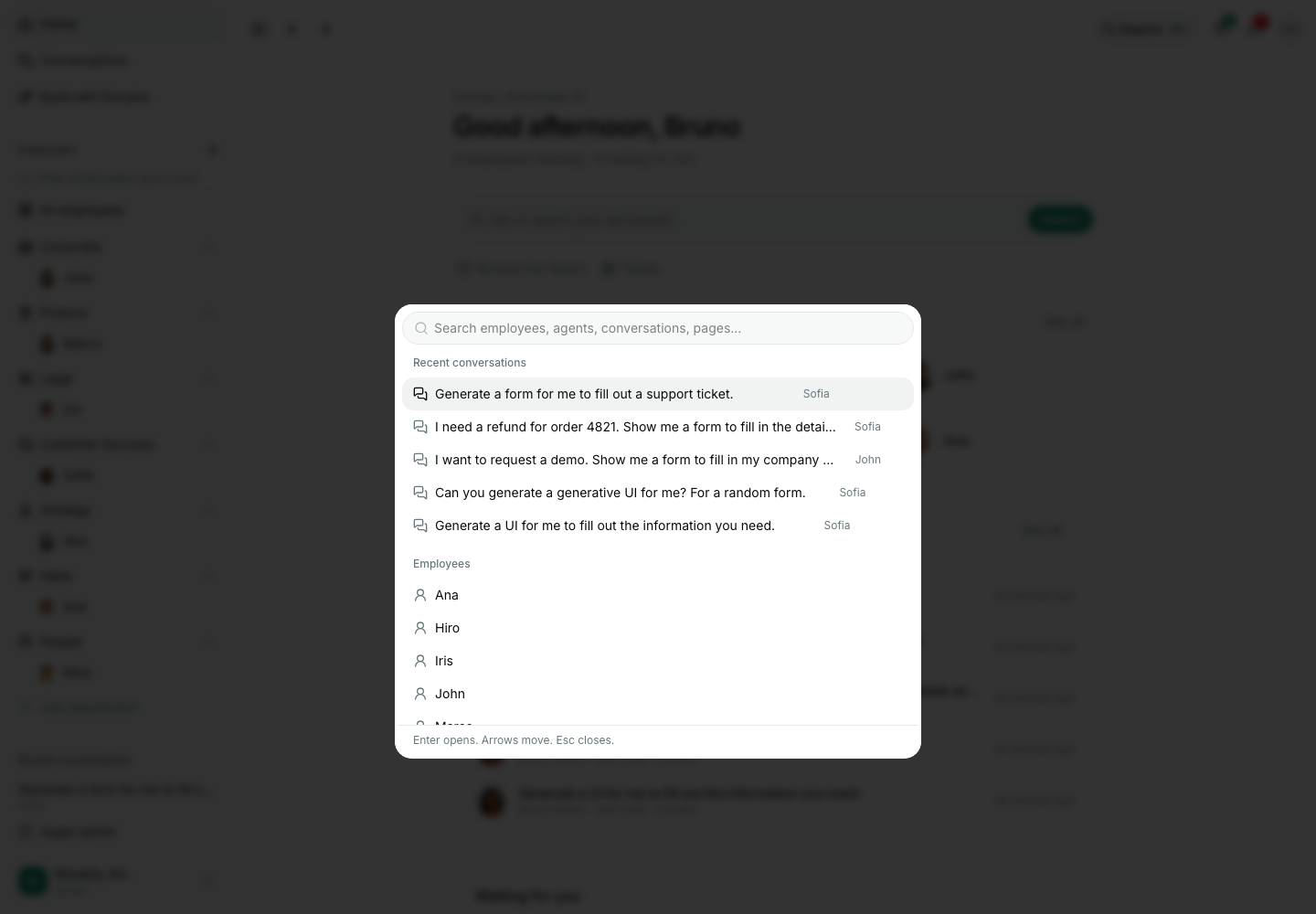
Type to find an employee, an agent, a routine, a conversation, a library or collection, a table, or a page. Enter opens the selected row, the arrow keys move, and Esc closes. The last row searches your documents for what you typed.
This search finds things by name. To search inside documents, use Search in the workspace menu, the box on Home, or an employee's Search tab.
Waiting for you
Waiting for you collects what needs a person. It is on Home, and behind the list icon in the header, which shows the count.
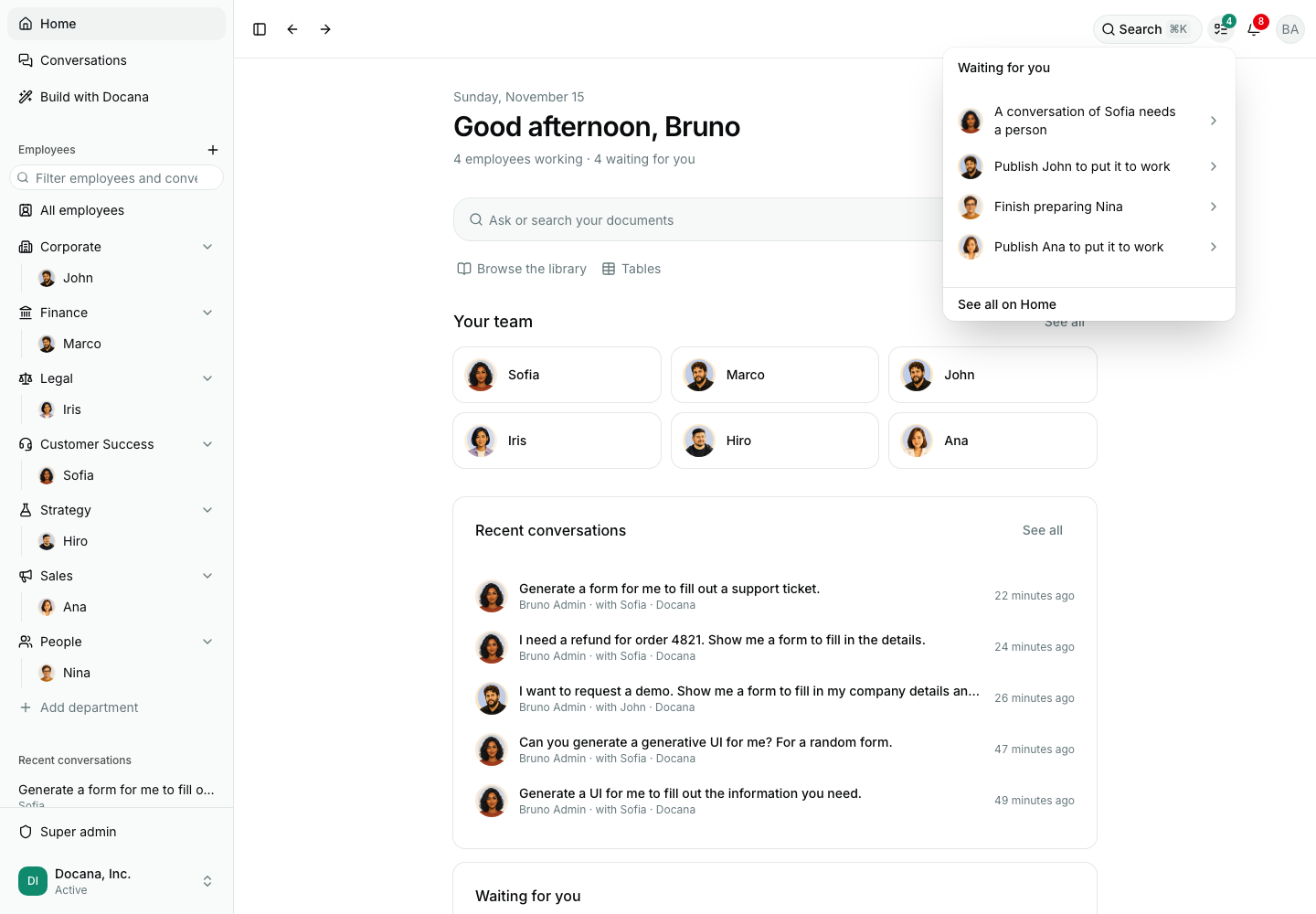
It lists three kinds of things. Conversations come first.
- A conversation of an employee needs a person. A customer conversation was handed off and waits to be taken over. It opens the conversation. See Human handoff.
- Publish an employee to put it to work. Its workflow is prepared and not published. It opens the Build tab.
- Finish preparing an employee. It has a job and no workflow yet. It opens the Build tab.
You see the employees you may change. The bell beside it holds notifications, such as a conversation that was just handed off. Mark all as read clears the count.
Conversations
Conversations lists every conversation you can see with your employees: the ones you started, the ones from routines, from your team, and from customers on a channel. Search by subject or person, or filter by employee. New conversation asks how you want to start: with Build with Docana, or with one of your employees.
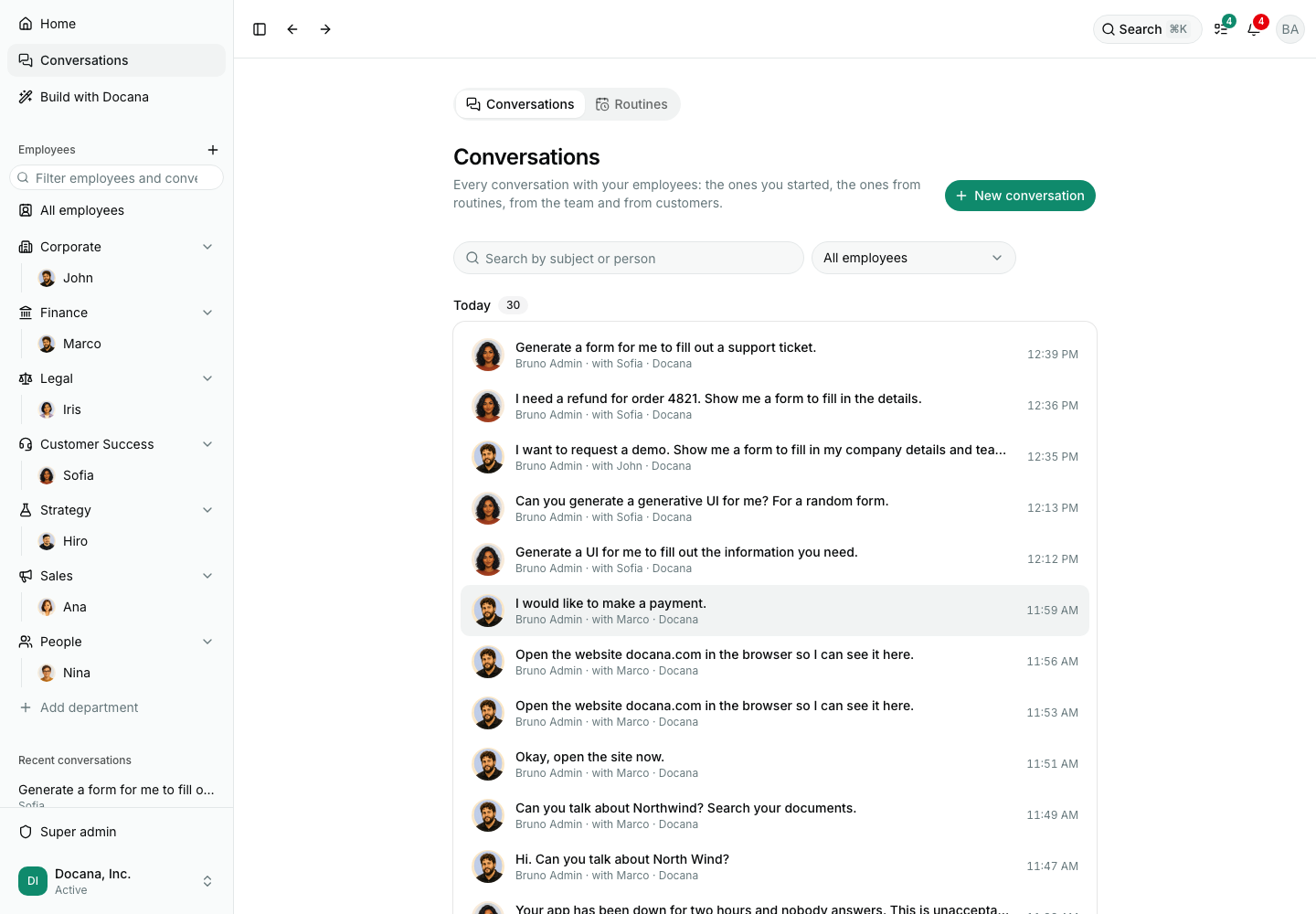
The Routines tab lists what you asked employees to do on a schedule, wherever you asked. Each row shows when it runs and its next run. Turn one off with its switch, open its conversation, or delete it. To create one, ask an employee in any conversation, for example "every morning, check my inbox and tell me what is urgent". See Routines.
A conversation with one employee is also listed on that employee's Working tab.
Build with Docana
Build with Docana is a conversation with Docana itself. Ask about anything in your workspace, or say what you want built. Docana works with your access and asks before it deletes anything.
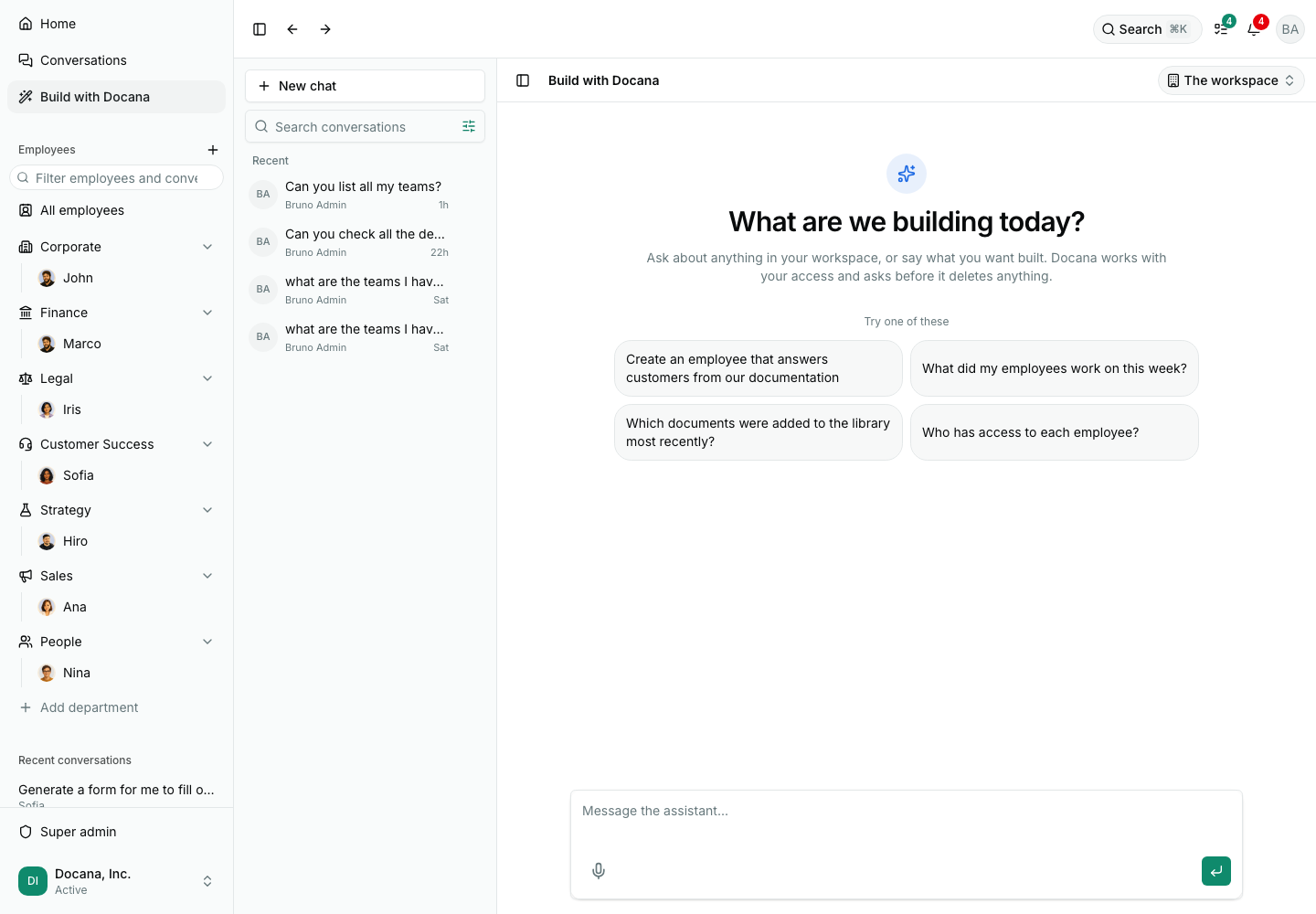
The selector at the top right, Working on, sets the target:
- The workspace: everything you can reach. Ask "What did my employees work on this week?" or "Who has access to each employee?".
- Build one employee: pick an employee, and the work continues in its Build tab, with its tests.
- Build one agent: pick an agent, and the work continues on its canvas.
To build a new employee from a description, say so here, or use New employee. See Create an employee.
Inside an employee
An employee's page has its own row of tabs under the header: Working, Overview, Activity, Search, Automations and Build. The arrow on a tab opens a short menu, such as the recent conversations under Working or the agents under Automations. The three dots open the Manage menu with its settings. See Employees.
Old addresses
Links from before the product was rebuilt still open. /applications/ opens the Employees page, /application/{id}/... opens the same page under /employees/{id}/..., and /account/routines/ opens the Routines tab of Conversations.