For a lot of customers, WhatsApp is the internet. Docana puts your assistant there, answering from your knowledge, around the clock.
There are two ways to connect, and they're separate channels in your application settings:
| WhatsApp (Docana-managed) | WhatsApp Business (your own number) | |
|---|---|---|
| Phone number | Docana assigns one | You bring your own via Meta |
| Setup time | Minutes | Requires a Meta developer setup |
| Best for | Getting live fast, pilots, internal tools | Your brand on your existing business number |
Both live in your application under Channels.
Option 1: WhatsApp (Docana-Managed)
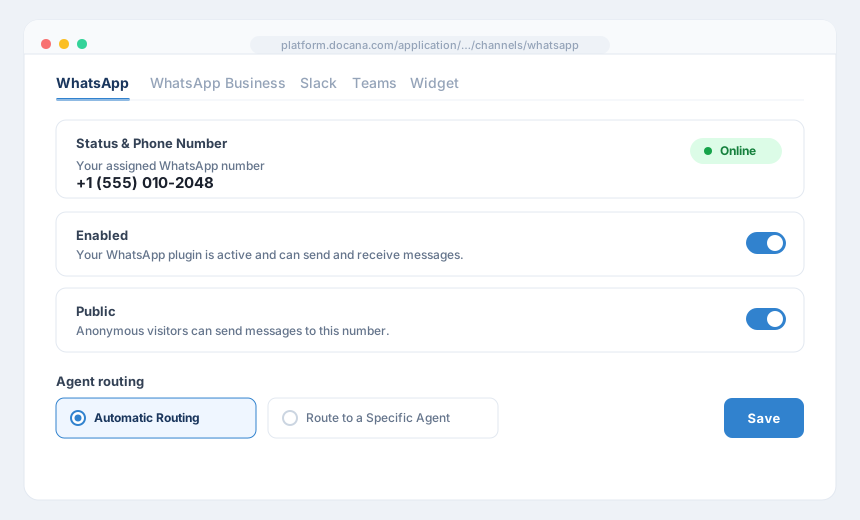
- Open Channels, then WhatsApp
- Keep Standard mode: Docana's built-in WhatsApp integration
- Flip Enabled. The first time you enable it, Docana assigns your phone number
- Check the Status & Phone Number section: when it shows Online, message the number from your phone and your assistant answers
Then make it yours:
- Avatar: the profile picture people see on WhatsApp
- Public or private: public numbers accept messages from anyone, while private numbers only answer users with access to the application
- Agent routing: let the application assistant handle conversations, or route them to a specific agent
Resetting the WhatsApp plugin discards all stored WhatsApp details, including the phone number. You can't get the same number back.
Already Have a WhatsApp Provider? Use Proxy Mode
If your number lives with an external provider, switch to Proxy mode. Your service forwards incoming messages to Docana, and Docana sends replies to your Proxy Callback URL, authenticated with a security token you set. The settings page shows ready-to-use request examples for both directions. You can switch between modes at any time.
Option 2: WhatsApp Business (Your Own Meta Number)
Use this when the assistant should answer on your company's own number through Meta's WhatsApp Business Cloud API.
A Meta Business account and a WhatsApp Business app in the Meta for Developers portal, with a phone number attached.
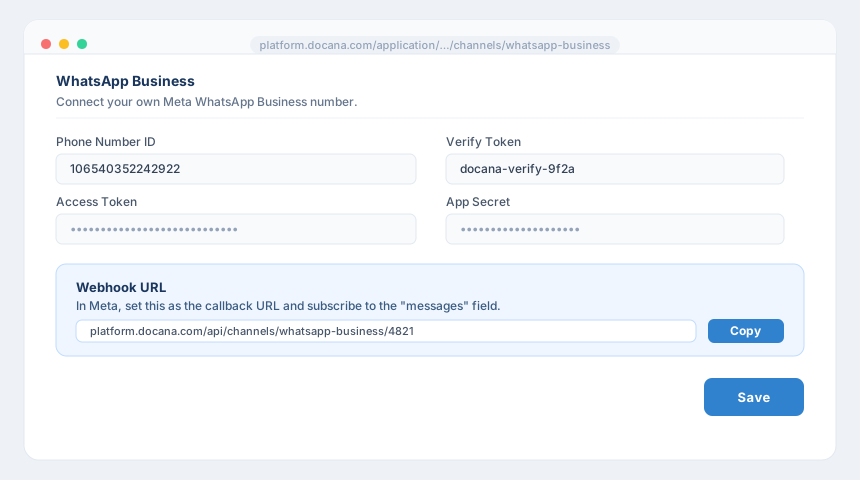
- Open Channels, then WhatsApp Business
- From your Meta app, collect the Phone Number ID, an Access Token, and the App Secret. Make up a Verify Token (any string, which you'll reuse in Meta)
- Paste all four into Docana and save
- Copy the Webhook URL Docana shows you. In Meta's WhatsApp configuration, set it as the callback URL with your verify token, and subscribe to the messages webhook field
- Send a WhatsApp message to your number. Your assistant should answer
Next Steps
- Creating an Agent - Decide how WhatsApp conversations are handled
- Conversation Insights - See what customers ask, as charts
- Slack - Bring the same assistant to your team