Users & Teams
Docana is built for companies, so access control is built in. People get roles. Teams group people. Libraries, collections, and applications decide who can see them based on both.
Manage it all from Company Users and Company Teams.
Roles
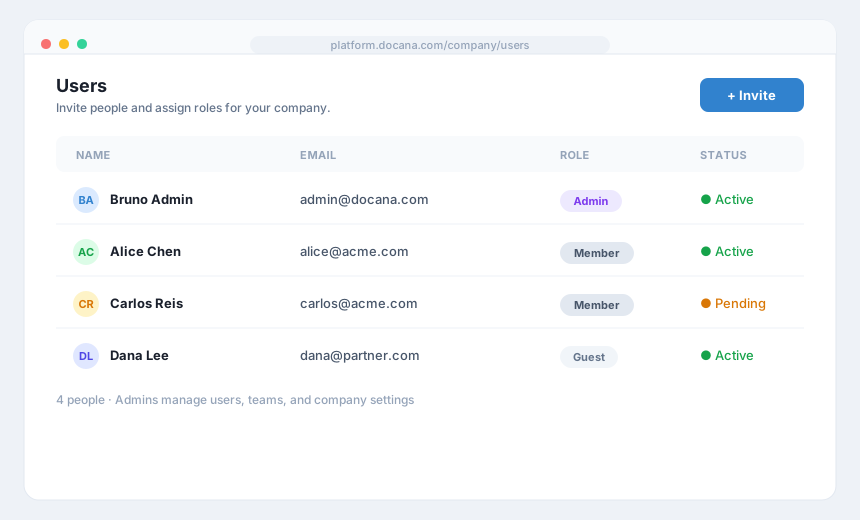
Every user in your company has one role:
- Admin: full access. Manages users, teams, company settings, and everything in between.
- Member: the normal role. Works with the libraries and applications they've been given access to.
- Guest: read-only access to public applications. Right for external collaborators.
Applications add their own layer: each member of an application is either an Administrator (can change the application's settings) or a Member (can use it).
Inviting People
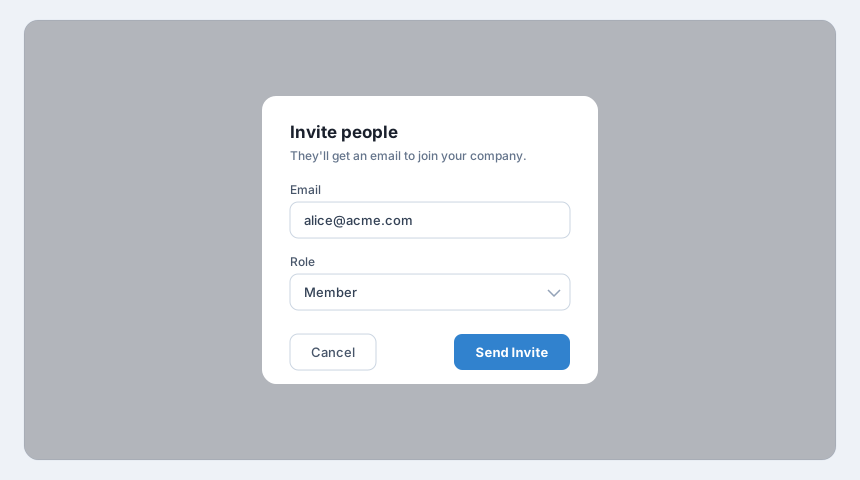
- Go to Company Users
- Click Invite
- Enter their email and pick a role
- Send it
Invited users show as pending until they accept. From the same list, admins can change roles, block users, or remove them.
Teams
Adding twelve people to eight applications one by one is forty minutes of clicking. Teams fix that. Create a team once, then grant the team access to libraries, collections, and applications. Members inherit the team's access, and new hires get everything by joining the team.
To create one:
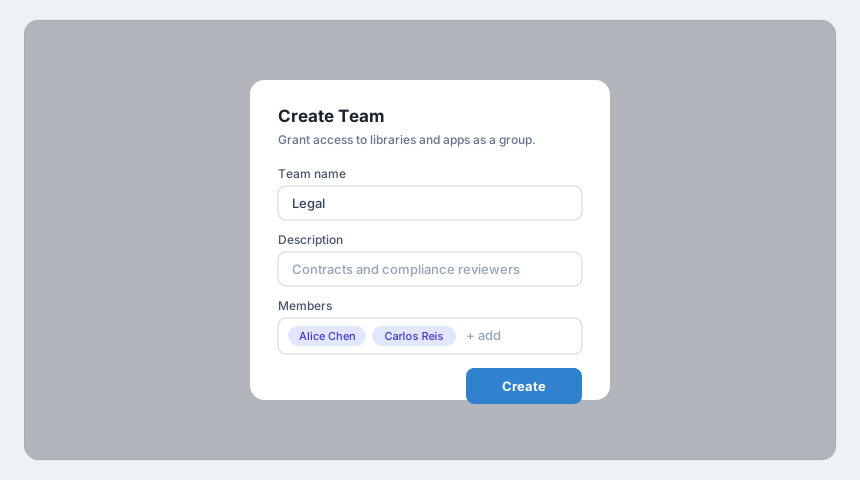
- Go to Company Teams
- Click Create Team
- Name it, add an optional description, and pick the members
- Save
Edit a team anytime to add or remove members. Removing someone from a team removes the access they had through it.
Where Access Applies
- Libraries and collections: private ones are visible only to their members, people or teams
- Applications: members and teams are managed in each application's Members settings
- Company administration: only Admins see the Company section
Best Practices
- Default to Member: hand out Admin sparingly. Most people never need it.
- Mirror your org chart with teams: a "Legal" team granted to legal libraries beats per-person grants you'll forget to clean up.
- Use Guest for outsiders: contractors and partners get public applications, nothing else.
- Review the user list occasionally: block or remove people who've left. Their access doesn't expire on its own.
Next Steps
- Creating a Library - Set who can see which documents
- Creating an Application - Add members and teams to an application