Conversation Insights
Your agents have thousands of conversations, and each one knows something: was the customer happy, did they get an answer, what product were they asking about. Normally that knowledge evaporates when the chat ends. Insights capture it.
Turn insights on and every conversation produces:
- A summary, at the length you choose
- Data points you define, extracted as structured values
The results become interactive charts on the agent's Stats page, with filters and drill-down into the underlying conversations.
Turn It On
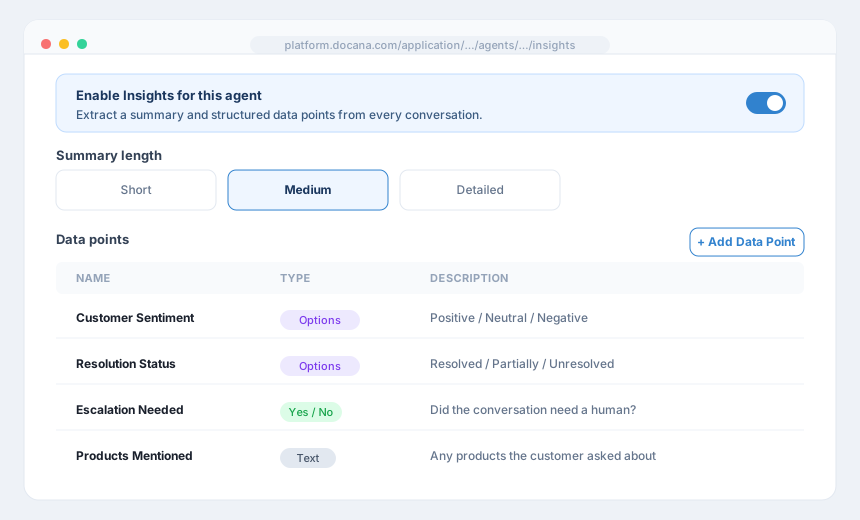
Open your application: Agents, pick an agent, then open its Insights tab. Flip Enable Insights for this agent.
Choose When Insights Are Generated
- After every agent execution (default): insights refresh every time the agent finishes a run. Best for live dashboards.
- Only when the thread is archived: nothing is extracted until you archive the conversation through the API. Use this when you only care about final outcomes, or when you want to control costs.
To archive a thread from your backend:
curl -X POST "https://platform.docana.com/api/threads/${THREAD_ID}/archive" \
  -H "Authorization: ApiKey ${DOCANA_API_KEY}"
Shape the Summary
Pick a summary length:
- Short: 1 to 3 sentences. Quick context.
- Medium: 4 to 7 sentences. The default for most teams.
- Detailed: 8 to 15 sentences. For compliance or hand-off reviews.
Add custom instructions to steer it, like "Focus on action items, decisions made, and any unresolved questions."
Define Data Points
This is where insights earn their keep. Click Add Data Point and define:
- Name: what to call it, like "Customer Sentiment"
- Type: text, number, yes/no, or a list of options
- Description: tell the AI what to extract, like "The customer's overall mood by the end of the conversation"
Docana also suggests ready-made data points (Goal Achieved, Customer Sentiment, Resolution Status, Escalation Needed, Urgency, and more). Click Add all to start with those and prune later. You can define up to 50.
See the Results
Open the agent's Stats tab. Every data point is a chart. Click a segment to see the conversations behind it. "Why did escalations spike on Tuesday" stops being a meeting and becomes a click.
Remember Users Across Conversations
Turn on Share insights across past conversations and the agent receives summaries of a user's previous conversations when a new one starts. Customers stop repeating themselves, and the agent picks up where things left off.
Best Practices
- Start with the suggested data points: they cover what most teams ask first. Add custom ones when real questions come up.
- Write descriptions like instructions: the description is a prompt. "Whether the user asked about pricing" extracts better than "pricing".
- Prefer yes/no and options over free text: structured types make cleaner charts.
- Use archive mode for outcome reporting: if you only read insights weekly, don't extract them on every message.
Next Steps
- Testing Agents - Catch problems before they show up in your insights
- Routines - Run an agent on a schedule, like a weekly insights report