MCP Servers
Out of the box, agents can search your knowledge, send emails, call webhooks, and generate documents. MCP servers extend that list. MCP (Model Context Protocol) is an open standard for giving AI systems tools, and there are servers for databases, payment platforms, file systems, and hundreds of other things. Register one in Docana and your agents can use its tools.
Manage them at MCP Servers in the Developer section.
Register a Server
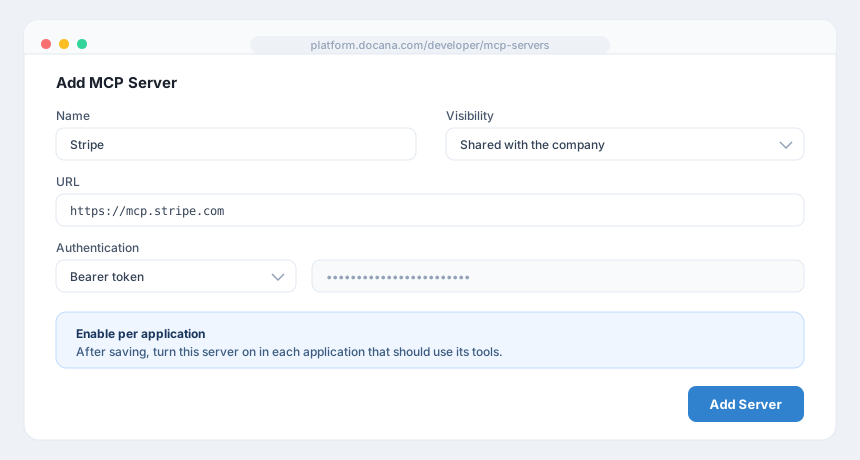
Click Add MCP Server and fill in:
- Name and description: how it shows up in the list
- How to reach it, one of two ways:
- URL: for remote servers, like
https://mcp.stripe.com - Command: for servers Docana runs, like
npx -y @modelcontextprotocol/server-filesystem, with optional arguments and environment variables
- URL: for remote servers, like
- Authentication: none, API key (with the header name), bearer token, basic auth, or custom headers
- Visibility: private to you, or shared with the company
Enable It for an Application
Registering a server doesn't change anything by itself. Open your application, go to its MCP Servers settings, and toggle on the servers this application should use. From then on, agents in that application can call the server's tools in their workflows.
That separation is deliberate. Your customer-facing support agent probably shouldn't have the same tools as your internal finance agent.
Where the Tools Show Up
Once enabled, the server's tools are available to agents like built-in tools: in instruction steps and tool-call actions in the Agent Builder. The agent decides when to use them, the same way it decides when to search your knowledge.
Best Practices
- Start with read-only servers: a tool that looks things up can't break anything. Add write access once you trust the workflow.
- Keep credentials out of agents: authentication lives on the server registration, not in prompts.
- Enable per application, narrowly: each application should see only the tools it needs.
- Test in the assistant first: ask the assistant to use the new tool and watch the result before wiring it into production workflows.
Next Steps
- Creating an Agent - Put the new tools to work
- Testing Agents - Mock tool calls in test cases
- API Overview - For integrations that go the other direction