Creating a Template
Templates use AI to write documents using your company's knowledge. Think of it like having experts write for you. Good for contracts, structured documents, and reports that need specific formats.
Templates use your company's documents to understand context. They can read text, images, tables, and more. They write new sections or full documents that match your style.
You need to have:
- A Docana account with appropriate permissions
- An existing application (see Creating an Application if you need to create one first)
- Understanding of the document structure you want to create
How Templates Work
Templates are document structures where you mix static content with AI prompts. Prompts are instructions that tell AI what to write, and they can be as simple as a paragraph or as complex as generating a table with data analysis.
Templates Mix Static Content and AI Prompts
A template combines:
- Static content: Text that stays the same every time (headers, labels, standard paragraphs)
- AI prompts: Instructions that generate content using your knowledge base in real time
When you generate a document, prompts access your application's knowledge in real time. They read your documents, analyze data, and write content that matches your company's style and standards.
Example:
# Service Agreement

**Client:** {{name}}
**Date:** {{date}}

## Project Overview
{{Analyze the project requirements document and client meeting notes.
Write a 2-paragraph overview that summarizes the project goals and
key deliverables.}}

## Pricing Breakdown
{{Generate a table showing the pricing breakdown from the pricing
sheet. Include columns for Service, Quantity, Unit Price, and Total.
Calculate totals and add a summary row at the bottom.}}

## Terms and Conditions
{{Based on our standard service agreement template and the client's
specific requirements, write the terms and conditions section.
Include payment terms, delivery timeline, and warranty information.}}
In this example, the headers and labels are static content, while the sections with {{...}} are AI prompts that generate content using your knowledge base.
Prompts Can Be Complex
Prompts can do more than write paragraphs. They can:
- Generate tables with data analysis
- Create formatted lists from your documents
- Write entire sections based on multiple sources
- Analyze charts and images from your knowledge base
- Combine information from different documents
Example of a complex prompt:
{{Analyze the Q3 sales report PDF and the customer feedback survey.
Create a table with three columns: Product Category, Sales Growth %,
and Customer Satisfaction Score. Include all product categories from
the sales report. Calculate the growth percentage compared to Q2.
Match satisfaction scores from the survey by product category.
Add a row at the bottom showing overall averages.}}
This prompt reads multiple documents, extracts data, performs calculations, and formats everything into a table, all in real time when you generate the document.
Templates Access Knowledge in Real Time
Each time you generate a document, prompts:
- Search your application's knowledge base
- Read relevant documents, policies, and guidelines
- Use your company's terminology and style
- Pull current information from your data sources
- Cite sources automatically
Complete Template Creation and Document Generation Workflow
This video demonstrates the complete workflow of creating a template and generating a document. After generating a document, you can view the generated content in the preview panel. When you click on any AI-generated section, you'll see the prompt that was used to create that specific part, allowing you to understand how each piece of content was generated and make adjustments if needed.
Step 1: Create a New Template
- Click Applications in the sidebar
- Pick the application where you want to create the template
- Click Templates in the sidebar
- Click + Create Template (top right corner)
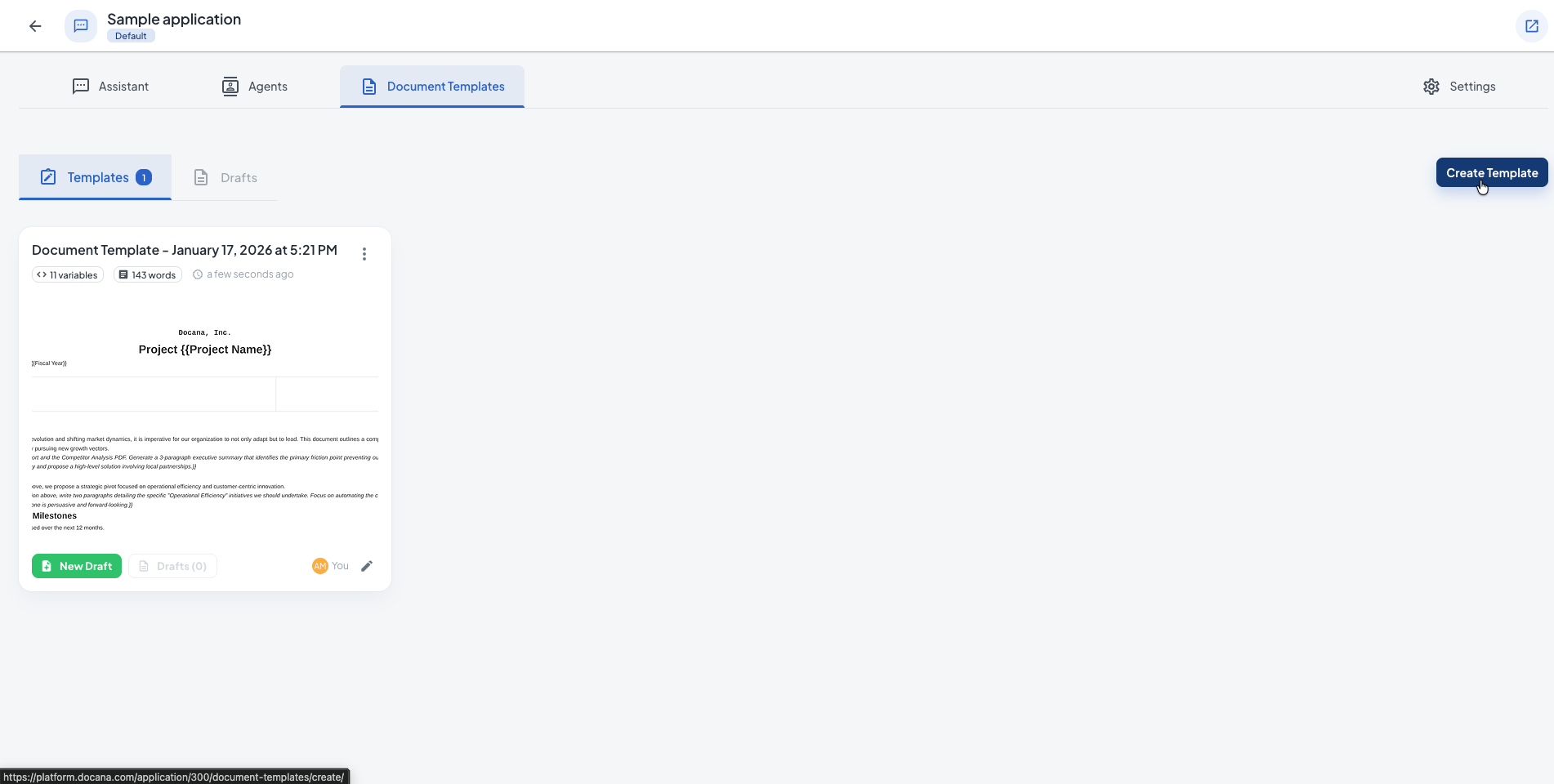
Step 2: Set Up Your Template
Enter these details:
Basic Information
-
Name: Pick a name that describes the template (e.g., "Service Agreement", "Project Proposal", "Compliance Report", "NDA Template").
-
Description (optional): Explain what the template does and what it creates. This helps your team and helps AI understand the template.
Template Content
-
Template Editor: Define your document structure using AI prompts. Prompts are instructions that access your knowledge base and generate content in real time.
AI Prompts: Instructions that access your knowledge base and generate content
## Executive Summary
{{Analyze the attached Q3 Financial Report and Competitor Analysis PDF.
Generate a 3-paragraph executive summary that identifies the primary
friction point preventing our growth in the APAC region. Specifically
mention the impact of supply chain latency and propose a high-level
solution involving local partnerships.}}

## Strategic Initiatives
{{Based on the "Strategic Pivot" introduction above, write two paragraphs
detailing specific "Operational Efficiency" initiatives we should undertake.
Focus on automating the customer support workflow and integrating AI into
our logistics tracking. Ensure the tone is persuasive and forward-looking.}}
Prompts can reference documents, analyze data, and generate content using your company's knowledge. They access your application's knowledge base in real time, reading relevant documents and generating content that matches your company's style and standards.

Knowledge Base
For prompts to work, you need to add documents to your application's knowledge base. Go to your application and upload documents, connect integrations, or add collections. Without knowledge, prompts won't have any context to generate content from.
- Knowledge Sources: Choose which documents the template should use. Manage at Knowledge Libraries:
- Collections: Curated document sets for specific use cases
- Libraries: Broader document repositories
- Reference Documents: Past documents for style consistency, standard templates, compliance guidelines
Data Source
- Data Source: Templates get their data from two sources:
- Manual Input: Data entered during a conversation with an agent when generating the document
- Collections: Documents from collections linked to your application are automatically available for AI prompts to reference and analyze
Formatting
-
Output Format: Choose the file format (PDF or DOCX)
-
Page Settings: Configure page format (A4, Letter, Legal, Tabloid, A3, A5), orientation (portrait or landscape), background color, and custom margins
-
Header and Footer: Define headers and footers that appear on every page. You can use variables like
{{date}}and{{pageNumber}}in headers and footers -
Document Formatting: Choose formatting style (Default or ABNT for academic documents)
Step 3: Preview and Download
- Click Preview to see how your template looks with sample data
- Review the generated document, including AI-written sections
- Make changes if needed
- Download the document in PDF or DOCX format using the download buttons in the preview panel
Your template is automatically saved as you make changes. You can also manually save using the Save button in the top toolbar.
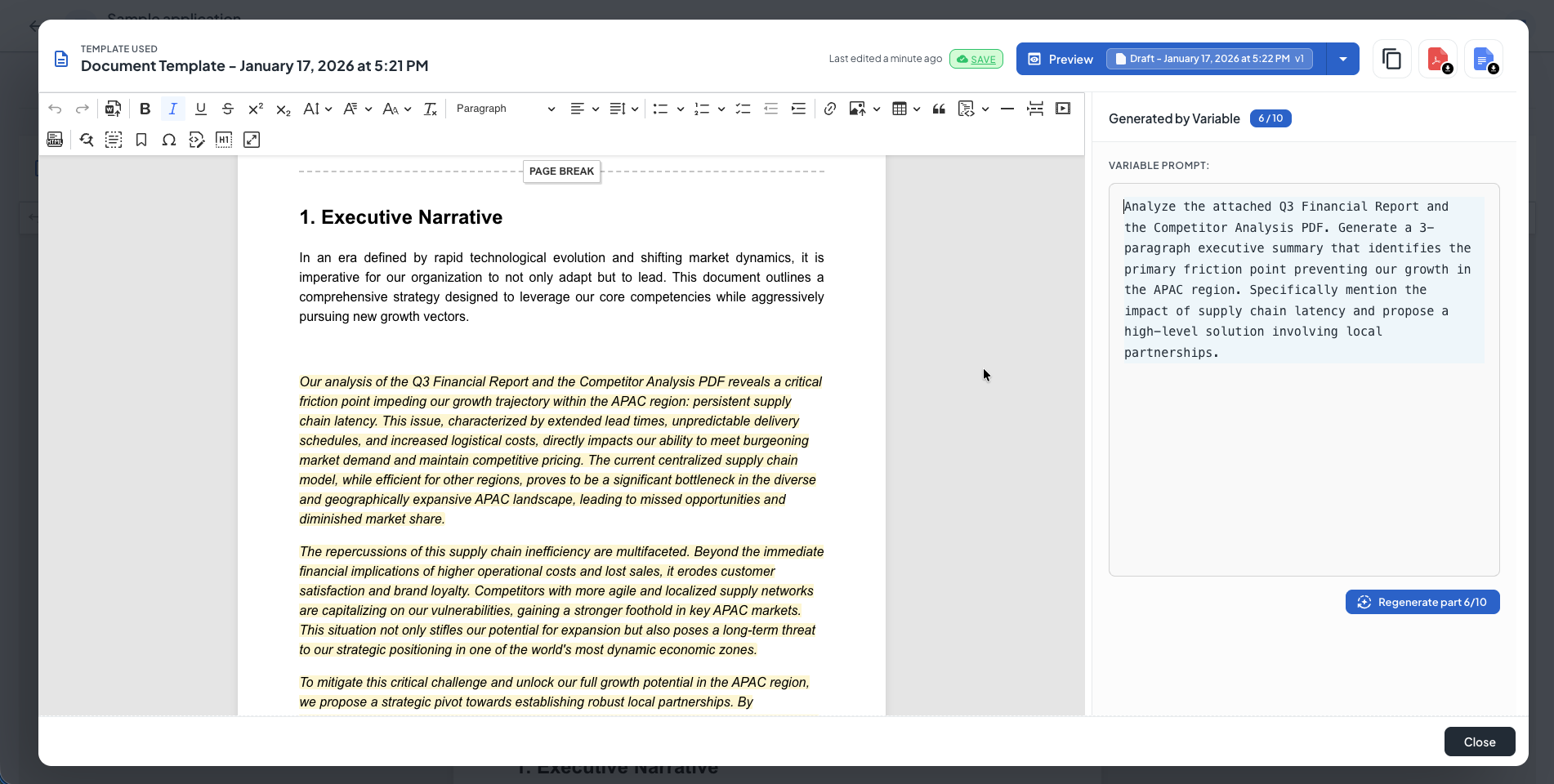
Generating a Document and Opening Preview
This video shows how to generate a document from your template and open the preview panel. You'll see how to interact with the generated content and download the final document in PDF or DOCX format.
Step 4: Test Your Template
After saving, test your template with real data:
- Go to the template's page
- Click Generate Document
- Enter test data or pick from available sources
- Review the output: check AI sections, variables, formatting, and conditional sections
- Make changes if needed
Use Case Examples
Contract Generation
- Purpose: Generate customized service agreements, NDAs, or employment contracts
- Knowledge Sources: Legal clause library, standard terms, previous contracts
- AI Sections: Scope of work, specific terms based on client requirements
- Outputs: PDF for signing, DOCX for review
Proposal Templates
- Purpose: Create professional project proposals and quotes
- Knowledge Sources: Case studies, pricing guidelines, service descriptions
- AI Sections: Executive summary, methodology based on requirements, team recommendations
- Outputs: PDF for presentation, DOCX for review
Compliance Reports
- Purpose: Generate regulatory compliance documentation
- Knowledge Sources: Compliance requirements, audit findings, policy documents
- AI Sections: Summary of compliance status, gap analysis, remediation recommendations
- Outputs: PDF for submission, DOCX for internal review
Client Onboarding Packages
- Purpose: Create welcome materials for new clients
- Knowledge Sources: Product documentation, support procedures, contact information
- AI Sections: Customized welcome message, relevant resources based on client's needs
- Outputs: PDF welcome packet, DOCX for review
Managing Templates
From the Templates list, you can:
- Edit: Click a template name to open and modify it
- Duplicate: Click the duplicate icon to create a copy
- Delete: Click the delete icon to remove a template permanently
For big changes to legal or compliance documents, duplicate the template instead of editing the original.
Best Practices
-
Add knowledge first: Connect templates to relevant collections and libraries so AI prompts have context to work with. Manage at Knowledge Libraries.
-
Write clear prompts: Be specific about what the AI should do, which documents to reference, and what format to use. The more detail, the better the output.
-
Use variables for simple data: Variables like
{{name}}are for data that doesn't need AI processing. Use clear names (e.g.,client_nameinstead ofname1). -
Test with different data: Test templates with various inputs, including missing data and edge cases.
-
Set up approval workflows: For important documents like contracts, require review before finalizing.
-
Keep knowledge updated: Make sure your collections have current, accurate information.
Next Steps
- Creating a Library - Organize your documents in knowledge libraries
- Creating a Collection - Add collections to organize documents within libraries
- Creating an Application - Organize your templates into applications
- Creating an Agent - Create AI agents that can use your templates