Datasets
Some questions need an exact answer, not a paragraph. "What were total sales in Q3?" "Which five customers are overdue?" "How many invoices are above 10,000?" Search can find the document, but it can't add up the rows. Datasets can.
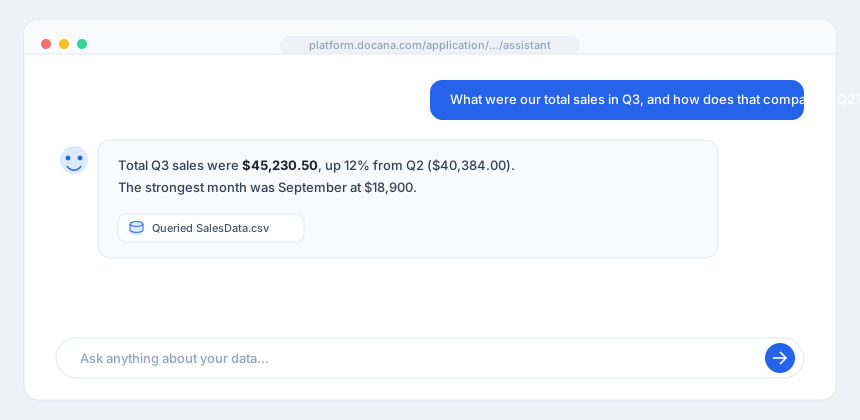
Upload a CSV and Docana turns it into a data table your agent can query. You ask in plain English, the agent writes the SQL behind the scenes, and you get the exact number back.
How It Works
There's nothing to set up. When you upload a CSV to a collection, Docana automatically treats it as a data table instead of plain text. It reads the file, works out the columns and their types, and makes the rows queryable.
From then on, any agent in that application can answer questions about the data. Ask "what was our average deal size last quarter?" and the agent looks at the table's columns, writes a query, runs it, and answers with the real figure.
The agent only ever reads your data. It can filter, sort, group, count, and add up rows, but it never changes them. Every answer comes from a real query against your file, so the numbers are exact and you can trust them.
Data Table or Knowledge?
Every file you upload is used in one of two ways:
- Knowledge: Docana reads the text and searches it by meaning. Right for documents you ask about in words, like "what does the contract say about termination?"
- Data table: Docana loads the rows and queries them with SQL. Right for spreadsheets you ask about in numbers, like "what's the total by region?"
CSVs become data tables by default, since that's almost always what you want from a spreadsheet. You can switch any file between the two from the collection's menu: Use as data table or Use as knowledge. A file marked as a data table shows a database icon.
Ask a Question
- Upload your CSV to a collection the application uses, or attach it directly to a chat
- Ask the assistant a question about the data, in plain English
- The agent finds the table, writes a query, and answers with the exact result
A few examples:
"What were our total sales in Q3?"
"List the top 10 customers by revenue."
"How many support tickets were opened last month, and how many are still open?"
If you upload more than one spreadsheet, the agent can combine them. Ask "which customers in the sales file are missing from the contacts file?" and it joins the two and answers.
What's Supported
- File type: CSV today. The columns and types are detected automatically, including which character separates the values (comma, semicolon, tab, or pipe), so exports from any system work.
- Size: large files are fine. Aggregations like totals and counts run across the whole table.
- Results: a single question returns up to 100 rows of detail by default. Summaries (totals, averages, counts) always run over everything.
Best Practices
- Use clear column headers: the agent reads your headers to understand the data, so "invoice_total" beats "col3".
- One subject per file: a clean "Invoices" file and a clean "Customers" file query and join better than one giant mixed sheet.
- Keep a data table a data table: if you want exact numbers, leave the file as a data table rather than switching it to knowledge.
- Ask for the calculation you want: "average," "total," "count of," and "by month" all translate directly into the query.
Next Steps
- Document Insights - Turn a pile of documents into a table you can query the same way
- Creating an Agent - Build an agent that answers data questions
- Connectors - Sync spreadsheets in automatically