Microsoft Teams
If your company runs on Microsoft Teams, your assistant should too. Docana connects through an Azure Bot registration: you create the bot in Azure, give Docana the credentials, and Teams messages flow to your agent.
Find it in your application: open Channels, then Teams.
Prerequisites
Access to the Azure Portal with permission to create an Azure Bot resource.
Step 1: Create an Azure Bot
- Sign in to the Azure Portal and create a new Azure Bot resource. This registers your bot with the Azure Bot Framework
- During creation, note the Microsoft App ID
- On the bot's Configuration page, create a new client secret. This is your App Password
Step 2: Find Your Tenant ID
In the Azure Portal, go to Microsoft Entra ID (formerly Azure Active Directory) and open Overview. The Tenant ID is displayed there.
Step 3: Connect It to Docana
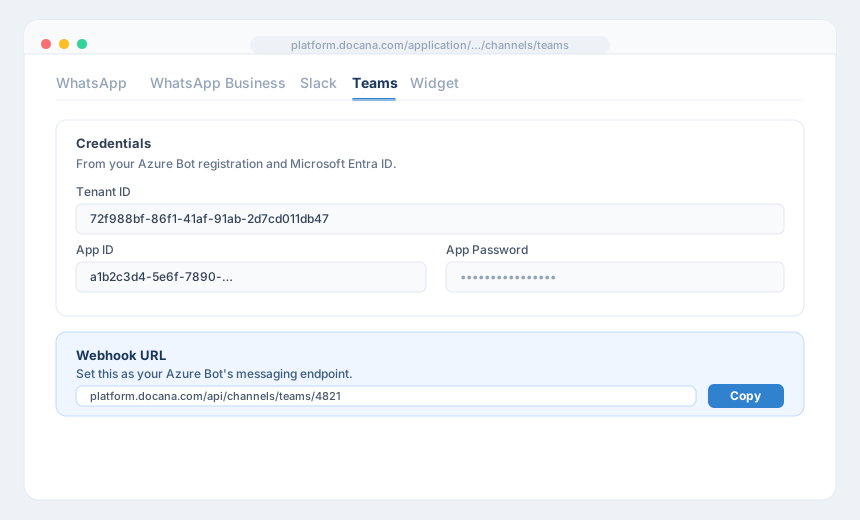
- In Docana, open Channels, then Teams
- Paste the App ID, App Password, and Tenant ID into the Connection and Credentials sections, and save
- Set your Azure Bot's messaging endpoint to the Webhook URL Docana shows you
Step 4: Enable the Teams Channel
In your Azure Bot's Channels page, click Microsoft Teams to enable it. This is the step that lets the bot send and receive Teams messages.
Now message the bot in Teams. Your assistant answers from your knowledge.
How Conversations Work
- Chat with the bot directly, or mention it in a channel it's been added to
- Agent routing in the channel settings decides whether the application assistant or a specific agent answers
Next Steps
- Slack - The same assistant for Slack-first teams
- Web Widget - Put it on your website too
- Conversation Insights - See what your team asks most