Applications
An application is the thing your users actually talk to. Everything else in Docana, your documents, your agents, your channels, comes together inside one. If a library is your filing cabinet, an application is the colleague who knows what's in it.
Each application is its own world. It sees only the knowledge you give it, runs the agents you build for it, and shows up on the channels you turn on. Your support bot and your contract analyzer can live side by side and never get in each other's way.
What's Inside an Application
- Knowledge: the collections it can read. An application only sees what you attach to it.
- Agents: one or more agents that decide how it answers and what it does.
- Members: who can use it, and who can change it.
- Channels: where it meets users, from a web widget to WhatsApp.
- Settings: instructions, environments, integrations, and more.
It Scopes Your Knowledge
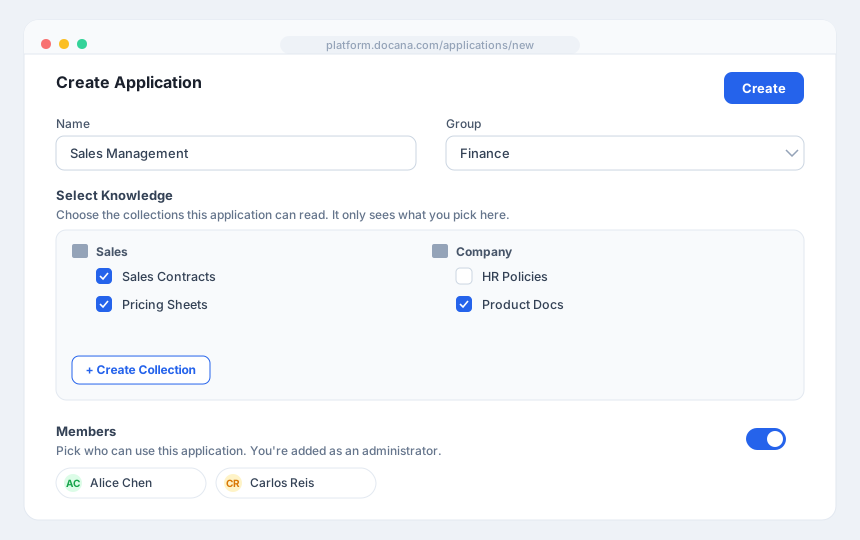
This is the part that makes applications powerful: an application reads only the collections you attach to it, nothing else.
That means a customer-facing assistant can answer from your public help docs while staying blind to internal HR files in the same company. You decide what each application knows.
You set this when you create the application, under Select Knowledge, and you can change it any time from the application's Knowledge settings. Docana also creates one collection automatically for each application, named after it, as a home for documents that belong to that application alone.
Choose a Type
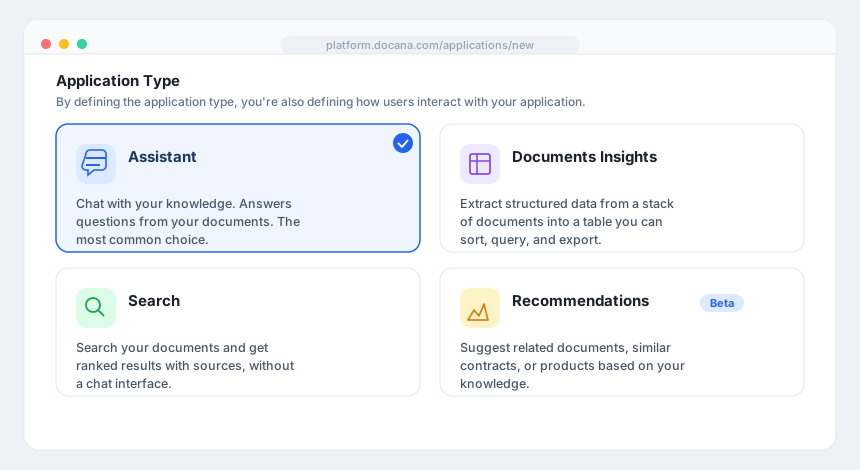
When you create an application, you pick a type. The type decides how people interact with it.
Assistant
A chat interface backed by your knowledge. People ask questions in plain language and your agents answer from your documents, with sources. This is the most common type, and the right one for support bots, internal help desks, and any "ask us anything" experience. Deploy it to a web widget, WhatsApp, Slack, or Teams.
Documents Insights
Turn a stack of documents into a structured table. You define the columns you want, point it at your documents, and it extracts every field into a grid you can sort, filter, and query. Right for comparing many documents at once, like pulling renewal dates from every contract. See Document Insights.
Search
A search interface over your documents. People type what they're looking for and get ranked results with sources, without a back-and-forth conversation. Right when discovery matters more than dialogue, like an internal knowledge portal. See Enterprise Search.
Recommendations
Recommendations is in beta.
Suggests related items from your knowledge: similar contracts, related documents, or products that fit. Right for "you might also want" experiences built on your own data.
Agents Work as a Team
An application can hold more than one agent, and they can work together. Instead of building one giant agent that does everything, you build a few focused ones and let them cooperate, the way a team splits up work.
There are two ways to connect them:
- Sub-agents: one agent hands a task to another and uses the result. Your main agent can call a "contract specialist" agent for the legal parts and a "pricing" agent for the numbers, then combine both. Each sub-agent stays focused on what it's good at.
- Coordinator: mark an agent as a Coordinator and it waits for the other agents to finish, then receives their results as context and makes the final call. It's the team lead that reads everyone's work and writes the summary.
Smaller, focused agents are easier to test and improve than one that tries to do everything. See Creating an Agent and Testing Agents.
Create One
- Go to Applications and click + Create Application
- Pick a type
- Give it a name, choose a group, and select the knowledge it can read
- Add members if you want, then click Create
For the full walkthrough, see Creating an Application.
Next Steps
- Creating an Application - The step-by-step version
- Creating an Agent - Build the agents inside your application
- Core Concepts - How applications fit with the other building blocks