Slack
Your team already asks questions in Slack. Put the answers there too. Connect your application to a Slack workspace and your assistant responds to mentions and direct messages, using your company's knowledge.
Find it in your application: open Channels, then Slack.
The Quick Way
- Open Channels, then Slack
- Click Add to Slack
- Authorize in the Slack window that opens. Docana sets up the OAuth permissions and scopes for you
When you're redirected back, the page shows "Connected to workspace" with your workspace name. Mention the bot in a channel or send it a direct message, and your assistant answers.
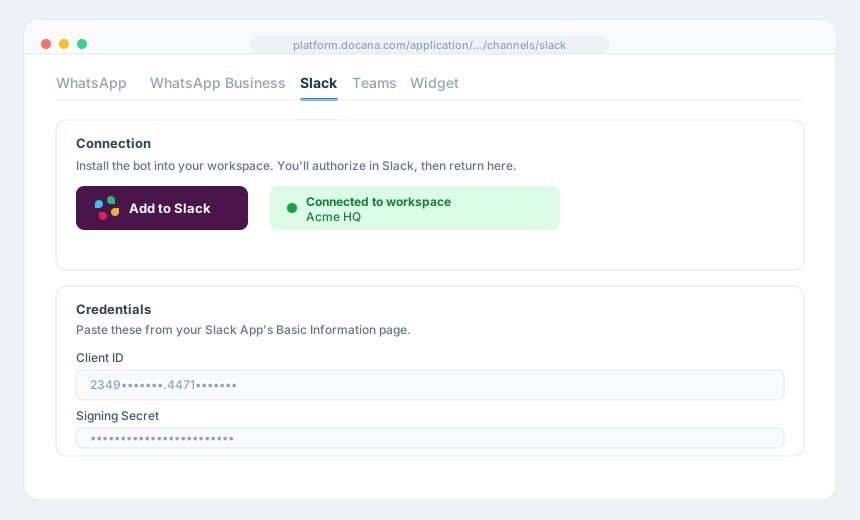
Using Your Own Slack App
If your company prefers its own bot (its own name, icon, and app listing), create one and hand Docana the credentials:
- Create a Slack App at api.slack.com. Choose "From scratch", name it, and pick your workspace
- From the app's Basic Information page, copy the Client ID, Client Secret, and Signing Secret into Docana's Credentials section, and save
- In Slack's Event Subscriptions, enable events and set the Request URL to the Webhook URL Docana shows you. Subscribe to the bot events listed on the setup page
- In OAuth & Permissions, verify the Bot Token Scopes Docana lists (like
app_mentions:read,chat:write,files:read). Most are added automatically when you subscribe to events - In App Home, enable the Messages Tab and allow users to send messages from it, so people can DM the bot
- Click Add to Slack in Docana to install it
observação
After changing scopes or events in Slack, reinstall the app to your workspace. Slack doesn't apply those changes to existing installs.
How Conversations Work
- Mention the bot in a channel and it replies in a thread
- Direct message the bot for private conversations
- Agent routing in the channel settings decides whether the application assistant or a specific agent answers
Next Steps
- Microsoft Teams - The same assistant for Teams-first companies
- Testing Agents - Make sure it answers well before the whole company finds it